Every person gets their own secure login and profile. You don't share accounts, and nobody signs up by themselves. By default, the admin, management, human resources and payroll roles can add people.
Adding people in the Civil Suite
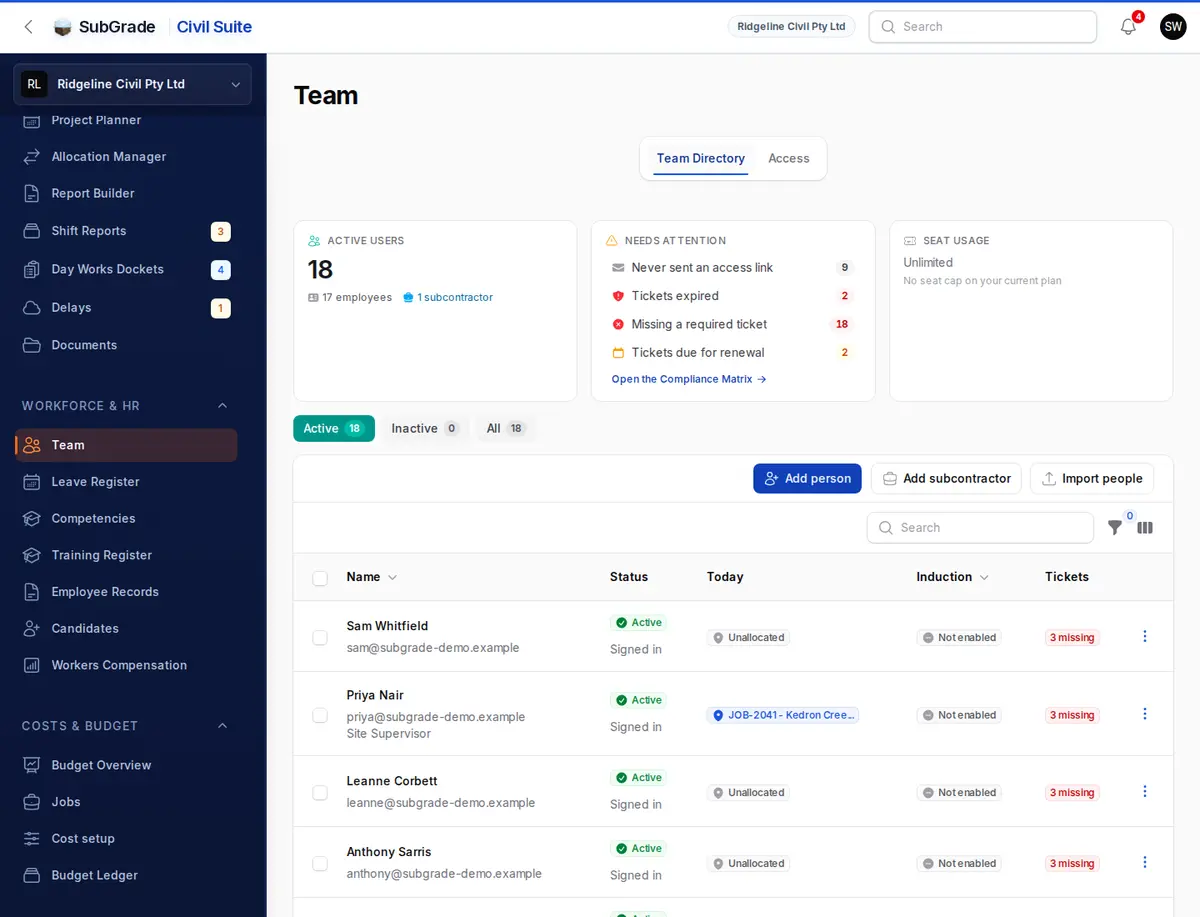
Go to Team under Workforce & HR.
- Press Add person, or Import people to bring in a list. Use Add subcontractor for a subcontracting business and its people.
- Enter their worker type, name and email, plus a role if you can assign roles.
- Leave Ask them to check their details when they first sign in on if you want them to confirm their details. It applies to employees.
- Leave Send access link now on, and press Add and send link. To send it later, turn that off and use Send access link on their row.
The link lets them choose a password. It's only sent when someone presses a button, so you control the timing. The Needs attention panel shows anyone who was never sent a link, or was invited and never signed in.
If the email already belongs to someone's own Subgrade account, you can't add it directly. Subgrade offers Send them a request to join instead.
Adding people in the Trade Pack and Tender Portal
Open Team under Account, go to the Invite People tab, and create an invitation with their email and roles. It lasts seven days and can be resent or cancelled.
First sign-in checks and inductions
In the Civil Suite, a new employee can be asked to complete a short form before using the app: their details, then your company induction if you have one. It saves as they go. They can't open other pages until it's finished.
Nobody has to approve the form. It's complete when they submit it. To require an induction, turn on Company induction on the Onboarding tab of Civil Suite Settings and choose a published training module.
The form doesn't collect tickets or licences, so ask people to upload those in My Qualifications. Subcontractors skip this form. The first sign-in form doesn't apply in the Trade Pack or Tender Portal.
How seats are used
A seat is one active member with paid access. Open invitations count too, except for subcontractors.
- Subcontractors are free. They don't take a seat.
- Inactive people don't take a seat. When someone leaves, use Finish up on their row.
- At your plan's limit, you're either refused or charged for an extra seat, depending on the plan.
- Taking someone off doesn't lower the bill straight away. The reduction applies from renewal, and you can reuse the seat until then.
- The Team page warns you as you get close to your seat limit.
See Billing for your plan, and People for the full Team page.