Your workspace's library of company-wide policy documents, as uploaded PDFs or links to an external source like SharePoint, organised by category with a review date and a preview.
Who can use it — Anyone with the View Company Policies permission can open the list and read a policy. Adding, editing, replacing or deleting needs Manage Company Policies. See Roles & Permissions for how access is set.
Where to find it — Safety & Compliance → Company Policies in the sidebar. The page heading itself reads Compliance Documents; it's the same page.
How to use it
The list shows each policy's Title, Category, Version, Review by and Last updated. A Status column appears once any policy is inactive. Review dates turn amber within 30 days and red once they've passed.
Tabs filter the list: All Policies, Active, Review due, Inactive, Vehicle Policy, Safety Policy, Register, Quality Policy and External Links. Filters cover type, category (including Environment and HR), active status, and Used in training.
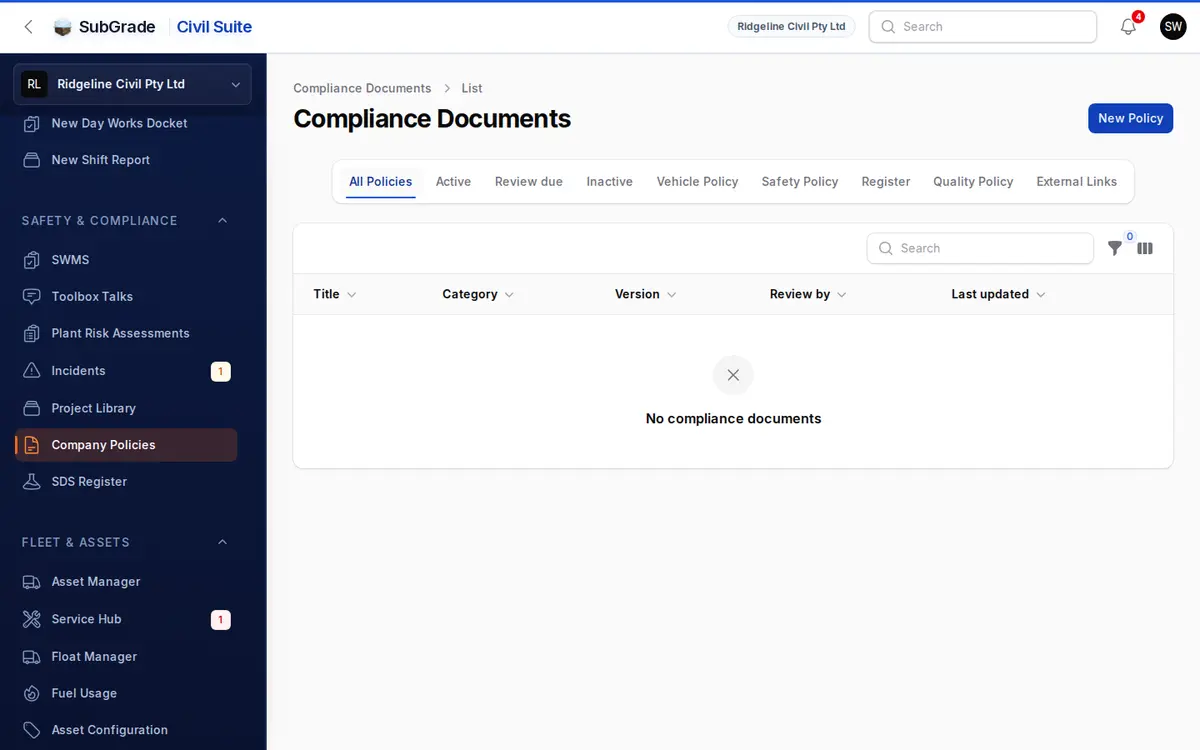
- New Policy opens the create form.
- If you can only read policies, tap a row to open the document in a new tab.
- If you manage policies, click a row or View to see its details and preview, or Edit to change it. View document opens the file or link in a new tab. Links to uploaded files expire after a short time.
Adding or editing a policy
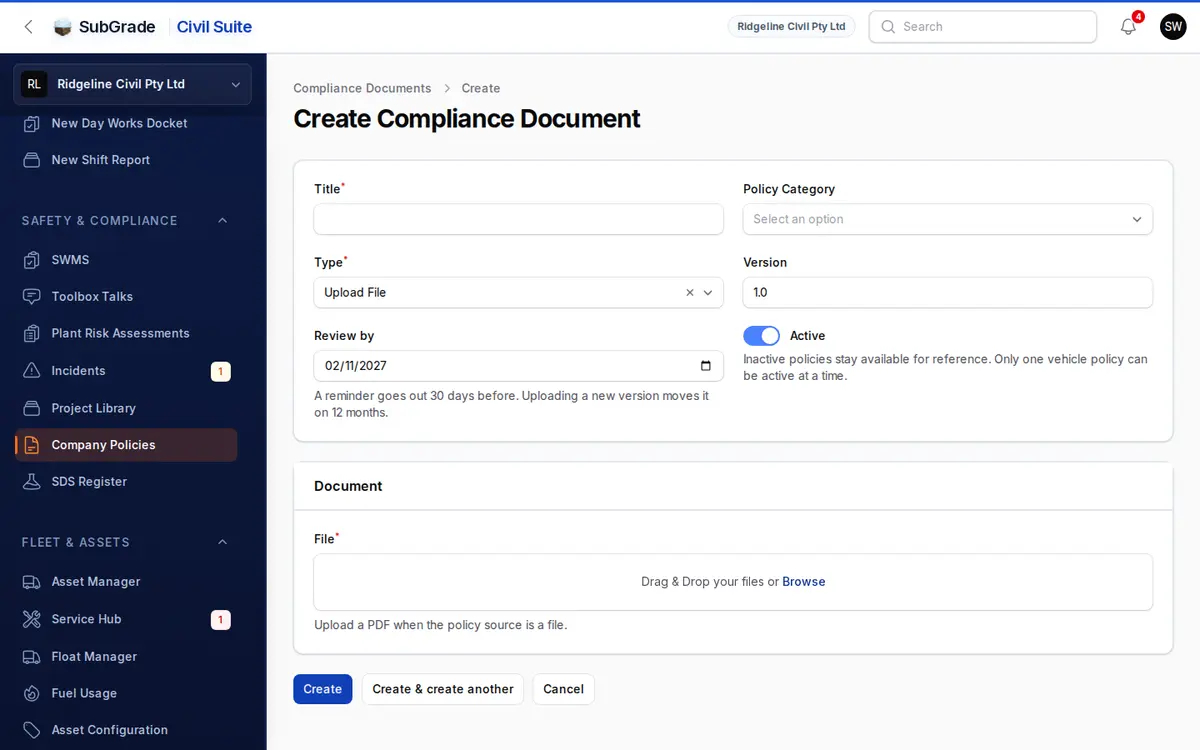
- Title (required).
- Policy Category — Safety Policy, Environment Policy, Quality Policy, HR Policy, Register, Vehicle Policy, or Other.
- Type — Upload File or External Link.
- Version — a free-text label,
1.0by default. - Review by — defaults to 12 months away.
- Active — on by default. Inactive policies stay available for reference, but can't be added to new training.
- Document — a File (PDF only, up to 20 MB, stored privately) or an External link (only
https://addresses).
On an existing policy, the Document section shows a preview. PDFs show in a viewer, and external links get an Open in new tab button. It also shows whether any training module uses the policy.
Review dates
A reminder goes out once, 30 days before the Review by date, and the policy appears on the Review due tab until the date moves on. The reminder goes to whoever is set up for it in Notification Manager, or to workspace admins if nobody is.
Uploading a new version moves Review by on 12 months. For an external link, or a policy you've reviewed without changing, edit the date yourself.
Uploading a new version
To replace a file, use Upload new version in the Document section (file policies only). It shows which training modules use the document, then asks for the replacement PDF file and a New version label. Replace current version takes effect immediately, so anyone viewing the policy, including learners in a training module, sees the new content on their next load. SubGrade only tracks the current label and file; there's no version history to browse.
Categories and where policies are used
- Vehicle Policy is special: only one can be Active at a time, and activating one deactivates the other. It's the document drivers sign at vehicle handover and return.
- Any active policy can be embedded as a PDF block in a Training Modules module. The Used in training filter shows which ones are.
- A policy used by a training module can't be deleted until it's removed from that module.
Vehicle policy sign-on
Vehicle policies have their own workflow, separate from training. A signature is requested from a vehicle's profile when it's handed over or returned, against the active vehicle policy. The driver signs from My Qualifications → Vehicle Policies, with odometer, rego, notes, signature and photos. See My Qualifications and My Vehicle.
Connected pages
- My Qualifications — where drivers sign handover and return acknowledgements against the active vehicle policy.
- Training Modules — where policies can be embedded in a module.
- SDS Register — the equivalent register for chemical safety data sheets.
- Project Library — project-level documents, separate from this company-wide register.
- People — where the policy permissions are granted to a role.
Tips & common mistakes
- Saving a new vehicle policy as Active switches the previous one to Inactive straight away.
- Can't delete a policy? It's still used by a training module. Check the Used in training filter, and remove it there first.
- Replacing a file is immediate. There's no draft step.
- Only PDFs upload. For anything hosted elsewhere, use External Link.
- Vehicle sign-off isn't done here. It happens on the driver's side in My Qualifications.