Publish a plant risk assessment (PRA) against a machine, keep it versioned as conditions change, and see who has signed the current version and who hasn't.
Who can use it — "View plant risk assessments" opens the page, and "sign plant risk assessments" lets you sign. Publishing needs "manage assets" permission, typically managers and asset administrators. See Roles & Permissions for how access is set.
Where to find it — Safety & Compliance → Plant Risk Assessments in the sidebar. A machine's assessments also appear on the Compliance tab of its profile in the Asset Manager.
How to use it
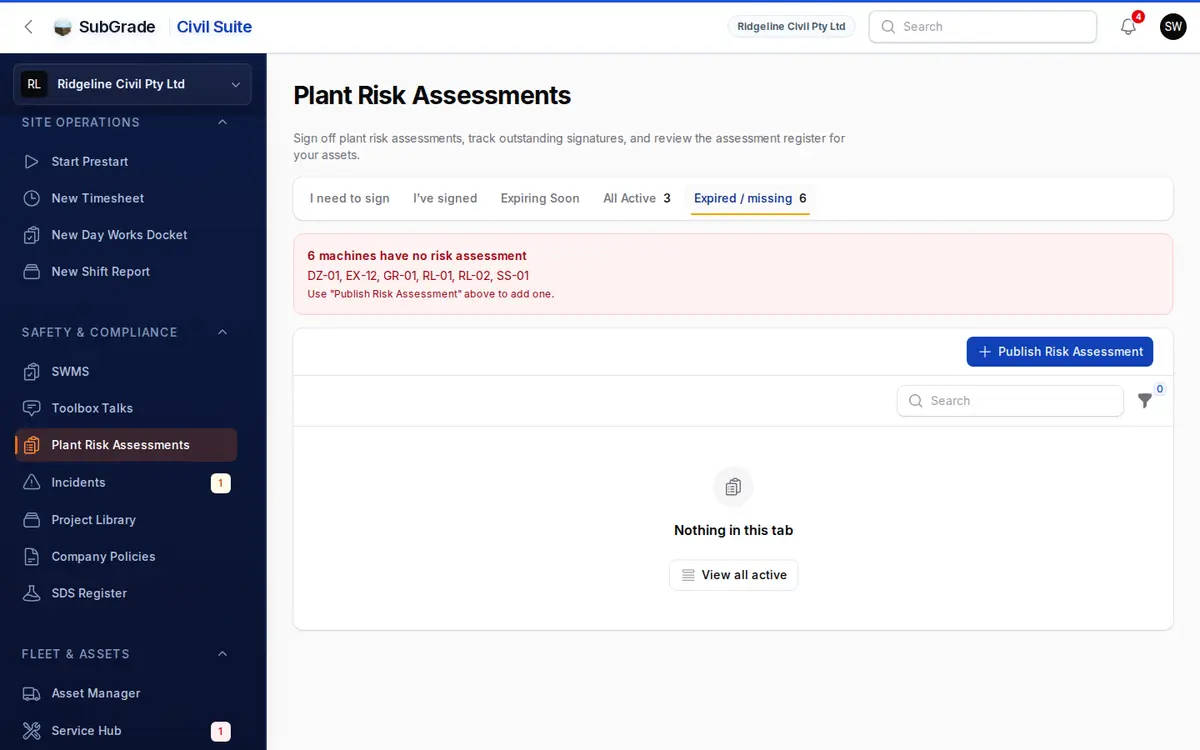
The page lists risk assessments for your machines. Attachments don't carry their own PRA. The tabs are:
- I need to sign — current assessments you haven't signed, on machines you've prestarted, operated or been allocated in the last 60 days. The rest of the fleet is under All Active.
- I've signed — current assessments you've signed.
- Expiring Soon — assessments expiring within 30 days.
- All Active — every assessment that hasn't expired.
- Expired / missing — publishers only. Expired assessments with a Publish replacement button, and a banner naming any machine with none. Publishers land here when anything needs fixing.
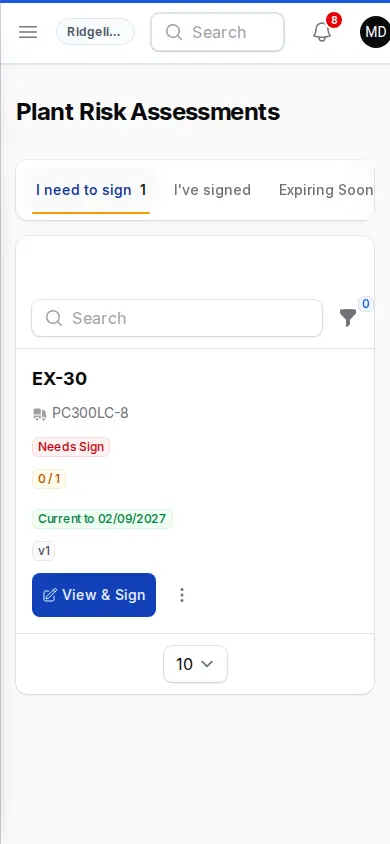
Each row shows the asset number and model, whether you have signed, a Coverage badge, the expiry and the version. Use the Asset and Expiry filters, or search by asset number or model.
Publishing a new version
Click Publish Risk Assessment above the table, or Publish replacement on a row:
- Machine — machines only.
- Version — pre-fills to one above the machine's highest version. You can change it.
- Risk Assessment PDF — PDF only, up to 20 MB.
- Published — defaults to today.
- Expires On — pre-fills from your workspace's review interval (24 months by default). Leave it blank if your company doesn't schedule reviews.
- Notes — optional.
Publishing deactivates every prior version for that machine, so a machine has one active PRA at a time. Everyone who has prestarted the machine recently (within your workspace's operator window, 90 days by default) is notified to sign the new version. The alert shows in the app; whether it also goes by email depends on your notification settings.
You can also use Upload Risk Assessment on the machine's Compliance tab in the Asset Manager. The same versioning rule applies, and an expiry date is required there.
Signing onto a version
If you haven't signed, the row shows View & Sign:
- Read the PDF, along with any expiry and notes.
- Check the Signing as name, which comes from your account.
- Draw your Signature.
- Turn on I have read and understood this risk assessment.
- Click Acknowledge & Sign.
Once you've signed, the row shows View, and View Signature under the ⋮ menu shows your name, the time and your signature. You can't sign an assessment that has expired or been replaced by a newer version.
Coverage and the sign-on register
The Coverage badge (for example "3 / 5") shows how many of the machine's recent operators have signed this version. It's worked out from prestarts within the operator window, so No operators means nobody has prestarted it lately. Sign-on Coverage under the ⋮ menu lists who has signed and who's outstanding.
View Register, also under ⋮, lists every signature recorded against that assessment. Export it as a PDF or CSV, or use Open full register for a long list.
Connected pages
- Start a Prestart — if a machine has a current assessment you haven't signed, the prestart shows Risk assessment sign-on required and is locked until you use View Risk Assessment and Sign Risk Assessment right there. If it has no current assessment, it shows No risk assessment on file, and you can still complete the prestart. Let a manager or safety lead know so one can be published.
- Asset Manager — where a machine's risk assessments sit alongside its other compliance documents.
- SWMS — the equivalent sign-on for project-level Safe Work Method Statements.
Tips & common mistakes
- A new version signs nobody automatically. Every operator has to open it and sign again, even if they signed the last one.
- Need to fix a typo or a date? SubGrade has no screen for editing a published version, so publish a new one. That asks operators to sign again.
- Low coverage blocks nothing. It's for supervisors. The only hard stop is at the prestart, for an operator who hasn't signed the current version.
- An expired assessment stops being a gate. Operators see No risk assessment on file and can still prestart, so keep an eye on Expired / missing.
- No expiry date is valid. Leave it blank for machines without scheduled reviews. It won't show as Expiring Soon.