The management side of the team's tickets, licences and VOCs: a matrix showing who holds what against what they need, a queue for approving what workers upload, and the setup behind it. SubGrade uses "tickets" and "competencies" for the same thing.
Who can use it — Anyone with "manage team" permission. Every tab uses the same permission, so there's no partial access. See Roles & Permissions for how access is set.
Where to find it — Workforce & HR → Competencies in the sidebar. It opens on the Compliance Matrix tab. A badge on the sidebar item shows how many tickets are waiting for you to approve.
Before you start — the matrix is only useful once you've set up:
- The Library of ticket types your crews need.
- Job Roles, with the people in each one and the tickets each role needs.
Until then, the matrix will show "Not required" for almost everything.
How to use it
The page has five tabs: Compliance Matrix, Pending Approvals, Renewals, Job Roles and Library. The tab counts show what's waiting.
Tickets don't stop anyone working. An expired or missing ticket blocks nothing, and the only warning is for machine operators on allocation. See Compliance & Expiry.
Compliance Matrix
A grid with people down the side and ticket types across the top, grouped by category. A Standing column sums up each person.
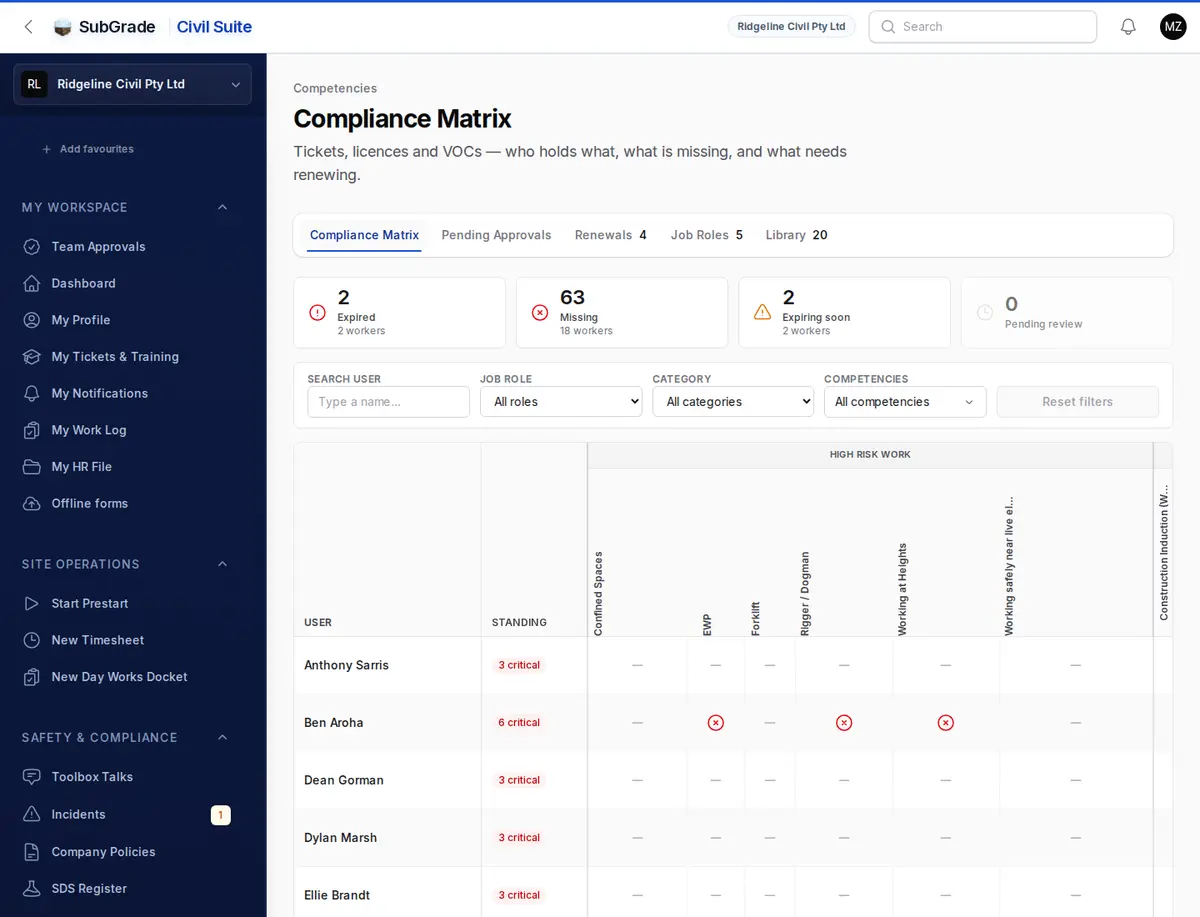
Each cell shows one of these:
- Valid — current.
- Expiring soon — inside its reminder period.
- Expired — past its expiry date. Tap it to renew.
- Pending review — uploaded and waiting on your approval.
- Missing — required but not held. Tap it to upload it for them.
- Not required — a dash.
Expiring soon cells can also be tapped to renew. A legend under the grid shows the icons, and a marked column is required for everyone. Hover over a cell for details, such as the expiry date. On a phone, the matrix becomes a list you expand per person.
- Tiles — Expired, Missing, Expiring soon and Pending review show the counts. Click one to filter the grid to it.
- Filters — search by name, or narrow to a Job Role, Category or specific Competencies. Reset filters clears them.
- Uploading for someone — clicking a Missing cell opens Upload/Assign Competency. Enter the card number, reference or registration, issuing authority, issued date, expiry date (Use usual expiry, +6m, +1y or +2y will fill it in) and the document. What you add here is approved as you save it.
Pending Approvals
Every ticket waiting for approval, across the team. Workers' uploads land here from their My Qualifications page.
- Columns: Worker, Ticket, Issuing Authority, Issued, Expiry and how long it's been Waiting.
- View opens the full details and attachments.
- Approve confirms it. Reject needs a Rejection Reason, which the worker sees on their card.
- Approve Selected approves several at once.
- Delete is also available on each row.
- If one upload covers several ticket types, approving or rejecting it applies to all of them.
Workers aren't sent a notification when you approve or reject. They see the result on their card, so tell them if a rejection needs quick action. You don't get an alert for new uploads either: watch the sidebar badge or Tickets to approve on the Team page.
Renewals
Tickets that have expired or are inside their reminder period, with one row per person per ticket type, for active people only.
- Expiry is colour-coded, and each row shows how far overdue or how soon it's due. Filter by Overdue or Due Soon.
- View opens the details.
- Renew lets you upload the new card with its new dates. You're approving it as you save it, so it counts straight away.
A worker can renew their own ticket by uploading the new card, and that goes to Pending Approvals.
Job Roles
Define what your crews do and which tickets each role needs. This is different from access roles, which are on the Team page.
- Job role — the name.
- People in this role — who does this job.
- Tickets this role needs — everyone in the role must hold these. Tickets marked Required for everyone apply anyway, so there's no need to tick them.
- Notes.
Library
The list of ticket types, and the rules for each one:
- Name and Category — Inductions, Licenses, High Risk Work, Plant Competencies, Safety & Training, or Other.
- Required for everyone — every active worker must hold it, whatever their job role. Leave it off for tickets only some roles need.
- Has an expiry date.
- Usually lasts (months) — fills in the expiry from the issue date when someone uploads a card.
- Remind before expiry (days) — when it shows as due for renewal and the first reminder goes. Leave blank for 30.
- Has a card number.
- Personal document — for ID, police checks and health records. These are left out of the employee export pack unless someone chooses to include them.
- Note for workers uploading it — shown on the upload form, such as "Photo the front and back of the card."
- Needs a photo or document, Only these file types and Largest file (KB) — upload rules. Leave the file types blank for any photo or PDF.
Connected pages
- My Qualifications — the worker side, where tickets are uploaded and where approvals, rejections and expiry show up.
- Compliance & Expiry — what an expiry does, and who gets told.
- People — the Team page, with its Needs attention list and the Compliance tab on each profile.
- Training Register — the matching record for training and inductions.
Tips & common mistakes
- Everything shows Not required? Check the job role has Tickets this role needs ticked and the right people in it.
- Approved a card by mistake? There's no un-approve on this page. Renew it with the right details, or ask the worker to upload it again.
- One upload, several tickets — approving or rejecting any one linked entry actions all of them together.
- Renewing or uploading for someone skips approval. Check the card before you save, because it counts straight away.
- Uploading from the matrix still follows the ticket type's rules, such as needing a card number or an expiry date.