Record a prestart safety check before an asset is used for the day: answer the checklist, deal with any open defects, read the meter, and log it against the job.
Who can use it — Anyone with "create prestarts" permission, which covers most roles. Seeing your past prestarts on My Work Log needs "view prestarts". See Roles & Permissions for how access is set.
Where to find it — Site Operations → Start Prestart in the sidebar, or Start Prestart on the Today card on your Dashboard. Submitted prestarts are collected on your My Work Log under the Prestarts tab.
Before you start — a prestart checklist must reach the asset, or you'll see "No checklist template is assigned to this asset." and can't submit. It comes from the asset itself, then its category, then your workspace's default prestart checklist. Templates are built in Checklist Templates and attached in Asset Configuration.
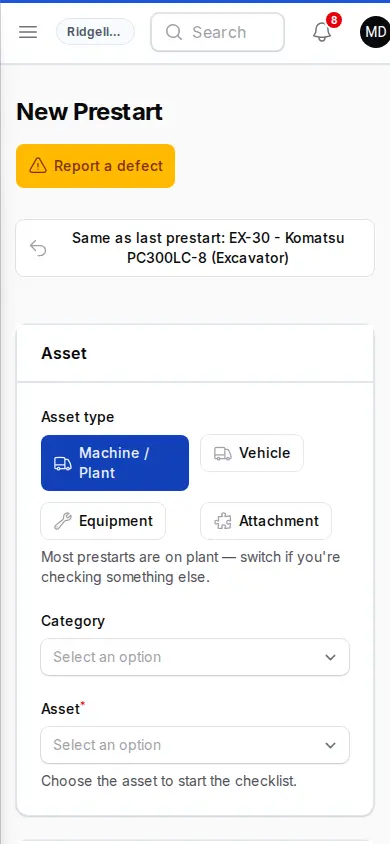
How to fill one out
- Reuse your last asset (optional). If you've done a prestart before, a Same as last prestart button at the top shows the asset. Tap it to load that asset.
- Pick the asset. Choose the Asset type: Machine / Plant (the default), Vehicle, Equipment or Attachment. Pick a Category to narrow the list if you like, then the Asset. You can search by asset number, make, model, rego or serial number.
- Check the list order. Before you search, the list leads with Assigned to you today, the machine named on your allocation for today. Next comes Your machines: ones you've prestarted in the last 30 days, or that are allocated to you or to the job you're on today. Everything else is under All. Choosing an asset loads its open defects, checklist and current job.
- Clear any notices that appear (see below). Most only warn you, but an unsigned risk assessment and a float booking must be dealt with before you can submit.
- Read the meter. Meter reading (hours or kilometres) starts blank on purpose, so read it off the machine. If it genuinely hasn't moved, use the Same as last link beside the field.
- Check the job. Project fills in from where the asset is allocated today. Change it if that's wrong. Not on a job? Turn on Other / one-off and enter a Location / address. That is recorded for this prestart only and doesn't change the allocation.
- Work through the checklist under Questions. A progress chip shows how many are left. Every Pass / Fail and Yes / No / N/A question must be answered. Pass the rest marks a section's remaining items as passed.
- Add comments if needed.
- Submit. The bar at the bottom shows what's still needed, such as "Pick an asset to start", "3 questions left" or "Ready to submit". Press Submit Prestart.
Defects: old and new
The Defects section is where prestarts feed the maintenance loop.
- Existing open defects are listed automatically. Each one starts as Still broken. Change it to Marked fixed if it has been fixed, and say how, so a manager can verify it.
- New damage? Turn on Spotted new damage to report? to add Damage details and an optional Damage photo. Use this for damage the checklist doesn't cover.
- Failed checklist items. A failed critical item must be described in a few words, and always becomes a defect. A failed item that isn't critical becomes a defect only if you turn on Create defect report under it.
Defects land in the Service Hub. A prestart with a failed critical item, or a critical defect left as Still broken, is recorded as not safe. It still saves. Talk to your supervisor before using the asset.
Report a defect, no prestart needed
Something broke mid-shift? Press Report a defect at the top of the page. You don't need to do a checklist.
- Choose the Asset type and Asset. Any faults already open show under Already reported?, so you can avoid reporting one twice.
- Fill in What's wrong? and choose How bad is it?: Minor, Needs attention, or Critical — unsafe to use.
- Add a Meter reading and Photo if you have them, then press Log defect.
The defect goes straight to the workshop list. If the same wording is already open, its report count goes up rather than adding a duplicate. People who look after servicing also see Take this asset out of service now, which grounds the asset. Grounding warns people. It doesn't stop anyone booking the asset or doing a prestart on it, and only a person can end it.
Notices that can appear
Risk assessment sign-on. If the asset has a current risk assessment you haven't signed, a red Risk assessment sign-on required panel appears and the prestart is locked. Use View Risk Assessment, then Sign Risk Assessment. If a new version is published, you sign again. If there's no current assessment at all, an amber No risk assessment on file panel appears, and you can carry on. Let a manager know so one can be published in Plant Risk Assessments.
This asset is grounded. Check with your supervisor before using it. You can still record the prestart.
Float Transport Notice. If the machine is booked on a float within the next 48 hours, the details appear and you must tick that you understand it may not be available. Bookings come from the Float Manager.
Check that meter reading. A reading far above what the machine could have done since it was last read asks you to confirm it. A reading below the recorded one is refused unless you turn on the correction option and say why. A correction winds the meter back and is recorded against your name.
Allocation check. If you pick a job that isn't where the asset is booked, this panel appears. If it really has moved, turn on the option saying so, set the Arrival date, and untick any attachments no longer on it. Nothing moves yet: this raises a move for approval in Team Approvals under Allocation changes. If you leave it off, the prestart still saves and managers are told the asset was reported on another job. Attachments don't get this check. A vehicle only does when it's booked to a different job.
Greasing. For machines that track greasing, a chip shows when it was last greased, and Machine greased today records it.
With no signal: the offline prestart
When there's no signal, use the offline form. Go to My Workspace → Offline forms and choose Prestart. You must open it once with signal on that device, and it then opens without any.
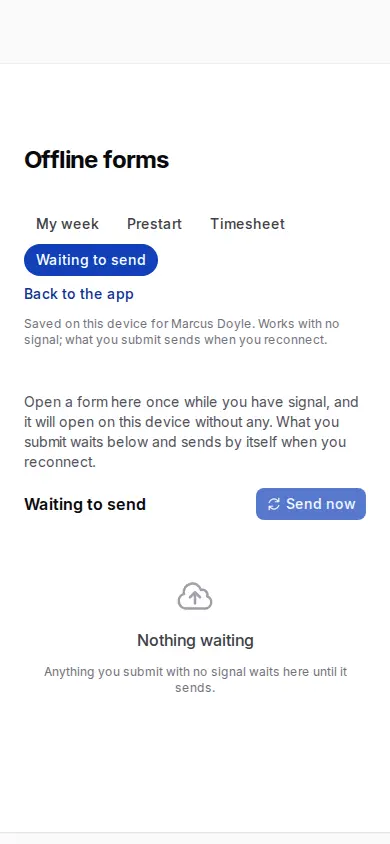
It is a reduced form, not a copy of the normal one. Do the full prestart when you can.
| Normal prestart | Offline prestart | |
|---|---|---|
| Asset list | By type, with Assigned to you today first | One list of all active assets |
| Checklist | The one set for that asset | Your workspace's newest prestart checklist, the same for every asset |
| Question types | All | Pass / Fail, Check, headings and information only. Others show as "complete in online form after sync" and are sent blank |
| Answering | Every question must be answered | Only Asset and Shift date are required |
| Job | Project picker | Free-text Location only, so no allocation check |
| Meter | Warns on odd readings | No checks. A reading below the recorded one is saved on the prestart but doesn't change the machine's meter |
| Safe or not | Worked out from your answers and defects | Your own Machine is safe to operate tick, which is on by default. A failed item doesn't change it |
Not on the offline form at all: Report a defect, the list of open defects, new damage and photos, risk assessment sign-on, the grounded and float notices, and Same as last prestart. A risk assessment you haven't signed doesn't stop an offline prestart.
Defects offline: only a failed critical Pass / Fail item raises a defect, once the form sends. Other failed items don't. Writing a defect in Comments doesn't raise one, so report it on the normal page or with Report a defect when you have signal.
The offline form also asks for End meter, Hours worked and Litres consumed, which the normal form doesn't.
Sending. Everything you submit waits on the device and sends by itself when you reconnect. Check it under Waiting to send on Offline forms, which has Send now, Edit and Delete, and marks anything that Needs you. On a shared phone, a form only sends when the person who filled it in is signed in.
What happens after you submit
- The prestart is saved and you're taken to My Work Log → Prestarts.
- The asset's reading is updated, which can flag it as due for service in the Service Hub.
- Defect changes are applied and any new damage is logged.
- If you confirmed a move, it waits for approval.
Connected pages
- My Work Log — your submitted prestarts (Prestarts tab).
- Service Hub — where defects and service status land for follow-up.
- Plant Risk Assessments — the risk assessments you sign onto here.
- Team Approvals — where moves flagged from a prestart are approved.
- Checklist Templates and Asset Configuration — where the checklist comes from and how it's attached.
Tips & common mistakes
- "No checklist template for this asset" can't be fixed on the spot. A manager attaches one in Asset Configuration.
- Meter reading rejected? Check you're reading hours or kilometres correctly. If the recorded figure is the wrong one, use the correction option and say why.
- Critical item failed and you can't submit? Describe the fault in a few words, and the block clears.
- Wrong job on the machine? Use the allocation check so the move is approved properly and attachments stay paired.
- Offline, and the machine is unsafe? Untick Machine is safe to operate, and tell your supervisor directly. The form can't raise a defect from a comment.