Send a message to part or all of your workforce: a subject and formatted message, delivered in the app and, if you choose, by email and SMS. Use it for site-wide notices, project updates, or anything a normal alert doesn't cover.
Who can use it — Anyone with "manage broadcasts" permission, typically senior managers. Receiving a broadcast needs no permission. See Roles & Permissions for how access is set.
Where to find it — Administration → Broadcasts in the sidebar. The list has All, Drafts, Scheduled and Sent tabs. Works Reports sent from the planning pages also appear here, marked in the Source column.
How to use it
- Press New broadcast, then fill in the sections below.
- Press Create. You land on the edit page, where you can keep adjusting it.
- Use Send test to me to preview it across the channels you picked.
- Press Send now, or Schedule if you set a future time. You'll be asked to confirm, with the recipient count, channels and SMS units.
- You're taken to the broadcast's page, where status and delivery counts update as it sends.
Only Draft and Scheduled broadcasts can be edited or sent. Once a send has started, the message is locked.
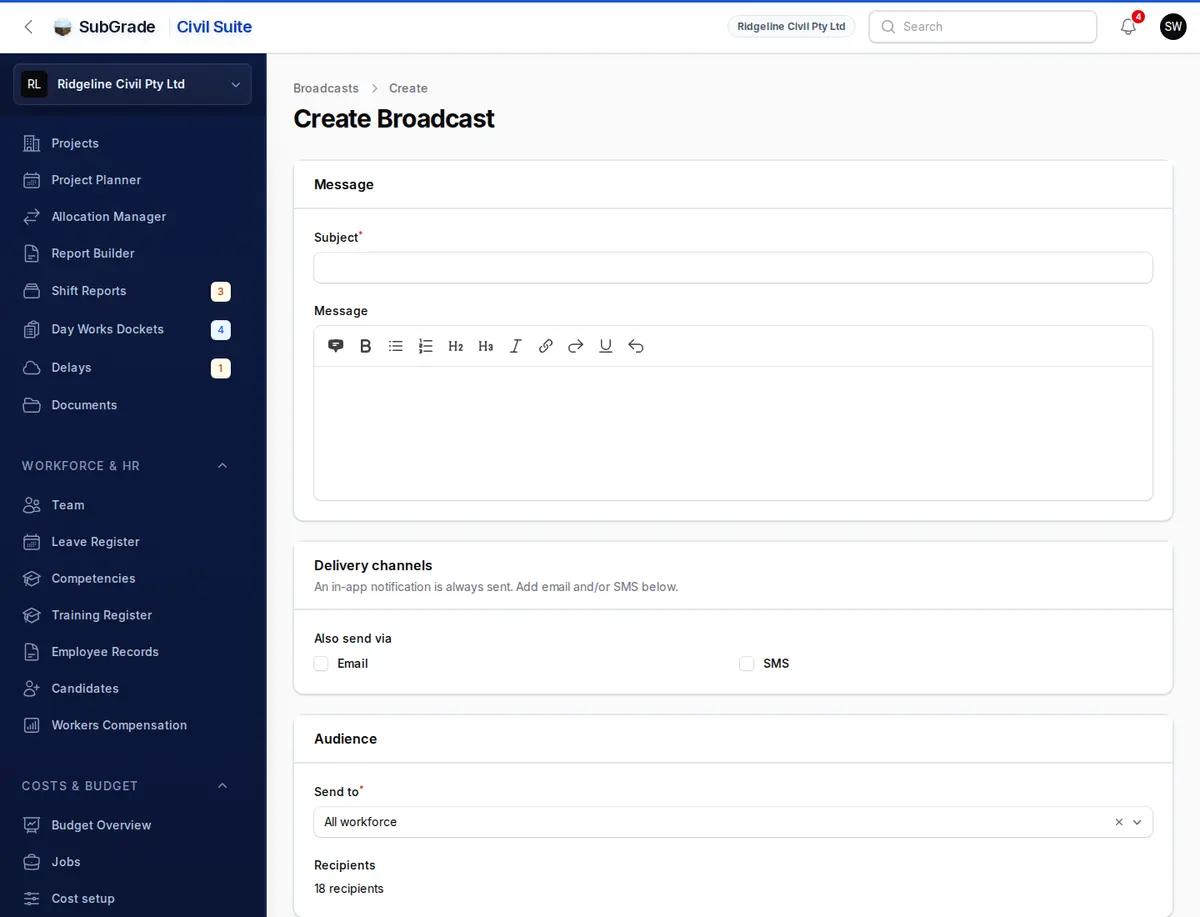
Composing the message
- Subject is required and shows as the notification title.
- Message is a formatted text editor with bold, italic, underline, headings, lists, quotes and links. Files go under Attachments.
Delivery channels
An in-app notification is always sent to your own people. Under Also send via you can add:
- Email — to anyone with an email address on file.
- SMS — to anyone with a phone number on file.
These go out even if a person has email turned off for routine alerts, because a broadcast is a deliberate message from a manager. External contacts have no in-app inbox, so they need Email or SMS.
Choosing the audience
Send to controls who receives it:
- All workforce — every active member of the workspace.
- By role — one or more roles.
- By job position — one or more job positions.
- By worker type — Employees, Subcontractors or both.
- By project — people on the chosen project(s).
- Specific people — pick individuals.
- External contacts — from your workspace's contacts.
- Custom mix — several of the above together.
A live Recipients count updates as you change the audience. Only active members are ever included.
SMS message
If you tick SMS, an SMS message section appears. SMS is a short nudge, not the full message: it doesn't carry your message or attachments.
- Leave SMS text blank to use a short message made from the Subject, or type your own, up to 640 characters.
- Estimated cost shows the SMS units against your remaining credits. If you're over, the excess SMS deliveries are skipped. SMS uses the same pool as SMS Usage.
Attachments
Recipients open attachments from the in-app message. Emails include small files and link the rest.
- Upload files — up to 10 files (PDF, JPEG, PNG or WebP, 10 MB each).
- Company documents — from your compliance document library.
- Project documents — searchable by name.
Scheduling
Leave Schedule for blank to send when you press Send now. Set a future date and time and the button becomes Schedule once saved. It sends by itself when that time arrives.
Delivery history & status
The broadcast's page shows its Status (Draft, Scheduled, Queued, Sending, Sent, Partially failed, Failed or Cancelled), channels, who created it, and totals for Recipients, Sent, Failed and Skipped.
- The recipients list shows each person's channels and status, with a reason for anyone skipped.
- Resend failed re-queues failed deliveries on a Sent or Partially failed broadcast.
- Cancel is available while a broadcast is Scheduled, Queued or Sending. Batches already going out may still finish, and the rest are stopped.
To remove a broadcast, select it in the list and delete it. Deleted broadcasts are kept behind the scenes as a record. Anything that started sending can't be permanently removed.
Connected pages
- My Notifications — where recipients see the broadcast.
- Notification Manager — sets up automatic alerts, separate from broadcasts.
- SMS Usage — the credit pool SMS broadcasts draw from.
Tips & common mistakes
- "No recipients" on send means your audience matches no active people. Widen it and try again.
- SMS text is separate from your message. Left blank, people get a short line from the Subject only.
- Going over your SMS quota doesn't block the send. The excess SMS is skipped, and in-app and email still go.
- Once sending starts, you can't edit it. Use Send test to me first. A test with SMS ticked sends you a real text.
- No email or phone on file? Your own people still get the in-app notification. Only that leg is skipped.