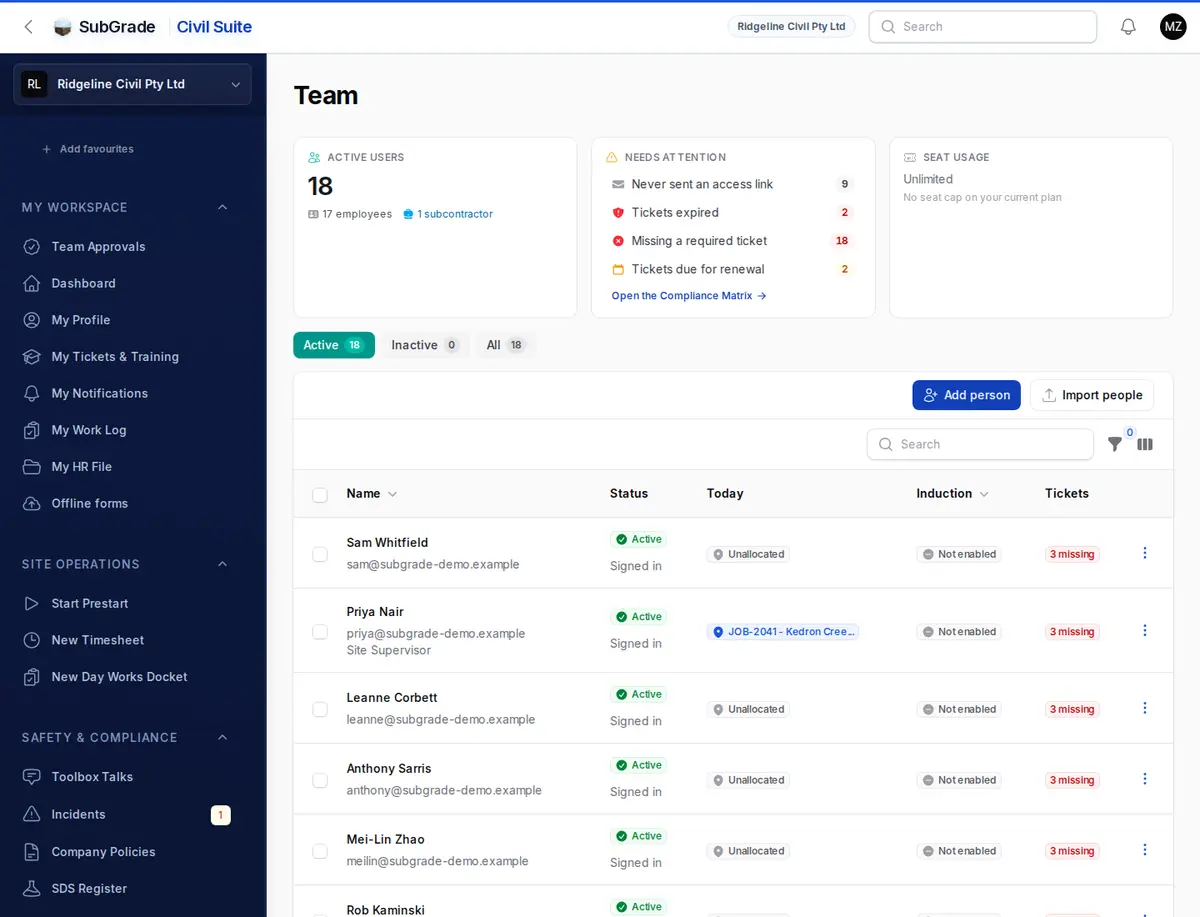
The Team page is the home base for your workforce. It shows everyone in the workspace, who needs chasing, and what each person can do in SubGrade.
Who can use it — The Team Directory tab needs "manage team" permission. The Access tab needs one of the role permissions (view, create, update or delete roles). Changing a person's roles or their individual access needs "update roles". See Roles & Permissions for how access is decided.
Where to find it — Workforce & HR → Team in the Civil Suite sidebar. In the Trade and Tender suites it is under Account → Team.
How to use it
Team has up to two tabs in the Civil Suite, and you only see the ones you have access to:
- Team Directory — everyone in the workspace, with what needs attention.
- Access — the access roles your workspace uses, including custom ones.
Two words are easy to mix up:
- An access role decides what someone can open and do in SubGrade.
- A job role is what they do on site, such as Excavator Operator. It decides which tickets they need. Job roles are set up in Competencies.
Team Directory
Three cards sit at the top:
- Active Users — the total, split into employees and subcontractors.
- Needs attention — who has never been sent an access link, who was invited but never signed in, who has onboarding outstanding, and who has expired, missing or due tickets. Click a line to filter the list to those people. Tickets to approve opens Pending Approvals instead.
- Seat Usage — paid seats used against your plan, or "Unlimited" if your plan has no cap. Free members are shown separately and are not billed. If your plan allows extra seats, the card also shows how many you are paying for and what they cost.
Use Active, Inactive and All above the table to change the list. If Subgrade support has been switched on for your workspace, a separate Subgrade support list appears. Support is never billed and doesn't take a seat, and you can switch it off from its row menu.
The table shows each person's Name, Status, Today (their allocation today), Induction and Tickets. More columns are available from the column button, including Access, Job roles, Worker type, Allocations, Payroll and Supplier. You can filter by job role, worker type, supplier, induction, tickets, and by people who have never been sent an access link or have never signed in.
Adding people
Use the buttons above the table:
- Add person — a short form for one person: Worker type (Employee or Subcontractor), name and contact details, and the option to send their access link now. Full profile opens the longer form with what you have typed so far. They fill in the rest when they first sign in.
- Add subcontractor — adds a subcontracting business and its people in one go.
- Import people — add many people from a CSV. Download the template gives you the right columns. Nobody is emailed by an import, so send access links from Team when you are ready.
If the email belongs to someone who already has their own SubGrade account, you can't add them directly. Choose Send them a request to join. They sign in and accept, and until then they appear under Waiting to accept, where you can Resend or Cancel. People found by an import appear in a similar list so you can send their requests together.
If the person used to work for you, reactivate them from Inactive rather than adding them again.
Adding people past your paid seat limit may be refused or may add a billed extra seat, depending on your plan.
The row menu
The ⋮ menu on each row holds everything you can do for that person. View profile and Edit profile are at the top.
Work
- Record leave — log leave for them. See Leave Requests.
- Assign training — send them a training module.
Access
- Send access link — emails a link so they can set a password. The link lasts 72 hours by default, and only the newest link works.
- Send getting-started guide — emails a guide to the pages they can use.
- Change roles — set their access roles and job roles. A person can hold more than one access role, and their access is everything those roles grant, combined. You can't change your own, and the person must be active.
- Adjust access — tick or untick what this one person can do, starting from what their roles give them. The change applies to them only.
Settings
- Exclude from payroll / Include in payroll — for people paid outside SubGrade. It takes them off pay runs and per-person budget cost, and doesn't touch their access. Subcontractors don't have this option because they are never paid through a pay run.
- Hide from Allocation Manager / Show in Allocation Manager — for office staff who never get a site allocation.
Onboarding (where it applies to that person)
- Remind to finish onboarding, Mark exempt from onboarding (a reason is required) and Require re-induction (the reason is optional). See User Onboarding.
Membership
- Assign paid access / Withdraw paid access — shown if you can manage billing.
- Finish up, Reactivate and Remove from workspace — see below.
Bulk actions
Tick rows to send access links or getting-started guides, remind people to finish onboarding, hide or show them in the Allocation Manager, exclude or include them in payroll, or add or remove a job role.
Export onboarding pack downloads a ZIP with a folder for each selected person, holding the details you tick and their ticket evidence. Only approved tickets that haven't expired are included. Date of birth, emergency contacts, dietary requirements and medical conditions are off by default. Personal documents such as passports and police checks are left out unless you choose to include them.
Finishing up a leaver
Use Finish up when someone leaves. You enter their Last day (today at the latest), a Reason and an optional note for your team. The form shows what will happen to their bookings, approvals and seat before you confirm. If approvals are waiting on them, you choose who they go to.
Their access ends straight away. Their profile, timesheets and history stay, under Inactive. You can choose to email them that their access has ended. The email is neutral and never includes your reason or note.
Reactivate brings someone back. You can email them to say their access is back, and if they never set a password they get a fresh access link. Their pay stays ended, so assign a pay level again if they are back on the payroll. Their onboarding stays as it was.
Remove from workspace is only for someone added by mistake. It isn't offered or is refused for anyone with work recorded here, so use Finish up for them. You also can't remove yourself or the only person in the workspace.
The employee profile
View profile opens a page with these tabs:
- Overview — status, alerts and a setup checklist.
- Work — allocations, recent timesheets and leave.
- Compliance — tickets, training, onboarding and project inductions.
- HR — management notes, performance reviews, disciplinary notices and workers compensation claims.
- Pay — pay setup, for employees, if you can view compensation.
- Subcontract — supplier, rate cards, insurance and work logs, for subcontractors.
For reviews and notices, see Employee Records.
Access
Access lists the access roles in your workspace and lets you build your own when the standard set doesn't fit.
To create a role:
- Give it a Name. It can't reuse a standard role name or another custom role.
- Optionally pick existing roles under Start from existing roles to copy their permissions in.
- Choose its permissions.
A custom role can be edited at any time. It can be deleted only when nobody holds it. For the full picture, see Roles & Permissions.
Team in the Trade and Tender suites
Trade and Tender have a simpler list showing each member's name, access, status and when they were last seen. The row menu has the same Change roles, Adjust access, access link, Finish up, Reactivate and Remove from workspace actions.
These suites can also have an Invite People tab. You enter an email and choose roles and job roles. The link lasts 7 days, and you can resend it. Someone who already has a SubGrade account signs in to accept. If you can't see this tab, invitations aren't switched on for your workspace or you don't hold the invite permission. The Civil Suite doesn't use invitations: use Add person and Send access link.
Connected pages
- Roles & Permissions — how roles and permissions work across the app.
- User Onboarding — access links, seats and induction in more depth.
- Competencies — job roles and the tickets they need.
- Employee Records — performance reviews and disciplinary notices.
- Allocation Manager — where the Allocations setting takes effect.
- My Profile — the account each teammate manages for themselves.
Tips & common mistakes
- Can't change someone's roles? You need "update roles", the person must be active, and you can never change your own.
- Access tab missing? You don't hold a role permission. Ask a workspace admin.
- Looking for Invite People in the Civil Suite? It isn't there. Use Add person, then send the access link.
- Finish up or Remove? Finish up for anyone who has worked here. Remove is only for a mistake.
- Someone paid outside the app still showing in pay runs? Use Exclude from payroll rather than Finish up, which ends their access.