The Payroll Hub is payroll's single front door for a pay cycle. Approved timesheets collect into each cycle's pay run automatically; the Hub is where you see what is waiting, see who is covered, and get each run's quantities out to your payroll software. Subgrade exports quantities and never dollars: the dollars you see are its own estimate, for budgeting.
This page is the reference: what everything on the screen is and who can use it. If you just want to get this week's pay out, follow Completing a Pay Run instead and come back here when you need the detail.
Who can use it — You need "view payroll hub" permission just to open the page. Reviewing, finalising, exporting, holding pay, Mark as keyed in and Clear old runs need "manage pay runs". Dollars need "view pay level rates". Two destructive overrides — Unfinalise pay run and Void an Export (and voiding a keyed-in record) — need the separate, higher "override payroll" permission, so a payroll manager can run day-to-day work without holding the break-glass powers. No preset role includes it, not even admin, so nobody has these actions until it is added to a role. Settings needs "update tenant settings". See Roles & Permissions.
Where to find it — Payroll & Billing → Payroll Hub in the sidebar.
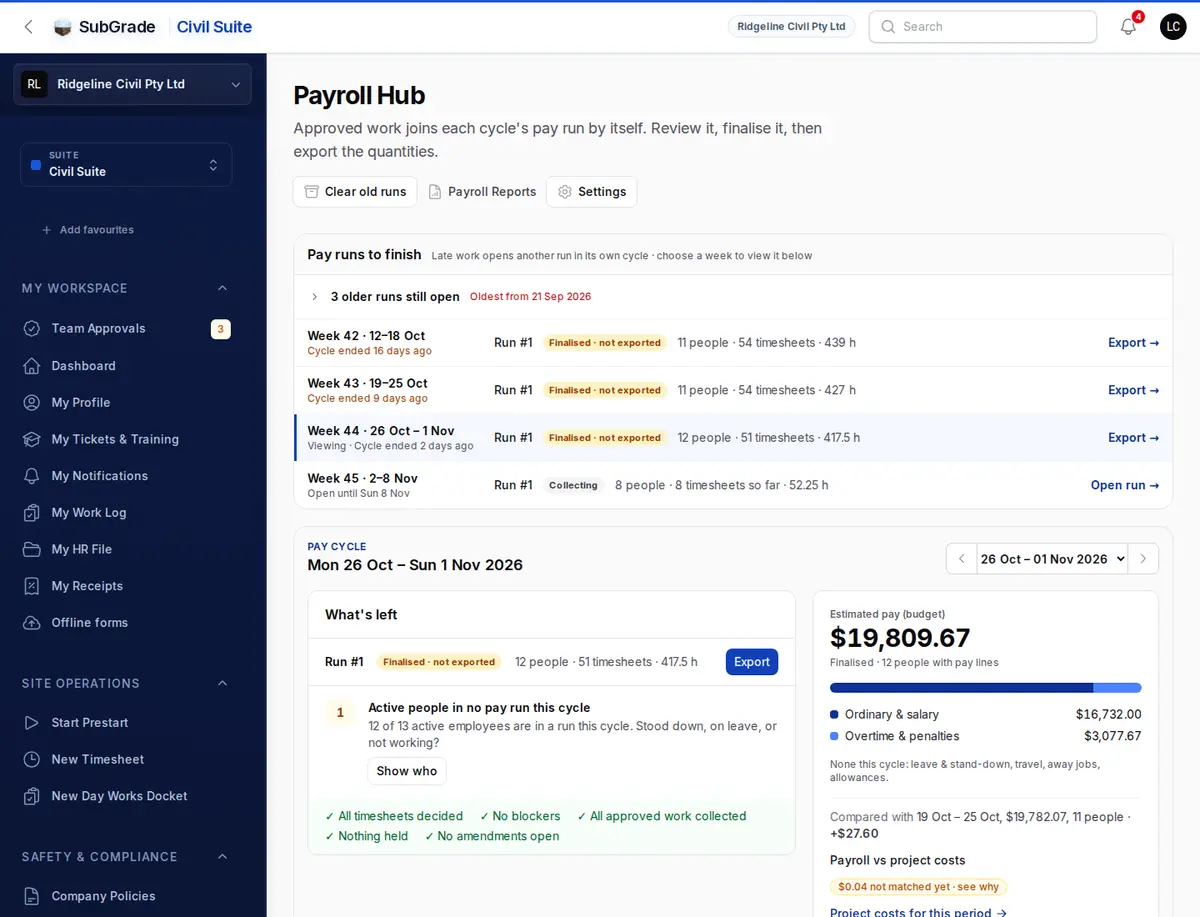
Before you start — the Hub looks at one pay cycle at a time, and opens on the latest cycle that has ended with work still to finish. Pick another with the Pay cycle switcher (arrows or the dropdown), or choose a week in the list. What's left, the estimate and the Exceptions, Timesheets and Coverage tabs follow that cycle. Pay runs to finish and the Pay runs tab cover every cycle.
How work reaches a pay run
Nobody creates a pay run or attaches timesheets to one — pay runs are always automatic. Your workspace started collecting with the pay cycle it was in when its pay cycle was first set; Settings › Pay cycle shows the date.
- The first approved timesheet in a cycle opens Run #1 for that cycle. Every approval after it — worked days, leave days and work-order days — joins the same run automatically, usually within the hour. An hourly sweep picks up anything missed.
- Salaried staff are paid for the period whether or not they file a timesheet, so the cycle gets a run for them too.
- Once a run is finalised, anything approved later for the same cycle opens the next numbered run (Run #2, marked late work). Payroll managers get one notification when that happens. A later run only pays what earlier runs did not.
- Future cycles are never opened early; their work waits until the cycle starts.
- A cycle with no run yet says what opens one — usually timesheets waiting for approval. Approve them and the run appears.
The overview
- Pay runs to finish — one row per run still to finish (draft, awaiting a second approval, or finalised but not exported), oldest first. Each shows its state, its people, timesheets and hours, and the next step. Late approvals add a Run #2 · late work row. Older weeks fold into one older runs still open line, so nothing unfinished disappears. Clear old runs at the top of the page deals with the ones nobody is going to finish.
- What's left — everything still open for the selected cycle, each with its count and the action that resolves it: timesheets waiting for a supervisor (Approve them goes to Team Approvals), blockers grouped by kind with their fix, approved work not yet in a run, active people in no pay run, held pay and open amendments. What is already done collapses into a line of ticks, and the main button opens the cycle's run.
- Estimated pay (budget) — Subgrade's estimate for the cycle (or Priced subtotal when a pay item has no rate), a bar splitting it into ordinary, overtime and penalties, leave and stand-down, travel and allowances, a comparison with the last finalised cycle, and Payroll vs project costs — open it to see where every dollar between payroll and project labour cost went. This is the one place the cycle's dollars show, and only to people who can see rates. Your payroll software works out the real pay.
Payroll Reports at the top of the Hub builds a report across one or more runs, as a PDF, Excel workbook or CSV. A draft can be reported on, but its figures are provisional.
Below that sit the work lists — the Hub opens on Exceptions when there are any:
- Exceptions — the full exceptions list for the cycle (see below).
- Timesheets — the cycle's timesheets (Approved, not in a pay run / Awaiting Approval / Not Approved / In a Pay Run / All). Row actions include Hold from pay, Release hold and Open pay run.
- Coverage — the cycle as one company week: a row per person, a column per day, hours across every run in the cycle. A gap only counts as missing if no run covers it, and a submitted day reads Waiting. Choose a day to open its run. Active employees in no run are listed underneath.
- Pay runs — every run, newest first, with Status and Pay cycle filters. A run you set aside stays here, marked Set aside.
- Before automatic pay runs — approved work dated before your workspace started automatic pay runs. It is never paid automatically; mark each day as processed externally, confirmed unpaid or unresolved.
Reviewing a pay run
Opening a pay run shows:
- The header — one button for the next step (Mark reviewed, then Finalise pay run, then approve or export), a Reports menu (the pay run report, Check the export, the Reconciliation worksheet and Worksheet (CSV)) and a More menu for everything else.
- The figures — people, paid hours, overtime, leave and stood down, allowances and missing weekdays. Quantities, because that is what goes to your payroll software.
- The week — a row per person, a column per day, with overtime in bold, day codes (leave, stood down, rain, public holiday), allowance letters and a red + Fill on each missing weekday. Tap a name for the day-by-day detail and their pay items.
- Sort these before review — submitted days to approve in place, gaps to fill (with suggestions: extend adjacent leave, one answer for a day several people missed, rain where wet weather is logged), Ask them reminders, away trips to confirm, and every other blocker with its fix.
- Below that — Pay items with their quantities, Travel (daily travel and away trips, with Travel evidence), delays logged this week, In this run, and Estimated cost: this run's dollars, in one panel, for people who can see rates.
A draft whose timesheets changed recalculates itself when you open it. While the run is a Draft you can adjust allowances on a timesheet, hold a day (Hold from pay in the Timesheets list), hold a person's period pay (Hold an Employee) and Release a Hold — the last two are under More.
Mark reviewed records that you checked the run as it stands. Collection keeps adding to a draft, so if anything is collected, held, released or edited afterwards, the Review chip reads Changed since review and Finalise pay run stays unavailable until you review again.
Public holidays not worked
A permanent employee is paid for a weekday public holiday they did not work. When a draft run includes one, its to-do list shows how many public holidays are not paid, and it is a blocker until you pay them or acknowledge it at finalise.
- Press Pay public holidays… (also under More). It lists each permanent employee on an hourly pay level who did not work the holiday, with their pay level and normal daily hours. Only people seen working near the holiday are ticked for you; anyone else is listed with the reason.
- Tick anyone else who is owed it, and untick anyone who is not — for example, a part-timer who never works that weekday. Change the hours if theirs differ.
- Press Pay ticked days. Each ticked day is added to the run, approved, at their ordinary hours and base rate, with no project.
Who is left out:
- Casuals — they are not paid for public holidays they don't work.
- Salaried and day-rate staff — their normal pay already covers the day.
- Anyone who worked the holiday. Their hours are paid at the public holiday rate as usual.
- Anyone on unpaid leave or an unpaid stand-down that day.
Paid leave over a public holiday pays the holiday as a public holiday, not as a day of leave, so no leave is used up. This happens when the leave is approved. If the leave is shortened or cancelled, the holiday day goes with it, and the run asks you to pay it again.
If someone already has a leave day recorded on the holiday, they are listed but can't be paid from here. Shorten or cancel that leave first; nothing is converted automatically. If they really are not owed the holiday, acknowledge it when you finalise.
These days export as their own pay item, Public Holiday (not worked). In Payroll Settings → Export, under Pay item names — leave, stand-down & public holidays, enter the exact name of your public holiday pay category in MYOB or Xero.
If the holiday isn't on the calendar, More → Add a public holiday adds it to the run.
Away trips
If anyone worked an away job this period, the run's to-do list asks you to confirm each trip with Review away trips…. For each one choose Confirm, Dismiss or Decide later, set the travel in and travel out dates, and say how they travelled: own vehicle, company vehicle or car pooled. A car pool passenger may get travel time but no kilometres. Trips are reviewed inside each run, not on the Hub, and an unresolved trip must be fixed before you can finalise.
Finalising and processing
Finalise pay run freezes the run: it becomes read-only, its timesheets flip from Approved to Locked in a pay run, and the figures are snapshotted so later edits to timesheets or rates never change them. Finalising is disabled while the run has nothing in it, its calculation is stale, or its latest version has not been reviewed.
- Before the cycle has ended you can still finalise, but it is listed as a blocker you must acknowledge. Anything approved afterwards goes into a later run.
- Timesheets still awaiting approval are counted in the confirmation; once approved they go into the next run for the cycle.
- Held pay is never a blocker — it simply stays out.
If your workspace has dual control turned on (Settings → Export tab), finalising leaves the run Awaiting second approval. A different payroll manager opens the run and clicks Approve for Export. Nothing can be exported or marked as keyed in until they do.
Then get the quantities out:
- Export the file. Click Export MYOB CSV or Export Generic CSV, or Xero key-in sheet on Xero. That finishes the run: it moves to Exported and leaves the list of runs to finish. Add a reference on the run records the pay run number from your payroll software, if you want it there.
- Or send it to Xero. If your workspace is connected to Xero, Send to Xero puts the hours on each employee's draft timesheet there, which also finishes the run, and Check Xero confirms what arrived. Your payroll officer still reviews and posts the pay run in Xero. Without a connection these buttons don't appear.
- Or key it in by hand. Download the Worksheet (CSV), key the quantities in, then click Mark as keyed in. You can mark a run as keyed in without downloading anything.
Every file holds quantities and units, never rates or dollars. Each download is recorded under Export Audit on the run, with a SHA-256 hash that identifies the exact file.
On MYOB, check the file yourself. The MYOB file's layout has not yet been confirmed against a real MYOB import, so don't assume it will load cleanly. Check the first files against the run before relying on them. If one won't load, use the Worksheet (CSV) and key the quantities in by hand.
Finalising is not payment, and neither is exporting: Subgrade records what went to payroll, not what reached a bank account.
Clearing old runs
Clear old runs, at the top of the Hub, lists every unfinished run from a cycle that has ended. Tick the ones to clear and say what they were:
- Paid outside Subgrade — a real week, keyed into your payroll software by hand. The run is sealed as it stands and marked done, so it can't be paid again here. Unfinalise pay run reverses it.
- Not a real run — a test or a mistake. It is set aside, unchanged, and stays in the Pay runs list marked Set aside. Bring back into the queues, under More on the run, reverses it.
Nothing is deleted and nobody is told. Work approved later for one of those cycles opens a new run, so it can't be lost. With dual control on, only Not a real run is offered, because sealing a run here would get round the second approver.
You can also set one run aside from its own page: More → Disregard this run.
Privileged, audited overrides exist for correcting a mistake (need "override payroll"):
- Void an Export — marks an export ledger row as voided (never deleted) without touching the run's status.
- Void the keyed-in record — marks the record voided when a run was marked as keyed in by mistake.
- Unfinalise pay run — reverts the latest finalised run in its cycle to Draft: voids its exports and keyed-in record, marks its snapshot superseded, and returns its timesheets to Approved. Requires a reason (at least 10 characters), which is logged and sent to the original finaliser. Hours already sent to Xero stay in Xero until you send the run again. An earlier run cannot be unfinalised once a later run exists in its cycle — correct it in the later run instead.
Exceptions and warnings
The Exceptions tab lists everything that could go wrong with this cycle's payroll, each tagged blocker, warning, or info, with a Fix link straight to the record that needs attention. Kinds you'll see include:
- Timesheet issues — awaiting approval, no work entries logged, more than 12 hours in a day, Sunday work, an approved timesheet with no recorded approver.
- Employee master-data gaps — no active pay level assignment, missing Xero employee ID / MYOB card ID / payroll employee code.
- Missing weekday timesheet — a coverage gap for an employee who's already in this cycle's pay run.
- Away trip to resolve — someone worked an away job with no confirmed trip, so their nights away and travel are not paid yet (see above).
Blockers surface again as a checklist when you finalise, and most can be acknowledged — but they don't go away on their own; fix the underlying record to clear them. Four can't be acknowledged at all: an away trip to resolve, distant travel with no pay level, pay for someone no longer in the workspace, and a pay level not in force on the date paid.
Settings
Settings (top right, needs "update tenant settings") configures how the Hub and pay runs behave, in tabs:
- Timesheets & approvals — which roles and people approve timesheets and leave, whether supervisors can approve their own, the mandatory timesheet checklist, and default shift times.
- Pay cycle — frequency and start day (with a preview of the next cycles), the date your pay runs started collecting automatically, and the pay-run name format. A frequency change only affects cycles that have not started; stored cycles never move.
- Pay rules — default pay level, casual loading on penalty hours, the default rate ladder for new pay levels, inclement weather caps and long service leave. Allowances are set up on Allowances.
- Export — payroll export format and the pay item name for every line (grouped into hours, leave and stand-down, other and allowances), and the safeguards that block an export: dual control (needs at least two "manage pay runs" users), and a missing payroll employee code or Xero / MYOB employee ID.
Connected pages
- Team Approvals — where timesheets get approved, which is what sends them to a pay run.
- New Timesheet — how workers log the hours that feed payroll.
- My Work Log — a worker's own submitted timesheets.
- Pay Rates — pay levels and rates that drive what a pay run calculates.
- Budget Ledger — where processed payroll cost lands against projects.
Tips & common mistakes
- Looking for Build Pay Run? It is gone — approved work collects into its cycle's run on its own. To keep something out, hold it.
- Finalise is greyed out? The run needs up-to-date figures (Recalculate Totals) and a review of its current version (Mark reviewed).
- Totals out of date? An entry on a timesheet in the run changed since the last calculation. Opening the run recalculates it; otherwise use Recalculate Totals under More.
- Renamed a pay item after finalising? Re-snapshot Labels under More updates the names the export carries. Hours are untouched and the run stays finalised.
- A timesheet shows under Approved, not in a pay run? Check whether it is held or has an amendment open. If neither, collection has not picked it up — contact support.
- A late approval for last week? It opens a new run for last week's cycle, and appears under Pay runs to finish.
- Old runs cluttering the list? Use Clear old runs. To keep a single run out of the way, use More → Disregard this run.
- Which pay run is this timesheet in? Use Open pay run on its row, in its detail window, or in Team Approvals History.
- Marked the wrong run as keyed in, or sent an export by mistake? Don't try to delete anything — use Void the keyed-in record, Void an Export, or Unfinalise pay run (all need "override payroll" and are logged).
- Dual control won't turn on? You need at least two users holding "manage pay runs" — the finaliser can never approve their own export.