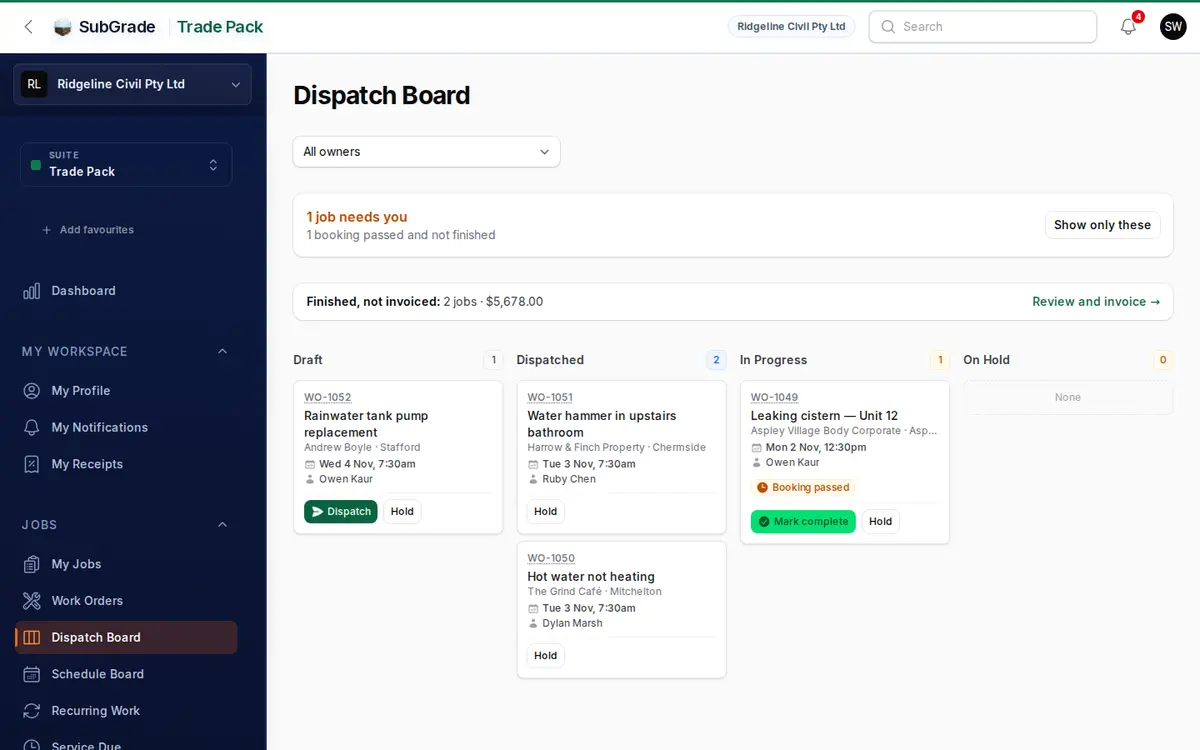
See every live job at a glance, grouped by status, with anything that needs you called out at the top. You can fix most problems from the card without opening the job.
Who can use it — Dispatch Board is part of Trade Pack, so it only appears in workspaces that have it. You need "view work orders" to open the board and "dispatch work orders" to use the Dispatch, Book & dispatch, Hold and Resume buttons. Mark complete needs "manage work orders". Anyone without those permissions sees the cards with no buttons. See Roles & Permissions for how access is set.
Where to find it — Jobs → Dispatch Board in the Trade Pack sidebar.
How to use it
The board has four columns: Draft, Dispatched, In Progress and On Hold. Each column header shows how many jobs it holds. On a phone the columns stack, and empty ones are left out.
Within a column, jobs are sorted by scheduled start, earliest first. Jobs with no scheduled start sit at the bottom. Each card shows:
- The job number (click it to copy)
- A priority badge, unless the job is Normal priority
- The job title (click it to open the job)
- The customer and suburb, where there is one
- The scheduled date and time
- Who is on the job
- The owner, when jobs on the board have more than one dispatch owner
Use the All owners list at the top to show one dispatch owner's jobs.
What needs you
The panel above the columns counts the jobs that need attention, or says Nothing needs you. Press Show only these to narrow the board to those jobs, and Show every job to go back.
- Not booked — a Draft job with no booking yet.
- Nobody on it — a Draft job with no one assigned.
- Compliance — a Draft job with a regulator item that must be lodged before work starts. This applies to plumbing and gas workspaces, and the job can't be dispatched until the item is lodged or marked not required.
- Booking passed — a Dispatched or In Progress job whose bookings have all gone by and which isn't finished. Often the work is done and nobody has closed it off.
Card buttons
- Dispatch — sends a Draft job that has a booking and someone on it.
- Book & dispatch — for a Draft job with something missing, or a job On Hold. Choose When and Who (at least one person), and the job is booked and dispatched in one step. If anything refuses it, nothing is saved and you'll see Not dispatched with the reason.
- Hold — moves a Draft, Dispatched or In Progress job to On Hold.
- Resume — moves an On Hold job back to Draft.
- Mark complete — appears when a booking has passed. Fill in Work performed, Works completed, and confirm the time on site. A mechanical workspace is also asked for meter readings.
What isn't on the board
- Quotes (Quote, Quote Sent) and ended jobs (Lost, Cancelled) don't appear.
- Finished work isn't shown as cards. A single Finished, not invoiced line gives the job count, and the quoted total if you have billing access. It links to Ready for Invoice, or to the finished jobs list if you don't.
- Invoiced and Closed jobs aren't counted at all.
Find any of these on the Work Orders list.
The board shows what was true when the page loaded. Reload it to pick up changes made elsewhere. There's no drag-and-drop between columns.
Schedule Board
For planning by person and day, use Jobs → Schedule Board. It's a week grid of techs and days, with approved leave shown as blocked days.
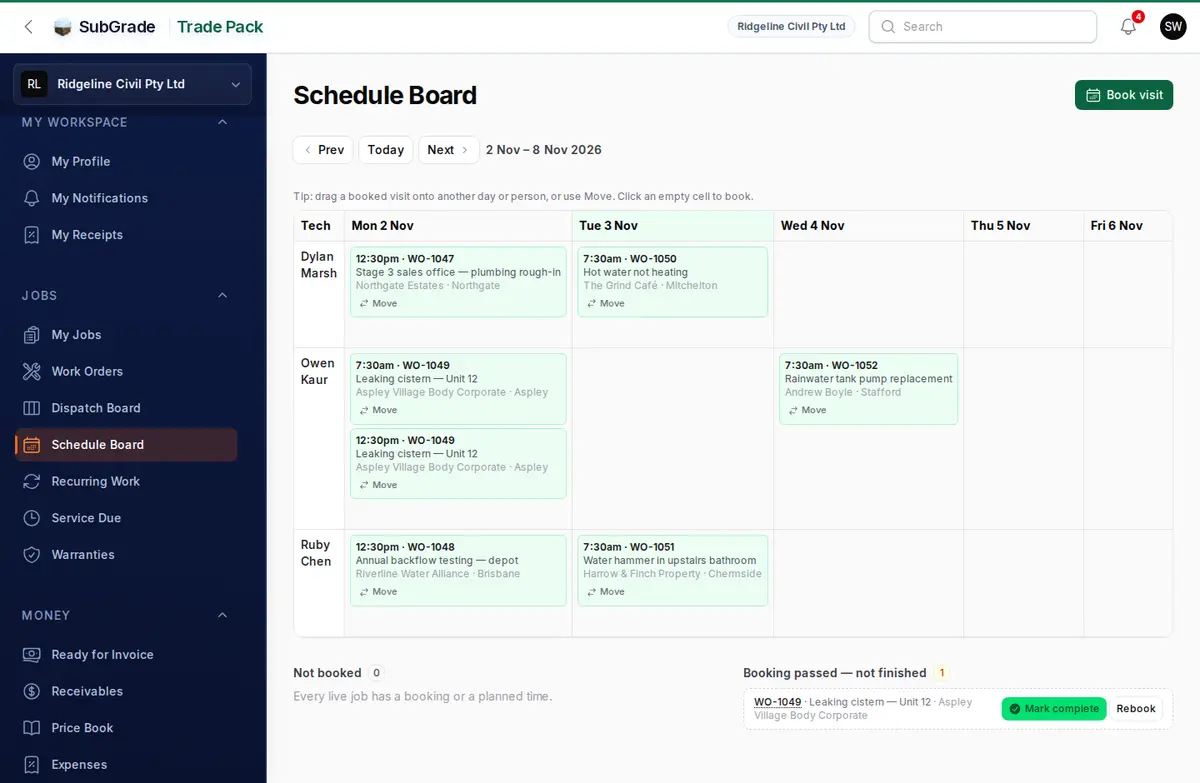
- Book visit — choose the job, Starts, and optionally Ends and Who. Leave Ends blank to use your default job length, and Who blank to book everyone on the job. Booking also dispatches the job where it can. Otherwise you'll see that it was booked but not dispatched.
- Move — change a visit's day or tech, or drag it to another cell.
- Below the grid, Not booked and Booking passed list the jobs that need attention.
Booking and moving need "dispatch work orders". On a phone the board shows one day as an agenda.
Connected pages
- Work Orders — the full record behind every card.
- My Jobs — the technician's own list of jobs.
- Ready for Invoice — where finished work goes to be billed.
Tips & common mistakes
- Can't find a job on the board? Check its status. Quotes, finished jobs and ended jobs are left off on purpose, so look on the Work Orders list.
- No Dispatch button on a Draft job? Something is missing. Use Book & dispatch, or read the warning on the card.
- Book & dispatch refused? A Compliance item is still open. Open the job and deal with it on the Records tab.
- No buttons at all? You can view the board but your role can't dispatch. Ask your workspace admin.
- Board looks out of date? It doesn't refresh itself, so reload the page.