A work order is the record of a customer job from first request to close: who it's for, what's being done, who's doing it, and what it costs. This is the office view. The technician's own view is My Jobs.
A job doesn't have to fit one shape. It can be at a customer's site or in your workshop, take one visit or many, and be priced as a lump sum, itemised lines, or hourly charge-out plus parts.
Who can use it — Work Orders is part of Trade Pack. You need "view work orders" to open the list, "manage work orders" to create or edit a job, "dispatch work orders" to book and assign people, "manage work order billing" to invoice, "record work order payments" to record payments, and "send work order customer outputs" to email customers. If an action is missing, ask your workspace admin. See Roles & Permissions.
Where to find it — Jobs → Work Orders in the Trade Pack sidebar.
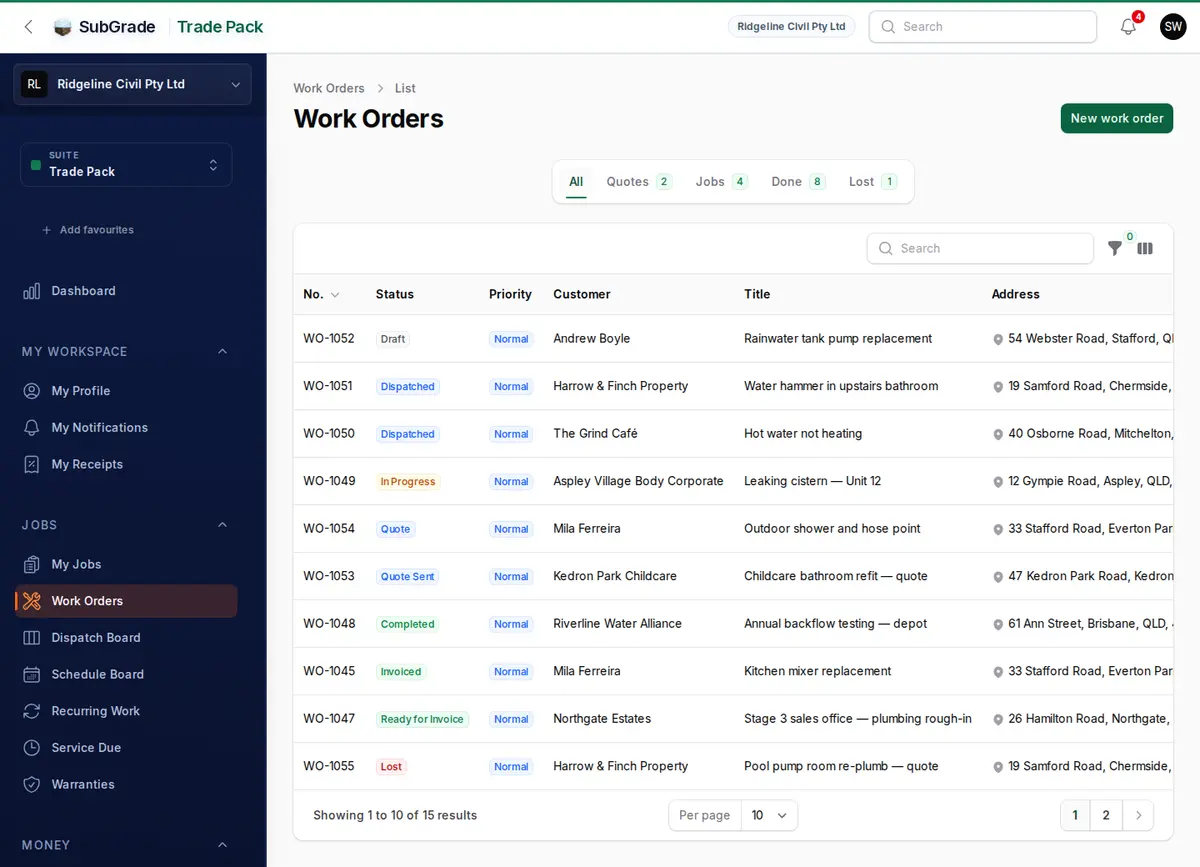
The list has tabs: All, Quotes, Jobs, Done and Lost. Lost includes cancelled jobs.
How to use it
- Start the job. Click New work order and choose Create as Quote or Job. The default comes from Trade Pack Settings.
- Choose the customer. Search Customer by name, phone or email, or use + to add a new one. SubGrade checks for a duplicate before creating them. If the customer has sites, pick a Site to fill in the address. Later changes to the site don't change this job.
- Say where. Enter the address under Where. It isn't required. Mechanical and general trade workspaces also get At our workshop, which removes the address for work brought in to you.
- Describe the job. Enter a Title (required) and Scope / description, and use Insert template if you've saved scope templates. If the customer has equipment on file, link it here. Mechanical workspaces call it Machine.
- Set when. Add Scheduled start and Scheduled end if you know them, and a Dispatch owner. You can leave these for later.
- Set a price if you have one. Enter Quoted amount and turn on Fixed quote for a fixed price, or leave it off for an estimate. See Pricing a job.
- Open More details if you need it. This holds Priority, Billable, Requested by, Site contact, Customer reference, Purchase order number, Requested, Due, Not to exceed, Quote valid until, Site access notes, Quote notes and Internal notes. Plumbing and gas workspaces also get compliance fields here.
- Save. A quote starts at Quote, and a job starts at Draft.
Older jobs and online booking requests can sit against a one-off customer rather than a saved one. Use Save as repeat customer or Link to existing customer on the job to file them properly. If a customer's job was filed wrongly, Unlink from customer makes it a one-off again.
The job page
Each job has one main button for the next step, plus Photos, Edit and an Actions menu for everything else. Previous and next arrows move through the same list tab.
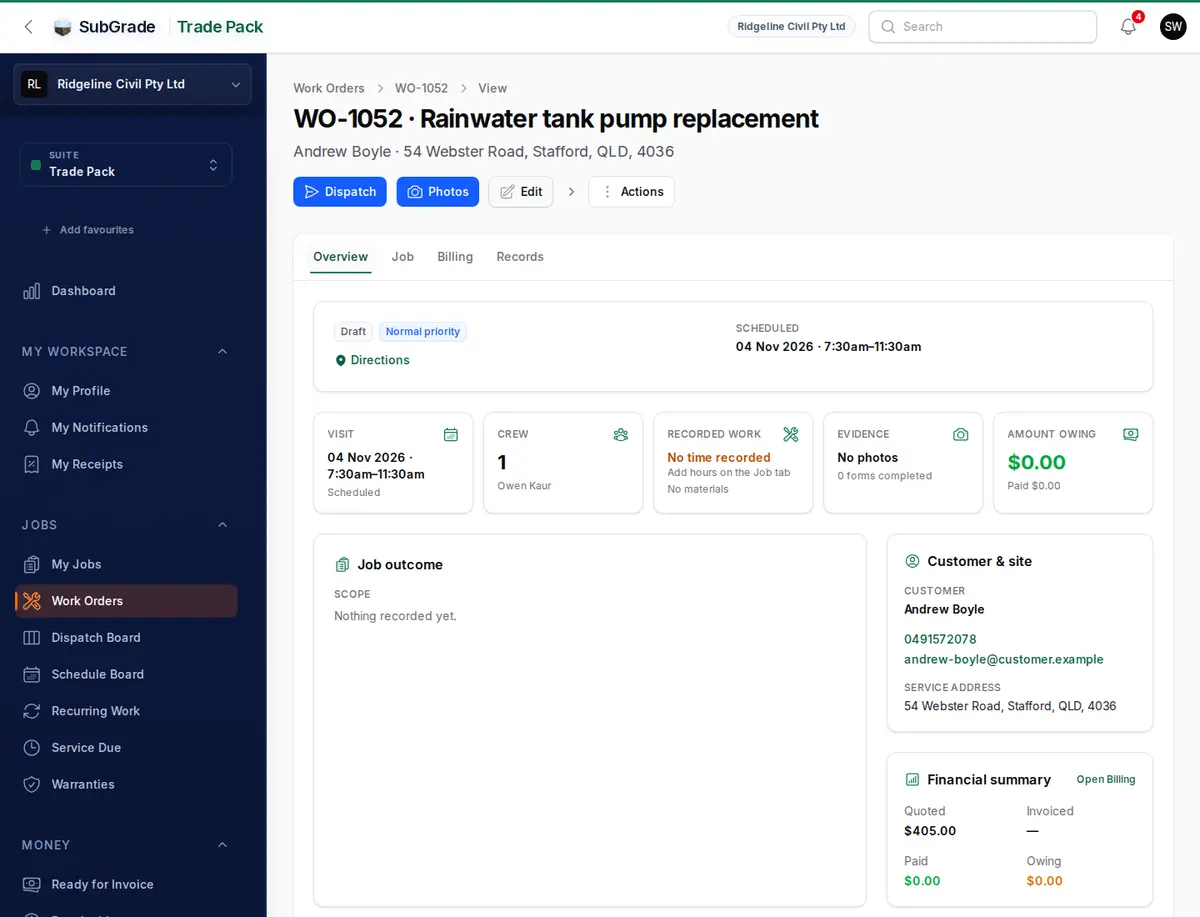
- Overview — a summary with visits, crew, recorded work, money, the customer and recent activity. People with billing access also see profitability.
- Job — visits, workers, hours, parts and materials, and linked equipment.
- Billing — line items, invoices and payments.
- Records — photos, forms, compliance, notes and customer messages.
Status lifecycle
Each job has one status. SubGrade controls which moves are allowed and records who made each one.
Quote phase (optional)
- Quote — being priced. Send quote emails it and moves it to Quote Sent. Mark sent (no email) records that you sent it another way. Customer quote link gives you a link where the customer can read the quote and accept or decline it. A new link replaces the old one.
- Quote Sent — waiting on the customer. Use Accept quote or Mark lost, or the customer can respond through the link.
- Lost — the quote didn't convert. Mark lost needs a reason, and wins and losses are reported separately from cancellations.
Accepting a quote moves it to Draft. Quote valid until is shown on the quote but doesn't expire it automatically.
Job phase
- Draft — the job exists but hasn't gone out. Press Dispatch.
- Dispatched — sent to the assigned workers, who see it on My Jobs. This needs a scheduled start and at least one person. Plumbing and gas jobs may also need a before-work compliance item dealt with first.
- In Progress — work has started. A worker's timer does this on My Jobs, or the office can press Start.
- Completed — a Work performed summary is in, Works completed is answered, and no timers are running. If the work isn't fully done, Remaining work is required.
- Ready for Invoice — approved and waiting to be billed.
- Invoiced — billed. In native invoicing, issuing a standard invoice moves the job here. In external invoicing, Record invoice does.
- Closed — press Close in the Actions menu. Nothing moves out of Closed.
Side states
- On Hold — Put on hold pauses a Draft, Dispatched or In Progress job. To carry on, use Dispatch or Mark complete on the job, or Resume on the Dispatch Board.
- Cancelled — Cancel ends a job at any stage up to In Progress, or On Hold. It can't be undone, and its bookings are cancelled.
Going back — with the reopen permission, Reopen to moves a Completed, Ready for Invoice or Invoiced job back one step. A reason is required.
Work already done — Mark complete records a job finished without going through dispatch. It's available on Draft, Dispatched and On Hold jobs, and it's the main button once the booked time has arrived.
Booking and assigning
Dispatch lets you set the Scheduled start, Assign to at least one person, and choose a Dispatch owner. You can also dispatch from the Dispatch Board or book on the Schedule Board.
On the Job tab, with "dispatch work orders":
- Schedule — Book visit, Reschedule, Status and Cancel. Add as many visits as the job needs, whether that's one call-out or several days.
- Workers — Assign worker with a role (Lead, Technician or Observer), and Remove to take someone off the job.
Hours, parts and photos
- Hours arrive from the timer, from Time on site at completion, or from Add hours on the Job tab. Each entry has a type: Standard, Overtime, Callout, Travel or After hours. Only people with billing access see Cost rate and Billable rate.
- Parts and materials come from the Price Book or are typed in. Each can have quantity, unit, SKU, supplier docket, supplier, Cost, Billable and a status. Track as equipment records a part against the customer, with its warranty.
- Photos are filed by stage: Quote, Intake / request, Before, During, After, Completion and Invoice. Stages are set for you, and Change stage corrects one. Photos are private to your workspace.
- Notes are private unless you mark The customer may see this note.
Approved hours go to the worker's timesheet, so they reach your pay run as quantities and a budget estimate. Your payroll system handles the pay itself. People costed under Cost of an hour in Trade Pack Settings stay out of payroll.
Pricing a job
Choose whatever suits the work:
- Lump sum — enter a Quoted amount. Add at least one line on the Billing tab before invoicing.
- Itemised — add Line items on the Billing tab, typed or from the Price Book. Once lines exist, their total replaces the Quoted amount. Draft with AI can suggest a scope and lines from notes or a photo, if AI is on for your workspace.
- Hourly charge-out plus parts — enter the job's hours and parts, set their Billable rate and Billable amounts, then use Build lines from actuals on the Billing tab. There's no workspace-wide charge-out rate, so rates are set on the hours.
A part saved with no cost adds nothing to the job's cost, so fill in costs before trusting a job's margin.
Payments and customer documents
Record payment is available on any job past the quote stage. It records money received: cash, card, EFTPOS, bank transfer, cheque or other. SubGrade doesn't charge cards. On the Billing tab, someone with manage work order billing can Verify, Void or Refund a payment. You can email or download a receipt from the same list.
In the Actions menu:
- Completion report — downloads the PDF.
- Send completion report — from Completed through Invoiced, emails the customer a completion report, receipt or follow-up message.
- Create follow-up job — once a job is finished, starts a new draft for remaining work, carrying the scope and address across.
- Make recurring — on a Closed job with a saved customer, sets up recurring work from this job.
From finished to billed
- The job reaches Completed on My Jobs, or the office completes it.
- The office approves the hours and parts. Approve on Ready for Invoice does this in one step. Mark ready for invoice on the job is refused while hours are unapproved.
- With native invoicing, press Raise invoice and issue the invoice on the Billing tab. With external invoicing, press Record invoice.
- Record payment, then Close the job.
Ready for Invoice covers both invoicing modes in full.
Recurring and service work
Jobs → Recurring Work sets up work that comes back, repeating every so many months or days. It can create a draft job or just remind the office. Jobs → Service Due lists customer equipment by next service date.
Service intervals are calendar-based. On mechanical workspaces, hour-meter and odometer readings are recorded on the machine, but they don't set the next service date.
Connected pages
- Dispatch Board — live jobs by status, plus the Schedule Board.
- My Jobs — the technician's view: time, parts, photos and completion.
- Ready for Invoice — approving finished work and invoicing it.
- Trade Pack Settings — your trade, job defaults and invoicing mode.
- What is Subgrade? — how the product fits together.
Tips & common mistakes
- Can't dispatch? You need a scheduled start and at least one person. The message names anything else in the way, such as a compliance item.
- Worker can't start the job? They must be assigned to it. Add them on the Job tab.
- Can't complete the job? Stop any running timers and enter Work performed, plus Remaining work if the job isn't fully done. Your workspace may also require forms to be finished first.
- Can't mark Ready for Invoice? Hours are still unapproved. Use Approve on Ready for Invoice.
- Lost or Cancelled? Use Mark lost for a quote the customer declined, and Cancel for work that's been called off.
- No address on the job? That's fine for workshop work. For site work, the technician's Navigate button needs one.