See how many SMS credits your workspace has left this month, where they've gone, and buy more if you're close to the limit. SMS is one tab of the Usage & Credits page.
Who can use it — Anyone with the "manage billing" permission. Everyone else won't see the page in the sidebar.
Where to find it — Account → Usage & Credits in the sidebar, then the SMS tab. The page may open on another tab if your workspace uses that more.
How to use it
Tiles across the top show SMS credits left, Emails sent this month and Storage used, plus AI reads if your workspace has AI turned on. The tabs below are SMS and Email, plus AI and Tender where your workspace has them. The SMS tab has a usage summary and a credit history, with Buy More SMS and Redeem a code at the top of the page. There's nothing to configure here.
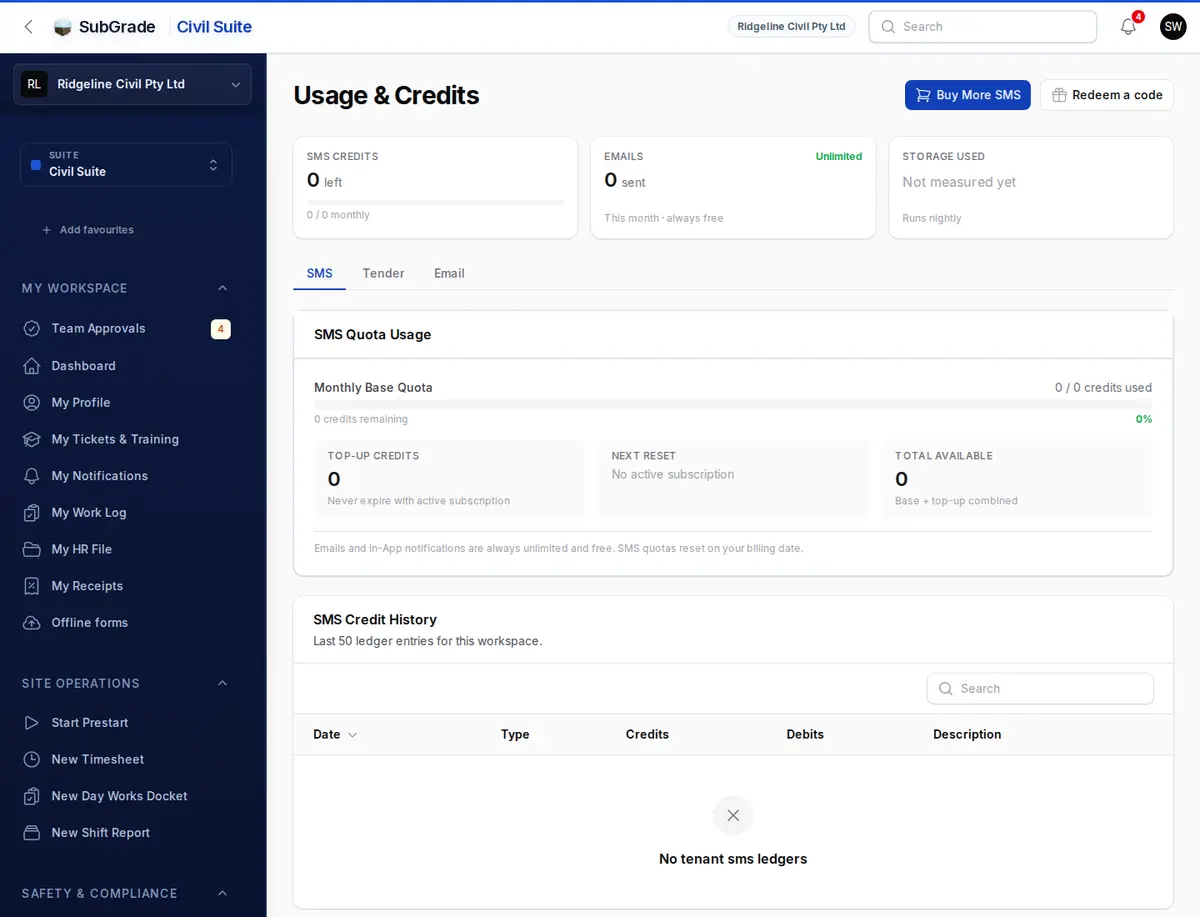
SMS Quota Usage
- Monthly Base Quota — a progress bar showing how many of your plan's monthly SMS credits you've used, turning amber at 80% and red at 100%.
- Top-up Credits — credits bought separately, shown alongside the base quota.
- Next Reset — when your base quota next refreshes, based on your billing date.
- Total Available — base quota remaining plus top-up credits, combined.
When you send an SMS, credits are drawn from the base quota first, then from top-up credits once the base runs out. Emails and in-app notifications are always unlimited and free. Only SMS is metered.
If usage crosses 80% or 100% of the monthly quota, anyone with the "manage tenant notifications" permission gets an alert automatically. A workspace running on top-up credits alone is alerted when they run low or run out.
SMS Credit History
A table of the last 50 entries for the workspace: date, type, credits, debits and a description. Entry types you'll see:
- Allocation — the monthly base quota being granted.
- Topup — a purchased top-up pack landing in your balance.
- Refund — credits restored because a message failed before it was sent to the carrier, so you weren't charged for it.
- Consumption — credits spent sending an SMS.
- Expiry — unused base credits expiring at the end of a billing period, or when the subscription ends.
Buying more SMS
Click Buy More SMS to choose from the available top-up packs (credits and price). You're redirected to a Stripe checkout page to pay. Once payment succeeds, the credits are added to your top-up balance and appear in the history as a Topup entry.
Redeem a code adds credits from a gift code to your purchased balance. One code can carry SMS, AI and Tender credits together.
Connected pages
- Notification Manager — configures which events send SMS.
- Broadcasts — workforce messages sent by SMS also draw from this same credit balance.
- Billing — your subscription plan determines your monthly base SMS quota and billing date.
Tips & common mistakes
- If SMS sending suddenly stops working, check this page first. It usually means the base quota and top-up balance have both hit zero.
- Top-up credits don't expire, and they stay on your workspace if your subscription ends. They can only be spent again once the workspace is able to send.
- Unused base quota does not roll over. It expires at the next monthly reset, and when a subscription ends.
- Buy More SMS will tell you if a pack isn't yet available for purchase. Contact support if that happens.