The planning board for asset and crew allocations: book employees, machines, vehicles, equipment and attachments onto jobs or off-project work, see it all on a drag-and-drop timeline, and reconcile moves that come in from the field.
Who can use it — Anyone with "manage asset allocations" permission. This single permission gates the whole page — there's no separate read-only view, so if you can open Allocation Manager you can also create, edit and delete allocations. See Roles & Permissions.
Where to find it — Project Management → Allocation Manager in the sidebar.
Before you start — a few things need to exist first:
- The projects you're allocating to, set up in Project Planner (or the Projects list).
- The assets (machines, vehicles, equipment, attachments) you're assigning, set up in Asset Manager.
- Employees you assign must be active tenant users who aren't excluded from allocations (someone can be flagged out of the picker on their employee record).
How to use it
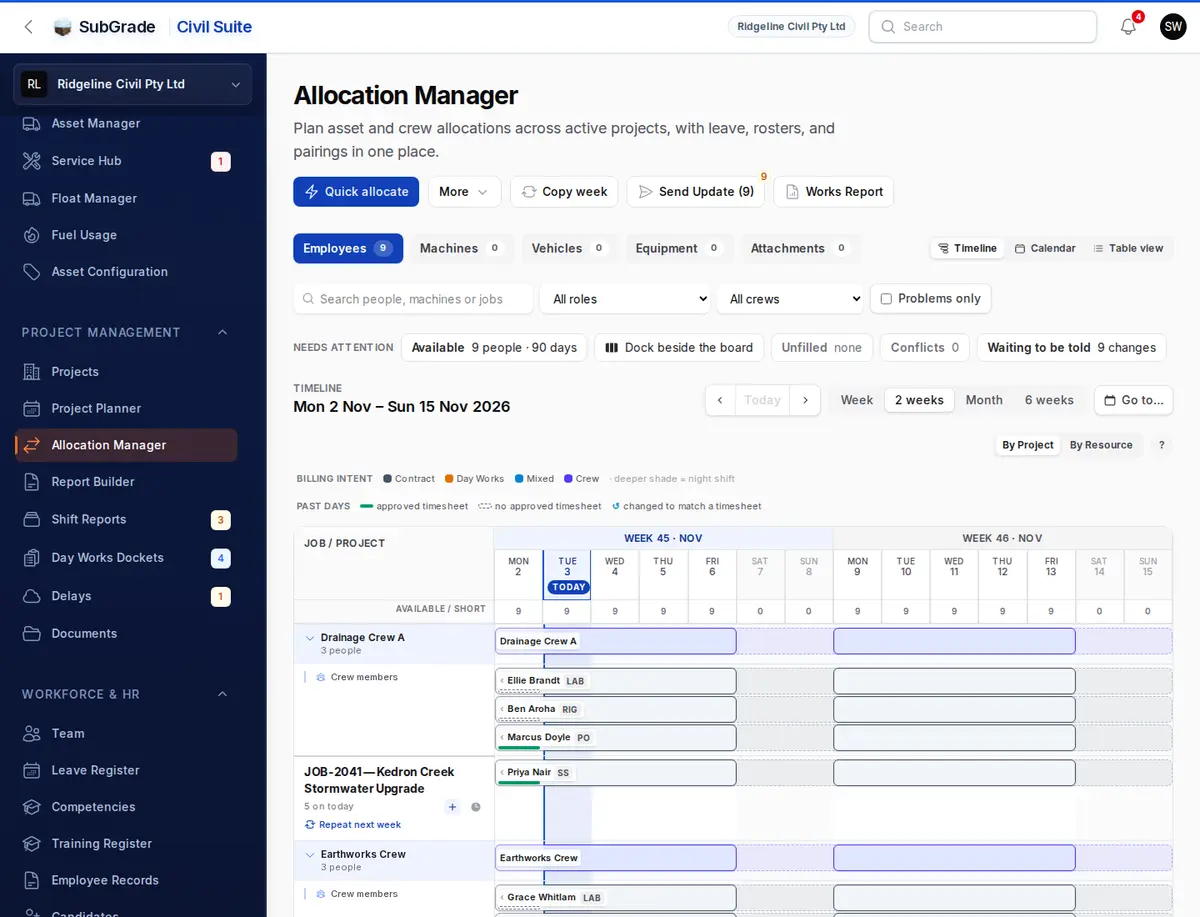
The page is split by resource: Employees, Machines, Vehicles, Equipment and Attachments tabs, each with a count. Everything below reacts to the active tab.
The buttons at the top change with the tab:
- Employees — Quick allocate for the job, days and people. More holds Full assign form, Set Roster, Record Leave and Recent changes.
- Machines, Vehicles, Equipment — Book machine, Book vehicle or Book equipment, with More for booking several at once and Recent changes.
- Attachments — Pair with Machine and Allocate Attachment.
- Every tab — Copy week, Send Update and Works Report.
At the right, switch between Timeline, Calendar and Table view. Search and filter with the search box, All roles, All crews and Problems only.
Needs attention
A strip of chips sits above the board. Which ones show depends on the tab, and they include:
- Available — people free in the period. Dock beside the board keeps the list open so you can drag someone onto a job.
- Unfilled — tasks that need more people.
- Conflicts — double bookings.
- Waiting to be told — changes people have not been sent yet.
- Idle or In the yard, Booked, Defect or service due and Ending in this period — on the asset tabs.
- Reported elsewhere — machines reported on a job they aren't booked to.
The timeline
The timeline groups bars by job. By Project and By Resource switch the grouping.
- Window controls — the arrows and Today step through time, Week, 2 weeks, Month and 6 weeks set the span, and Go to… jumps to a date. The table below stays filtered to the same window.
- Drag to move or resize — grab a bar's edge to change its dates, or drag the bar to shift it. A drop is checked the same way as the edit forms.
- Drag to reassign — drop a bar onto another job to move it there.
- Click a bar for its actions, such as view, edit, approve, record leave or tell them, depending on what it is.
- Select several bars to change their end date, move them to a job, end them, tell them or delete them together.
- Repeat next week, under a job's name, copies that job forward. The header shows how many are available or short each day.
Employee bars are coloured by billing intent (Contract, Day Works or Mixed) and crews have their own colour, with a deeper shade for night shift. Asset bars are coloured by kind. A legend is on the board, and past days show whether an approved timesheet backs them.
Show the table under the board opens every booking as a list. In Table view you see only the table.
Allocating assets to a project
Use Book machine, Book vehicle or Book equipment (the label matches the active tab):
- Pick the asset.
- Choose Assign To — Project, User (vehicles and equipment only — a machine or attachment can't be handed to a person directly), or Administrative (no project) for off-project work.
- Set the From date. To is optional — leave it blank for an open-ended allocation (shown as Open in the table), or use the quick-end chips (This week / Next week / This month / Custom) to set one.
- Set the Working pattern (which days of the week the allocation covers, and day/night shift).
- For machines and vehicles, set Planning Status — Allocated (confirmed) or Pending Approval (a draft/forward plan that doesn't block or conflict-check against other allocations until someone approves it).
- A Readiness panel appears once you've picked enough fields. It flags things like an attachment that will be unpaired, or a grounded machine, and you tick to confirm before saving. This box reads Confirm before saving here and Confirm before saving on Reallocate, and for a grounded machine it says "I understand this asset is grounded." A grounded machine can still be booked, for example to the workshop or the yard.
- If you're moving a machine between projects, an optional Transport Booking section lets you book a float in the same step (company, date/time, cost, contact) — this creates a booking that shows up in Float Manager for you to send to the transport company.
Choosing Administrative (no project) relabels the notes field to Location / Description and requires it — you can't file an off-project asset without saying where it actually is (e.g. "In workshop for repair", "Dry hire – Smith & Co").
Book several machines, vehicles or items, under More, does the same for multiple assets at once (project or administrative only, no user destination), and reports any that could not be booked.
Assigning employees
Quick allocate covers the common case: the job, the days and the people, with anything that needs a decision shown on the person's line. More options… opens the full form, also at More → Full assign form:
- Each row in the Employees & Roles repeater is either an internal employee (searchable picker) or an External / Subcontractor (free-text name and company — no login required), each with its own Job Roles.
- Set the destination project, or tick Off-project (administrative) for repair/dry-hire/labour-hire work — a Description / Reason is required in that case.
- Optionally pick a Workfront / Location and a Task / Phase (from Project Planner) — picking a task pre-fills the Billing toggle (Contract vs Day Works) from that task.
- Set From and To — unlike assets, employee allocations always need an end date; use the quick-end chips or pick a custom date.
- Set the Working pattern, Planning Status, and an optional Message to worker (plain text, shown on the worker's Shift Details — no sensitive HR info).
- A Readiness panel checks the selected internal workers for leave conflicts and induction status, and may require Confirm induction override before saving.
If an away job (the crew stays away overnight) is selected, the travel in and travel out dates are required, and an Away trip line shows the trip the booking lands in — back-to-back away bookings are one trip, and crews go home on days off, so a new trip starts after each weekend.
Crew allocations
A crew allocation is several people scheduled as one named group — "Drainage Crew 1" rather than five separate rows that happen to share a job. It stays editable as a group: change its dates, job, workfront, pattern or hours once and everyone moves together.
It is entirely optional. Assigning people separately works exactly as it always has, and always will — a one-off worker or a labour-hire fill-in doesn't need a crew.
Creating one — in Full assign form, set Assign as to Crew allocation, give it a name, and optionally nominate a Crew lead from the people you picked. Everything else on the form is the same for both modes, so a crew is asked the same questions about induction, travel and double-booking that an individual is.
On the board — a crew is one collapsed rail per crew, showing its name, how many people are on it, and its workfront and task. Click the chevron to expand it and see the individual members with their usual signals — role, acknowledgement, induction, LAFA. In By Resource the board still shows one row per person, with a crew badge on the bar, because that view exists to see individuals.
Clicking the rail opens the crew, showing where it is, when, who's on it, who has read their shift details, and whether it has drifted from its Planner task. From there you can:
- Edit crew — change the shared dates, workfront, pattern, hours, lead or worker message. Everyone moves at once.
- Send crew update — notify the crew's members. Subcontractors have no login, so they're named as not contactable rather than counted as sent.
- Add members / Remove from crew — remove is on the individual's own row.
- End crew — closes the crew and everyone on it on a chosen date. The work already recorded is kept.
- Delete crew — only offered while nothing has started and nobody has been told.
Editing a crew that has already started doesn't rewrite history. Pick the date the change takes effect and the days already worked stay exactly as they were, because timesheets were filed against them. The crew keeps one name and one rail across the change.
Taking someone out of a crew doesn't un-allocate them — they carry on the same shift on the same job, just on their own. Editing one member's shared fields is offered as Edit (leaves the crew), because changing one person's dates while they're still shown inside a crew would put them out of step with everyone else.
Grouping people who are already allocated — select their rows in the table and use Group selected as crew. Nothing is guessed: you name the crew and state the shared dates, pattern and hours, and the preview tells you which fields the selected rows currently disagree on. Their existing allocations are kept, not recreated, so acknowledgements and timesheet history stay intact.
This is the way off the old workaround of naming a location after a team. Convert the group, give the crew the team name, and the location can go back to being a real workfront.
Attachments — pairing and allocating
Attachments (buckets, rippers, etc.) don't get their own "Assign" action — instead:
- Pair with Machine links an attachment to a machine for a date range (Paired From/Paired To, leave To blank for an open-ended pairing). Pairing an attachment automatically ends any pairing it currently has.
- Allocate Attachment allocates an attachment directly to a project or off-project (same From/To/notes shape as other assets), for attachments not travelling with a machine.
The Attachments count on a machine/vehicle allocation row shows how many attachments are currently paired to it for that period; click it to see them.
Reallocating and ending an allocation
Every asset row has a Reallocate action, the same side panel whether you open it from the table or a bar on the timeline. It ends the current allocation and starts a new one in one step: pick the new destination (project/user/administrative), a start date, and it carries the same readiness/pairing-confirmation checks and optional transport booking as creating a new allocation.
Other row actions (asset tabs):
- End today — closes an open-ended allocation as of today.
- Edit — adjust destination, dates, working pattern or notes without ending the row.
- Open the asset and Attachments.
- Approve — only shown on Pending Approval rows (see below).
- Delete — blocked with a warning if the allocation has a signed vehicle-policy handover attached; end or reallocate it instead so that history stays intact.
Employee rows have their own menu: Edit, Approve, Move to another job…, Change end date…, End today, Record leave, Tell them, Their calendar, Cancel the rest of the roster (for roster blocks), and Delete. Leave rows offer their own edit and delete instead.
Leave, rosters and updates
- Record Leave logs approved or pending leave for one or more workers; approved leave immediately overrides any existing allocation for that window.
- Set Roster creates a repeating on/off pattern for one worker (e.g. 14 on / 7 off FIFO) — set Days On, Days Off, a start date, and the Until date auto-calculates 12 cycles ahead (or set it manually). A live Roster Preview lists the generated blocks before you save. Replace existing allocations on conflict is off by default, so overlapping work is left alone and conflicting blocks are simply skipped.
- Copy week copies each person's days on a job into the next week to come. Anyone already booked or on leave is skipped, never moved.
- Send Update notifies workers about their roster. Pick recipients and channels, with a preview before sending. The button counts changes since the last send, and reads Send Allocation Update when there are none. Tell them does the same for one row, and it is also a bulk action in the table.
- Works Report sends or downloads a report of the work booked.
Approvals and prestart-flagged moves
Machines and vehicles carry a Planning Status — Allocated or Pending Approval. A pending row is a draft: it doesn't count as an overlap or conflict against other allocations, and shows an Approve action instead of the usual edit set. Approving it confirms the move and automatically closes out the asset's previous open allocation.
The main source of pending rows is the field: when an operator runs a Start a Prestart and picks a project that doesn't match where the machine is currently allocated, confirming the move creates a Pending Approval allocation here (and unpairs any attachments the operator says came off) rather than moving the machine outright. You'll be notified. Review and Approve, or reallocate to the correct project, from the Machines or Vehicles tab.
The Reported elsewhere chip lists machines reported on a job they aren't booked to, one line per machine and job. Book it here or Move it closes the line, and Dismiss leaves the register as it is.
Acknowledgement
The board and the table show whether a worker has read and confirmed their allocation. The Worker acknowledged filter narrows the table. This is read-only here. Workers acknowledge their own upcoming shifts from My Work Log.
Connected pages
- Asset Manager — the machines, vehicles, equipment and attachments you're allocating.
- Start a Prestart — where an operator flags that a machine has moved, creating a pending allocation here.
- Team Approvals — the approvals queue for timesheets and leave. Its Allocation changes card lists the same reported machines and proposed moves as this page, so you can decide them from either.
- My Work Log — where workers see and acknowledge their allocations.
- Project Planner — the tasks/phases you can link an allocation to, which drive its billing type.
- Float Manager — where transport bookings created from this page are reviewed and sent.
Tips & common mistakes
- Asset end dates are optional; employee end dates aren't. Leaving an asset's "To" date blank is normal — it just shows as "Open" until you end or reallocate it. Employee allocations always need a "To" date; use the quick-end chips if you're not sure.
- Off-project work needs a description. Ticking Administrative/off-project on an asset or employee allocation makes the notes field required — say where the asset physically is or why the work has no job number.
- Can't delete an allocation? If it has a signed vehicle handover attached, deletion is blocked — use Reallocate or End today instead so the signed history isn't lost.
- A "Pending Approval" row isn't a mistake to fix — it's usually a prestart-flagged move waiting on your Approve, or a forward plan someone deliberately left as a draft. Check the planning status before editing it as if it were confirmed.
- Reallocating an attachment's machine automatically ends its pairing for the old machine as of the new start date — you don't need to unpair it separately first.
- Use the timeline for quick date/project tweaks, the table for bulk filtering and review. Drag-and-drop is fast for shifting a bar a few days or between projects; the table's filters (By Project, By User, By Asset, Plan, Worker acknowledged) are better for reviewing everything at once.