Set how Trade Pack works for your business: what trade you're in, job defaults, field rules, invoicing and customer messages. These settings are separate from anything in Civil, so a Trade Pack workspace doesn't need Civil payroll or billing.
Who can use it — Trade Pack Settings only exists in workspaces with Trade Pack. You need the manage trade pack settings permission, which the Admin and Trade Admin roles hold. Trade Supervisors and Trade Technicians don't. See Roles & Permissions for how access is set.
Where to find it — Account → Trade Pack Settings in the Trade Pack sidebar. Open the Account group if it's collapsed.
How to use it
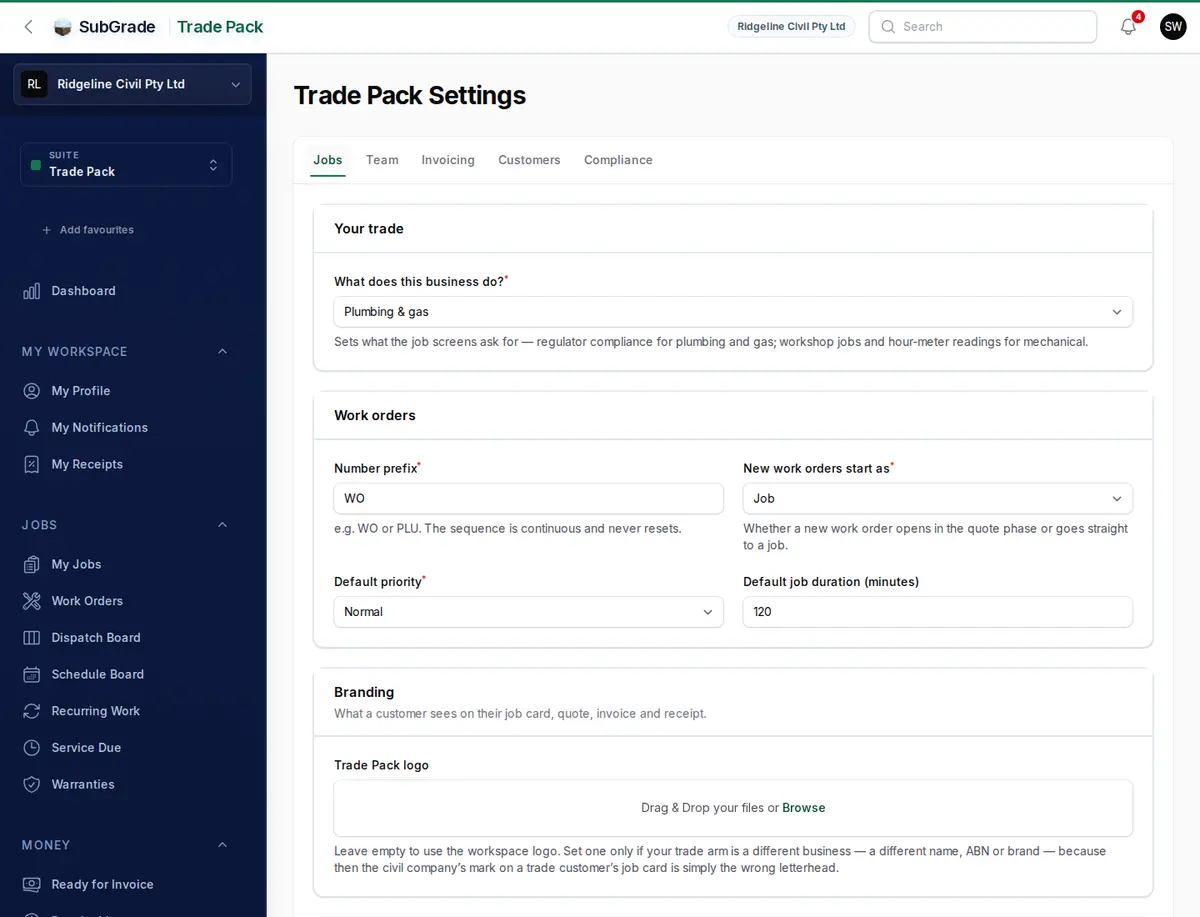
The page has five tabs: Jobs, Team, Invoicing, Customers and Compliance. Change what you need and press Save settings, which saves every tab. New work picks up the changes, and existing jobs aren't rewritten.
Jobs tab
Your trade
What does this business do? sets what the job screens ask for. Choose carefully, because a workspace with nothing chosen behaves as Plumbing & gas.
| Trade | What changes |
|---|---|
| Plumbing & gas | Adds compliance profiles, required forms and inspection fields to the job |
| Electrical | Standard job screens |
| Mechanical — plant, machinery & vehicles | Adds At our workshop and meter readings, and the job form says Machine instead of Equipment |
| General trade | Adds At our workshop |
Meter readings are saved against the machine. Recurring service is still set by months or days, so an hour reading won't set the next service date.
Work orders
- Number prefix — up to 12 characters, added to the front of each job number (for example
WOorJOB). Required. The numbering is continuous and never resets, and existing numbers keep their old prefix. - New work orders start as — Job or Quote.
- Default priority — Low, Normal, High or Urgent.
- Default job duration (minutes) — used when a booking has no end time. The default is 120.
Branding
Trade Pack logo appears on job cards, quotes, invoices and receipts. Leave it empty to use your workspace logo.
Customers
Customer list opens filtered to at least a number of jobs. 0 shows everyone. Set 2 to open on repeat customers. It's only a starting filter, and it never hides anyone when you're raising a job.
Field workflow
- One active timer per worker — a worker must stop a running timer before starting another. On by default.
- Require a completion photo — a technician can't complete a job on My Jobs without a completion photo. The office's Complete and Mark complete aren't affected.
- Customer output requires office approval — on by default. When on, a receipt a technician ticks on My Jobs isn't sent, and someone in the office sends it from the job. Automatic receipts and documents the office sends aren't held back.
Material suppliers and Lead sources
Manage material suppliers opens your supplier list. Lead sources are the options for "How did they hear of us?" on a job, and leaving them empty uses the defaults.
Team tab
- Technicians — who appears on the Schedule Board, tech utilisation and the assign-worker picker. Leave it empty to include everyone in the trade division. Only active members whose division is Trade or Both can be picked.
- Cost of an hour — for people paid outside SubGrade payroll, such as an owner or someone on a salary. Enter Person, how they're Paid, the amount, Hours a week and On-costs %. Their job hours are costed at this rate and aren't sent to payroll. If someone has a pay level in payroll, that's used instead.
Invoicing tab
Payments & customer output
- Let field workers take payment on site — adds Record payment to My Jobs. Off by default. The office can always record payments on a job, and turning this off doesn't remove payments already recorded.
- Workers can see billable rates — adds a Billable field when a technician adds a part. Off by default.
- Workers can enter material cost — adds a Cost field when a technician adds a part. Off by default.
- Send a customer receipt by default — pre-ticks the receipt option when a technician records a payment. Off by default.
Invoicing
Choose Native (the default) to raise tax invoices in SubGrade, or External to record a reference from your accounting tool. This changes the buttons on every finished job. See Ready for Invoice for both.
The other fields set what appears on invoices and other customer documents:
- Registered for GST — adds 10% GST on taxable lines and titles invoices "Tax Invoice".
- Invoice number prefix and Payment terms (days).
- Business name, ABN, Business phone, Business email and Business address.
- Trade licence number — printed on the completion report.
- Workmanship warranty (months) — how long you stand behind your own labour, stamped on a job when it's completed. 0 means none.
- Bank account name, BSB and Account number.
- Default deposit (%) and Invoice footer.
Customers tab
Customer messages & automations
Nothing goes to a customer automatically until you turn it on.
- Enable customer SMS updates — lets technicians send an "on the way" text, and sends automations by SMS when there's a mobile on file. See SMS Usage for credits.
- Confirm bookings automatically — when a visit is booked or rescheduled.
- Remind the day before a visit.
- Follow up on unanswered quotes, after the number of days you set.
- Remind on overdue invoices, after the number of days you set. Native invoicing only.
- Tell the customer when a job is finished.
- Send a receipt when a payment is recorded, and What a payment receipt sends.
- Request a review when a job closes.
Edit the wording under Customers → Templates.
Customer portal
- Quote terms & conditions — shown above the signature on the customer's quote page.
- Enable the online booking request page — publishes a form customers can use to request a job. Your booking page shows the link once it's on.
Compliance tab
- Operating jurisdiction(s) — decides which regulator obligations attach to notifiable jobs.
- Require listed forms before a job can be completed — blocks completion until every form listed on the job is filled in and signed.
SubGrade prepares, reminds and records. A person always does the lodgement in the regulator's portal. Regulator profiles currently exist for plumbing and gas work.
Connected pages
- Work Orders — where job defaults and your trade setting apply.
- Dispatch Board — scheduling uses your technicians and default job length.
- My Jobs — where the field rules apply.
- Ready for Invoice — where your invoicing choice applies.
- What is Subgrade? — how the product fits together.
Tips & common mistakes
- Set your trade first. It decides what your job screens ask for.
- Wrong buttons on finished jobs? Check Invoicing. Record invoice only appears in External mode, and Raise invoice only in Native.
- Technician can't enter a part's cost or price? Check the two worker options on the Invoicing tab before changing their role.
- Someone missing from the assign list? Check Technicians on the Team tab, and that their division is Trade or Both.