Ask workers to complete a published training module. Pick who it goes to, whether it's mandatory and an optional due date, then watch completion tally up.
Who can use it — You need "assign training modules" permission to assign training. Anyone with "view training modules" or "manage training modules" can see the Assignments tab. Withdraw needs "assign" or "manage training modules". See Roles & Permissions for how access is set.
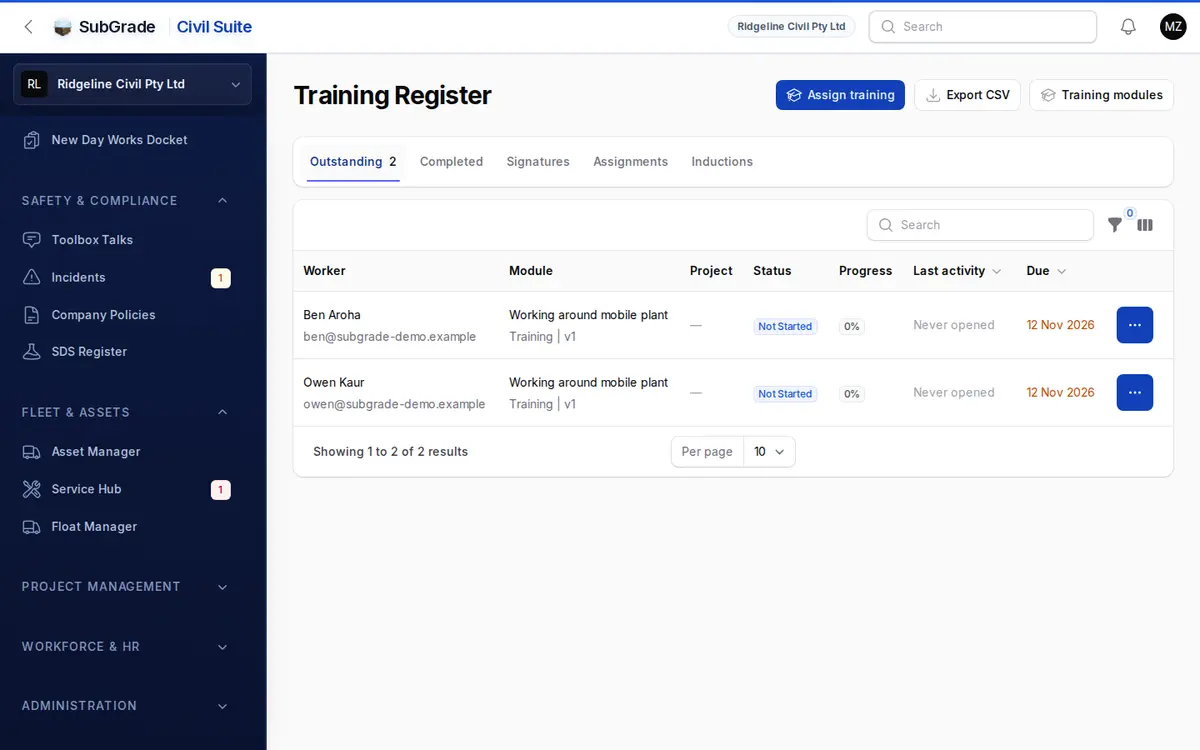
Where to find it — There's no separate sidebar item. Use Assign training at the top of the Training Register, and track it on the register's Assignments tab. The tab appears once something has been assigned. You can also assign from a module's own page or from a person's row on People.
Before you start — the module must be published. Modules are built and published in Training Modules. The picker only lists published modules.
How to use it
- Click Assign training. A slide-over opens.
- Training module — pick a published module.
- People — pick one or more active people, and/or Or everyone in a role — pick one or more access roles. You need at least one person or role.
- Due by — optional. Set it to get reminders and an overdue flag.
- Mandatory — on by default. Switch it off for optional training.
- Click Assign. Everyone is enrolled on the module's current published version and notified.
Tracking completion
The Assignments tab shows one row per assignment, with the Module, who it's Assigned to, the number of Workers, how many have Completed, Mandatory, Due and Assigned. Filter by Assigned to, Mandatory only or Not fully completed.
The row menu has:
- Who has it — the person-by-person list.
- Chase outstanding — opens the Outstanding tab filtered to this module, where you can Send reminder to a person.
- Withdraw — releases everyone who hasn't finished. People who have completed it keep their record, certificate and signatures, and the assignment stays on the list as the record of what was required.
Export CSV at the top of the register downloads the tab you're on.
Reminders
Two daily reminders go to learners automatically:
- Due soon — when the due date is within 3 days.
- Overdue — when the due date has passed, then weekly while it stays overdue.
To nudge someone yourself, use Send reminder on the Outstanding tab.
Role assignments and new starters
Assigning to a role doesn't just capture who holds it today. SubGrade checks every hour and adds anyone who has since taken on the role, so a new starter is picked up without you assigning it again. People who already have it aren't affected.
What happens when a module is re-versioned
This happens on the module, not here. If an author publishes a new version with Requires reinduction ticked (see Training Modules), everyone already assigned or enrolled must complete it again on the new version, and they're notified. If it isn't ticked, existing enrolments are left alone. New assignments always use the current published version.
Connected pages
- Training Register — where assignments are started and tracked.
- Training Modules — where modules are built, published and versioned, and where a guest link is generated for people outside your workspace.
- My Qualifications — a worker's own view of what they've been assigned and completed.
- Compliance & Expiry — where training fits in the wider picture.
Tips & common mistakes
- Module missing from the picker? Only published modules are listed. Publish it first.
- New starter didn't get the training? Role assignments sync hourly, so give it up to an hour.
- Sent to the wrong people? Use Withdraw. It never removes a completed record.
- Roles here are access roles, not job roles. To target a job, pick the people instead.