Your own HR record in one place: leave taken this financial year, a form to request time off, and any reviews, notices or workers comp claims on your file.
Who can use it — Everyone in a workspace with the Civil Suite. It only ever shows your own records. The Leave tab is always there. Performance Reviews, Disciplinary Notices and Workers Comp appear only when you have something on file, so most people see Leave alone. This page isn't part of a Trade-only workspace.
Where to find it — My Workspace → My HR File in the sidebar. You can also request leave from Leave / Sick Day on your Dashboard.
How to use it
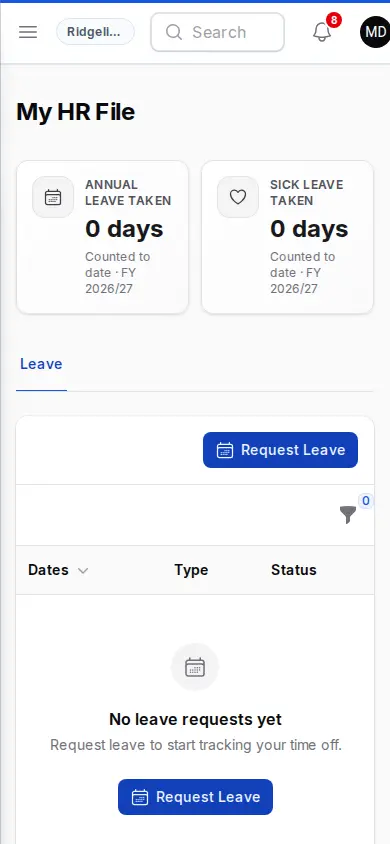
The top of the page shows a row of tiles. Tap one to jump to the matching tab:
- Annual Leave Taken and Sick Leave Taken — approved weekdays you've actually taken so far this financial year (1 July to 30 June), plus a note of any approved days still to come. Weekends aren't counted, but public holidays that fall inside your leave are, so treat the figure as a guide. This is leave taken, not your balance. Your payroll system holds your balance.
- Last Review (if you have a review on file) — the date of your most recent review, and whether it's scheduled, completed, acknowledged or waiting on your acknowledgement.
- Open Notices (if you have a notice on file) — how many disciplinary notices are waiting on your acknowledgement.
Leave
The Leave tab lists every leave request you've submitted, with Dates, Type, Status, Manager Notes and whether there's an Attachment. You can filter by Leave year, Type or Status.
To request time off, select Request Leave at the top of the table. It opens a slide-over:
- Type — pick the leave type. The list depends on how you're employed. Casuals and subcontractors aren't offered paid leave types they don't accrue, and long service leave isn't offered where your workspace uses a portable long service scheme. If you're off with a work injury, choose Workers' compensation rather than Sick.
- Start Date and End Date — the end date can't be before the start date.
- Reason — optional.
- Medical Certificate / Document (under Evidence) — optional. PDF, Word, JPG, PNG or WebP, up to 20 MB.
Select Submit Request. The request goes in as Pending and waits in Team Approvals for someone who can approve leave. SubGrade doesn't send them an alert when you submit, so if it's urgent, such as a sick day, tell your supervisor as well. You'll get an email and an in-app notification when it's decided.
What you can do next depends on where the request is up to:
- Pending — Open to change it, or Delete to remove it.
- Pending or Approved, not started yet — Withdraw cancels it and removes any leave days already booked for it.
- Approved and already started — End early / didn't take it records that you came back early or didn't take the leave.
- Any request — View shows the full detail, including any manager note.
A rejected request stays on your list as a record.
Leave is approved or rejected in Team Approvals. The team-wide view is Leave Requests.
Performance Reviews
If you have a review on file, this tab lists each one with Reviewer, Period, Scheduled date, Status (Draft, Completed, Acknowledged), Acknowledged and Next Review.
View opens the full review: dates, characteristic ratings (Excellent, Good, Satisfactory, Needs Improvement), goals achieved, goals for next period, and comments and suggestions.
If a completed review needs your sign-off, the review shows a banner explaining that acknowledging confirms you've read and understood it, and an Acknowledge button. Download PDF saves a copy.
Managers schedule and complete reviews in Employee Records. Here you can only read and acknowledge your own.
Disciplinary Notices
If a notice has been issued to you, this tab lists each one with Type (Verbal Warning, Written Warning, Final Warning, Termination), Incident Date, Issued Date, Status (Draft, Issued, Acknowledged, Closed), Acknowledged and Issued By.
View opens the full notice, including the description and any outcome. If it's Issued and you haven't acknowledged it, a banner makes clear that acknowledging only confirms you've read and understood it, not that you agree with it, and an Acknowledge button appears. Download PDF saves a copy.
Managers issue notices in Employee Records.
Workers Comp
This tab appears only if the office has made one of your claims visible to you. It shows the Claim number, Injury date, Status, Capacity, Next appointment and Return-to-work review. It's read-only. See Workers Compensation for the office side.
Connected pages
- Team Approvals — where your leave requests are approved or rejected.
- Leave Requests — the team-wide leave list.
- Employee Records — where managers run reviews and issue notices.
- Workers Compensation — how claims are managed.
Tips & common mistakes
- Need your leave balance? SubGrade shows days taken, not what's left. Ask payroll, or check your payroll system.
- Only see the Leave tab? That's normal. The other tabs appear only when you have something on file.
- Need to change approved leave that has started? Use End early / didn't take it. For anything else, talk to whoever manages leave.
- Acknowledging a disciplinary notice isn't agreeing with it. It only confirms you've read and understood it.