See the jobs you're on, what's next, and record what you did: time, parts and materials, photos and notes. Then complete the job. It's built for a phone, and the job might be on a customer's site or in your own workshop.
Who can use it — Anyone with the "work assigned work orders" permission, which includes the Trade Technician role. My Jobs is part of Trade Pack, so it only appears in workspaces that have it.
Where to find it — Jobs → My Jobs in the Trade Pack sidebar. The Trade Pack Dashboard also shows your My Week summary, with a link to this page.
How to use it
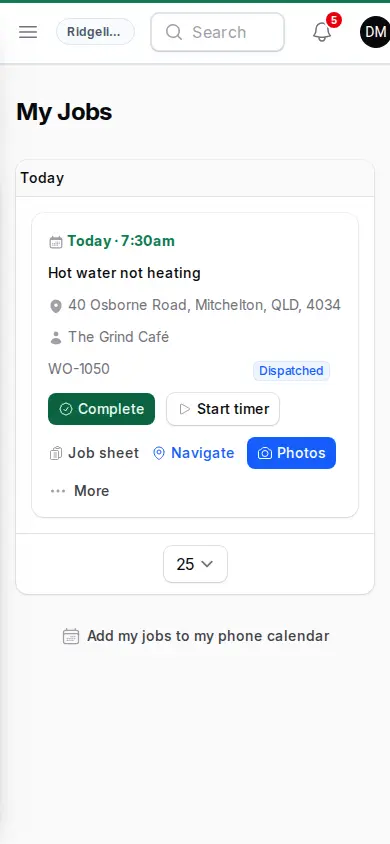
You'll see one card per job, grouped by what to do next:
- Today — your bookings for today.
- Booking passed — not finished — the booking has gone by and the job is still open.
- Coming up — jobs booked later, and jobs you're on with no booking yet.
- Done this week — jobs you've completed. They stay for a week, or until the office moves them on.
Only Dispatched, In Progress and recently Completed jobs appear. A job still in Draft, or one on hold, won't show here.
Each card shows when the job is, its title, where it is, the customer, the job number and status. High and Urgent jobs carry a priority badge. A workshop job says so instead of showing an address. If the address looks incomplete, the card warns you to check with the office.
The buttons depend on the job's status. Complete, the timer buttons, Job sheet, Navigate and Photos sit on the card. Everything else is under More.
Your time
There are three ways to record time, so use whichever suits the job. You don't have to run the timer.
- Start timer — starts your time on the job. A Dispatched job moves to In Progress. On an In Progress job the button reads Resume timer.
- Stop — stops the timer and records your hours. If it ran past midnight or for more than 12 hours, you'll be asked When did you finish? so the night isn't counted.
- Log time (under More) — enter a day's start, finish and break, or just the hours, without the timer. It's filled in from your booking where there is one. This suits a job that runs over several days.
- Time on site — when you complete the job, confirm your own hours there.
Start timer is hidden while you have a timer running on any job, so stop that one first.
Getting to the job
- Navigate — opens the address in your phone's maps app. It doesn't appear for a workshop job, or when the job has no usable address.
- On the way (under More) — texts the customer your ETA. It only appears if your workspace has customer SMS turned on, you're allowed to send customer messages, and there's a mobile number for the customer.
Parts and materials
- Parts & materials (under More) — search From the price list if your workspace has one, or describe the part yourself. Add Quantity and an optional Unit (for example "ea"). Cost and Billable appear only if your workspace lets workers enter them.
- Add receipt (under More) — for parts you bought yourself. Add a photo or PDF of the receipt and fill in the details. With AI reading on, they fill themselves in, so check them. It goes for approval, and the parts appear on the job once it's approved. You can follow it in My Receipts.
Parts you add stay in draft until the office approves them.
Photos, forms and notes
- Photos — add one or several (JPEG, PNG, WebP or HEIC, up to 10 MB each). The photo stage is set for you, and the office can change it later.
- Forms (under More) — fill in a form attached to the job, sign it, and turn on Sign off & complete when it's done. It only appears if your workspace uses forms.
- Job sheet — shows your hours, the parts and photos on the job, any required forms, and notes. You can also add a note here. Notes are for the office unless you turn on The customer may see this note, which needs permission to send customer messages.
Recording payment
Record payment (under More) only appears if Let field workers take payment on site is on in Trade Pack Settings and you hold the record-payments permission. It's offered on In Progress and Completed jobs.
Fill in Type (Cash, Card, EFTPOS, Bank transfer, Cheque or Other), Amount, Received at and optional Notes. This records money you've received. It doesn't charge a card.
You can tick Send the customer a receipt. If your workspace requires office approval of customer output, the receipt isn't sent from here, so let the office know to send it from the job.
Completing a job
Complete appears on Dispatched and In Progress jobs, so you can finish a job without ever starting the timer. If your timer is running on the job, stop it first. Then fill in:
- Completion photos — required if your workspace requires a completion photo and the job doesn't have one yet.
- Work performed — what you did, in a sentence or two (required). The customer reads this. If AI is on for your workspace, Write it for me drafts it for you to edit.
- Works completed — leave on if the job is fully done.
- Remaining work — required if you turn Works completed off.
- Time on site — your own hours, filled in from your booking.
- Meter readings — on mechanical workspaces, read the hour meter or odometer of the machine on the job. Leave it blank if you couldn't.
- Parts used — open this to add anything you haven't logged yet.
Submitting moves the job to Completed. The office takes it from there.
Your calendar
Add my jobs to my phone calendar, at the bottom of the page, gives you a private link. Subscribe to it in your phone or computer calendar and your booked visits appear there. Keep the link private. Reset link replaces it if it gets out, and any calendar using the old link stops updating.
Connected pages
- Work Orders — the full job record the office works from.
- Dispatch Board — where jobs are booked and sent to you.
- Trade Pack Settings — where field payment, photos and timers are set.
Tips & common mistakes
- Can't see a job you know you're on? It's probably still in Draft or on hold. It shows here once it's dispatched.
- No Start timer button? You have a timer running on another job. Stop that one first.
- No Complete button? Your timer is still running on this job. Press Stop.
- Complete won't submit? Describe the work performed. If you turned off Works completed, describe what's left. If it's refused for forms or a running timer, the message says which.
- No Record payment or On the way? Your workspace hasn't turned them on, or your role doesn't include them. Ask your office.
- Job disappeared? Finished jobs stay for a week, unless the office approves the job sooner.