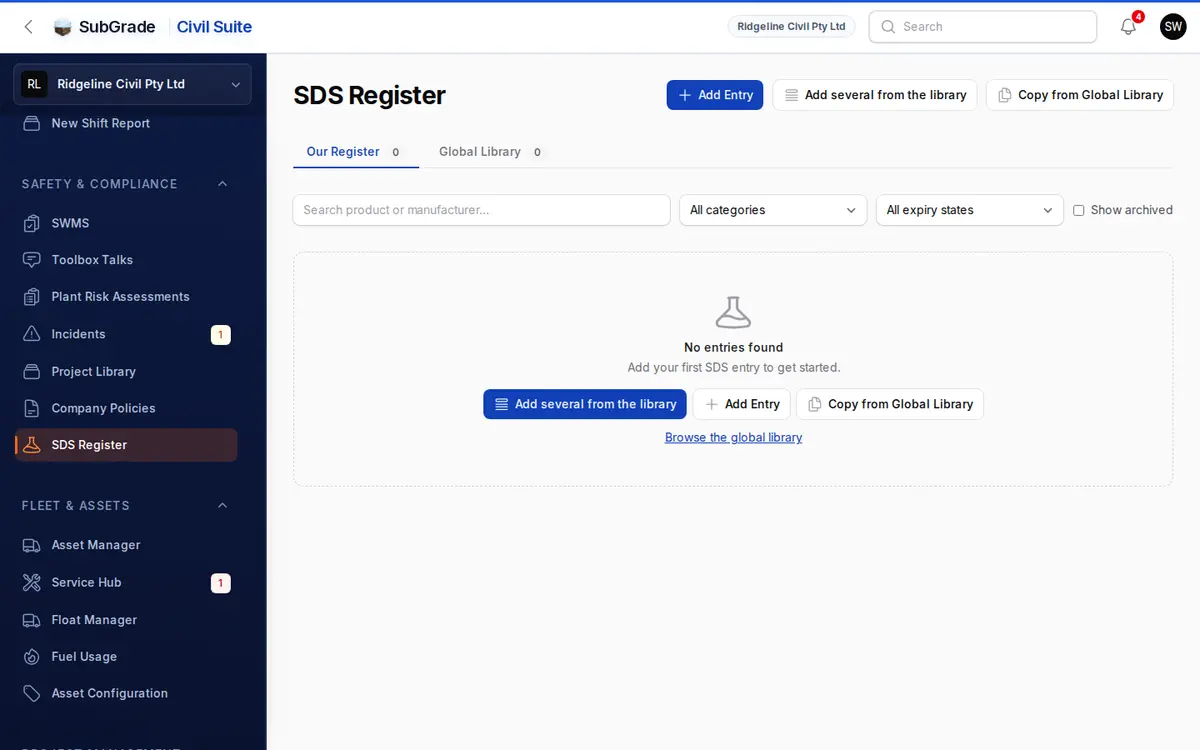
The register of Safety Data Sheets (SDS) for chemicals and hazardous substances your workspace uses, such as fuels, adhesives, solvents, gases and paints. Workers can look one up on the spot, and managers keep the register current.
Who can use it — Anyone with "view SDS register" permission can browse entries, search and open a document. Adding, editing, archiving or restoring needs "manage SDS register" permission. See Roles & Permissions for how access is set.
Where to find it — Safety & Compliance → SDS Register in the sidebar.
How to use it
- Search by product or manufacturer.
- Filter by category — Fuels & Oils, Concrete & Masonry, Adhesives & Sealants, Solvents & Cleaning, Gases, Paints & Coatings, or Landscaping & Earthworks.
- Each entry is a card showing the product, manufacturer, category, UN # and DG Class (if it's a dangerous good), expiry date, and location.
- View SDS opens the uploaded document in a large preview, right from the card.
- Manufacturer SDS opens the manufacturer's own copy in a new tab, if the entry has a link.
- QR Code shows a code that opens that exact entry on a phone, handy next to a chemical storage cabinet. Whoever scans it must be signed in to SubGrade with access to the register, so it isn't a public link.
Documents are stored privately and opened through short-lived links (15 minutes). Each View SDS and QR Code view is logged against the entry.
Our Register vs Global Library
- Our Register — your workspace's own entries.
- Global Library — a shared catalogue of common chemicals maintained by SubGrade. You can browse it, but it's a source to copy from, not your register. Chemicals you already hold show In your register.
With manage permission there are two ways to copy across:
- Copy to Register on a chemical (or Copy from Global Library at the top) fills in a new entry from the catalogue, ready to review and save.
- Add several from the library lets you tick the chemicals kept on site and say once where they're kept. Add the SDS file to each entry afterwards.
Adding and managing entries (manage permission)
- Add Entry creates an entry from scratch: product name, manufacturer, category, UN number, DG class, manufacturer SDS URL, location / storage notes, SDS issue date, the SDS document (PDF only, up to 20 MB) and notes.
- SDS Issue Date — the expiry date is set to 5 years later automatically. Leave it blank and no expiry is tracked.
- Edit updates an entry, including replacing the PDF.
- Archive hides an entry from field workers after a confirmation. It's not a delete. Restore brings it back. Archived entries only appear to managers, through Show archived.
- Managers also get an expiry filter: Expiring in 30 days or Expired.
Dates are colour-coded on every card: amber when expiring within 30 days, red when expired. A daily check also sends people with manage permission a reminder when entries are due to expire within 30 days. It shows in the app; whether it also goes by email depends on your notification settings.
Connected pages
- Company Policies — other safety documentation kept alongside the SDS register.
- Project Library — project-specific documents, as distinct from this workspace-wide register.
Tips & common mistakes
- Can't add or edit an entry? You need "manage SDS register" permission.
- "Unable to load SDS document right now" means the secure link couldn't be created. Retry shortly, or ask an administrator to check the file.
- "No file uploaded for this entry" means the entry has no PDF yet. Add one with Edit.
- A global copy doesn't update later. It's a one-off copy. If the manufacturer updates their SDS, upload the new PDF or edit the entry yourself.
- No expiry showing? It's only calculated when an SDS Issue Date is set.
- Archived isn't deleted. You can restore an entry any time.