Report anything that happens on site, whether a near miss, an injury or damage to plant. Submitting alerts the people who manage incidents, and they investigate, add corrective actions and close it out.
Who can use it — Reporting and management are separate permissions:
- "Create incidents" lets you report one. You can open the form, save a draft, and submit it.
- "View incidents" lets you see every incident in the workspace. Without it (and without manage rights) you only see incidents you reported yourself, including in the list and the sidebar badge.
- "Manage incidents" is the investigation tier: begin an investigation, fill in the investigation fields, close the incident, raise a linked defect or workers compensation claim, and see the Witnesses, Plant involved and Corrective actions tabs on a record. Everyone with this permission is alerted when a report is submitted.
- "Reopen incidents" is a separate permission. You can manage an investigation without being allowed to reopen a closed incident.
See Roles & Permissions for how these are granted.
Where to find it — Safety & Compliance → Incidents in the sidebar. The badge counts the incidents you can see that are Reported or Investigating. The list has four tabs: Open, Drafts, Closed and All. If you can view all incidents it opens on Open; if you only see your own, it opens on All. Filters cover status, outcome, project, the date it occurred, and whether someone was injured.
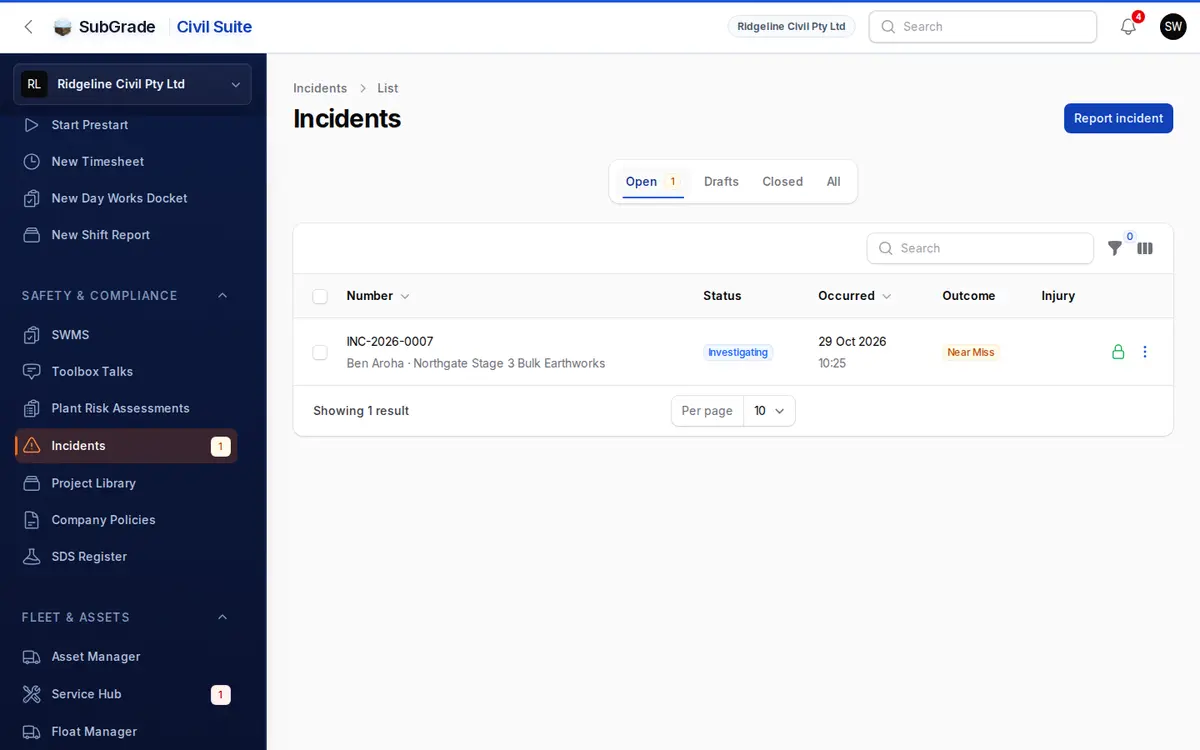
Before you start — report as soon as practical. You need the date and time, the exact location, a description, the outcome and who was involved. The form is built for a phone, and you can save a draft if you don't have everything yet.
How to use it
- Click Report incident on the list. Nothing is numbered or sent until you submit.
- What happened:
- Date & time of incident defaults to now and can't be more than a day in the future.
- Project / job, then an optional Site area (a named area on that project, otherwise it stays project-wide).
- Exact location on site and What happened?
- Outcome: Near Miss, Injury, Plant / Property Damage, or Other.
- Was anyone injured? Turn this on and an Injury summary field appears, which you must fill in. Choosing the Injury outcome turns it on for you and locks it.
- Photos (optional): up to 20 images, 10 MB each, taken straight from the camera on mobile.
- Plant involved (optional): choose a registered asset or name unregistered or hired plant, and note what happened to it.
- Worker involved: set the Worker type to Employee, Contractor or Other.
- For an Employee, pick them from the Employee list. Their name, phone, date of birth and address fill in from their profile.
- For a Contractor or Other, type the Name.
- Details for a claim folds away the phone, sex, address, date of birth, occupation, experience in the job, shift start time and work arrangement.
- Witnesses (optional): add a name, phone and statement for anyone who saw it.
- The bar at the bottom shows what's still needed. Then either:
- Click Save draft to finish later. Nothing is sent.
- Click Submit report to send it now.
To finish a draft, open it, click Edit to complete it, then use Submit Report on the record. If anything is missing, the confirmation lists exactly what.
What happens when you submit
- The report gets an incident number (
INC-2026-0001style, per workspace per year) and moves to Reported. - The details you entered lock, so the report becomes read-only for you.
- Everyone who manages incidents is alerted in the app and by email, and by push if they use it. You don't get an alert for your own report. The alert gives the incident number, location, who reported it and whether anyone was hurt. The rest stays behind sign-in.
- You're told how many managers were notified. If nobody else manages incidents in your workspace, you're told to tell your manager directly, so do that straight away.
An alert doesn't replace a phone call. For a serious injury, or anything your regulator needs to hear about, call your manager and follow your own emergency procedure. SubGrade doesn't report incidents to a regulator for you.
Status workflow
An incident moves through four statuses:
- Draft — being written. It has no number and no one is alerted. You can edit your own draft. Anyone with view or manage rights can see it, and managers can edit it.
- Reported — submitted and numbered. A manager clicks Begin Investigation and chooses a Lead investigator (it defaults to them).
- Investigating — the Investigation section can be edited: task being performed, persons involved, immediate actions taken, root cause analysis, contributing factors, preventative actions, management notes, and investigation files (images or PDFs, up to 20 at 10 MB each).
- Closed — a manager clicks Close Incident and enters a Close-out summary. A root cause analysis must already be saved. If any corrective action is unfinished, a reason for closing with open corrective actions is also required. Who closed it and when is recorded.
Reopening — Reopen Incident sends a closed incident back to Investigating. A reason is required and kept under Reopen history, with who reopened it and when.
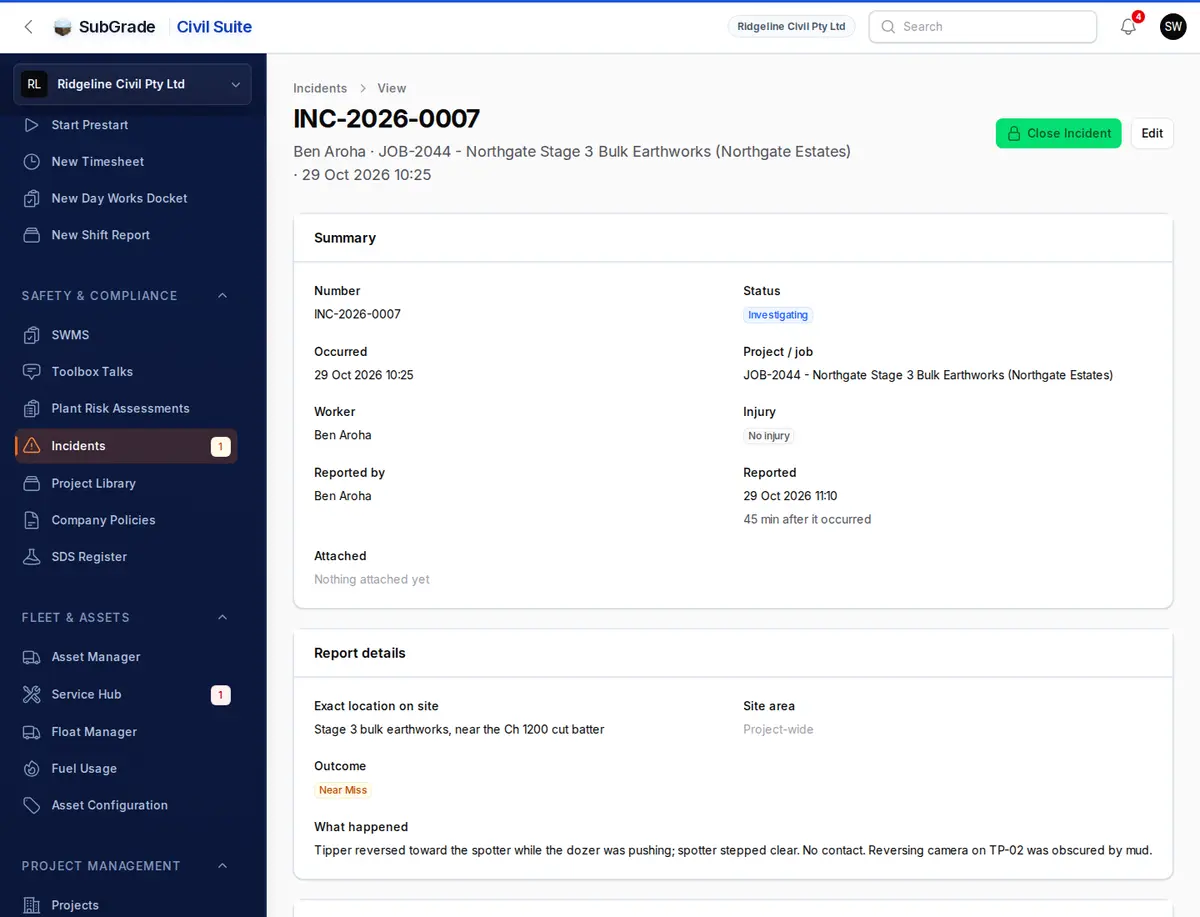
Witnesses, plant involved and corrective actions
Three tabs sit at the foot of a record for anyone with manage rights. You can change them until the incident is closed. A closed incident is frozen until it's reopened.
- Witnesses — the same list as the report form, still editable after the report is locked.
- Plant involved — link a registered asset or name external plant, with notes. Once the incident is Reported or Investigating, Report Defect raises a defect against a registered asset, with a description, priority (Low, Medium or Critical), who it's assigned to and a photo. It's pre-filled from the incident and linked back to it. External plant must be linked to a registered asset first. Follow the defect up in Service Hub.
- Corrective actions — a title, description, who it's assigned to, a due date and completion notes. Use Mark done when it's finished. Overdue actions are flagged. Any unfinished action needs a reason before the incident can close.
Workers compensation claims
Under More on the record, a manager sees Create Workers Comp Claim when someone was injured, the worker type is Employee, and no claim is linked yet. You also need rights to manage claims, and workers compensation must be switched on for your workspace. The claim is prefilled with the employee, injury date and injury summary. You enter a Claim number (required, unique in your workspace) and optionally an insurer and injury type, then you're taken to the claim. After that, View Workers Comp Claim opens it. See Workers Compensation.
Keeping records
Reported incidents are permanent safety evidence. Managers can move an incident to the trash and restore it, but only a draft can be permanently deleted.
Connected pages
- Workers Compensation — the claim an injury incident can create and link to.
- Projects — the job an incident is logged against.
- Service Hub — where defects raised from an incident are followed up.
- Company Policies — your workspace's incident reporting and safety policies.
Tips & common mistakes
- Can't submit? The bar at the bottom of the form, or the confirmation on a saved draft, lists what's missing.
- Saved a draft and nobody knows? Correct: a draft alerts no one. Submit it.
- Told to tell your manager directly? Nobody else in the workspace manages incidents. Ring them, and ask an admin to give someone the "Manage incidents" permission.
- No Edit button? A Reported incident needs Begin Investigation first, and a Closed one needs Reopen Incident. Reporters can only edit their own drafts.
- Can't close? Save a root cause analysis first using Edit. Close Incident only appears while the incident is Investigating.
- No Report Defect button? It's only there while the incident is Reported or Investigating, and it goes away once a defect is raised.
- No workers comp button? Check More, then check that someone was injured, the worker type is Employee, no claim is linked, and workers compensation is enabled.