Choose a project, a period and who the report is for. Report Builder shows what the report will contain, lets you leave out anything that shouldn't be in it, and exports a PDF. From a client report you can also draft a client update email, check it, and send it from your own mailbox.
Who can use it
- Opening Report Builder needs view report builder (Management and Payroll by default).
- Some sections need more. Each section below says what it needs. A section you can't see is listed with the reason instead of its count.
- Drafting and sending client emails needs send project reports (Management by default). Viewing never lets you send.
See Roles & Permissions for how access is set.
Where to find it — Project Management → Report Builder in the sidebar.
Before you start — Report Builder only reads records other people have logged: shift reports, diary notes, crew and plant, prestarts, timesheets, progress, delays, day works dockets and posted costs. It never changes them.
Build a report
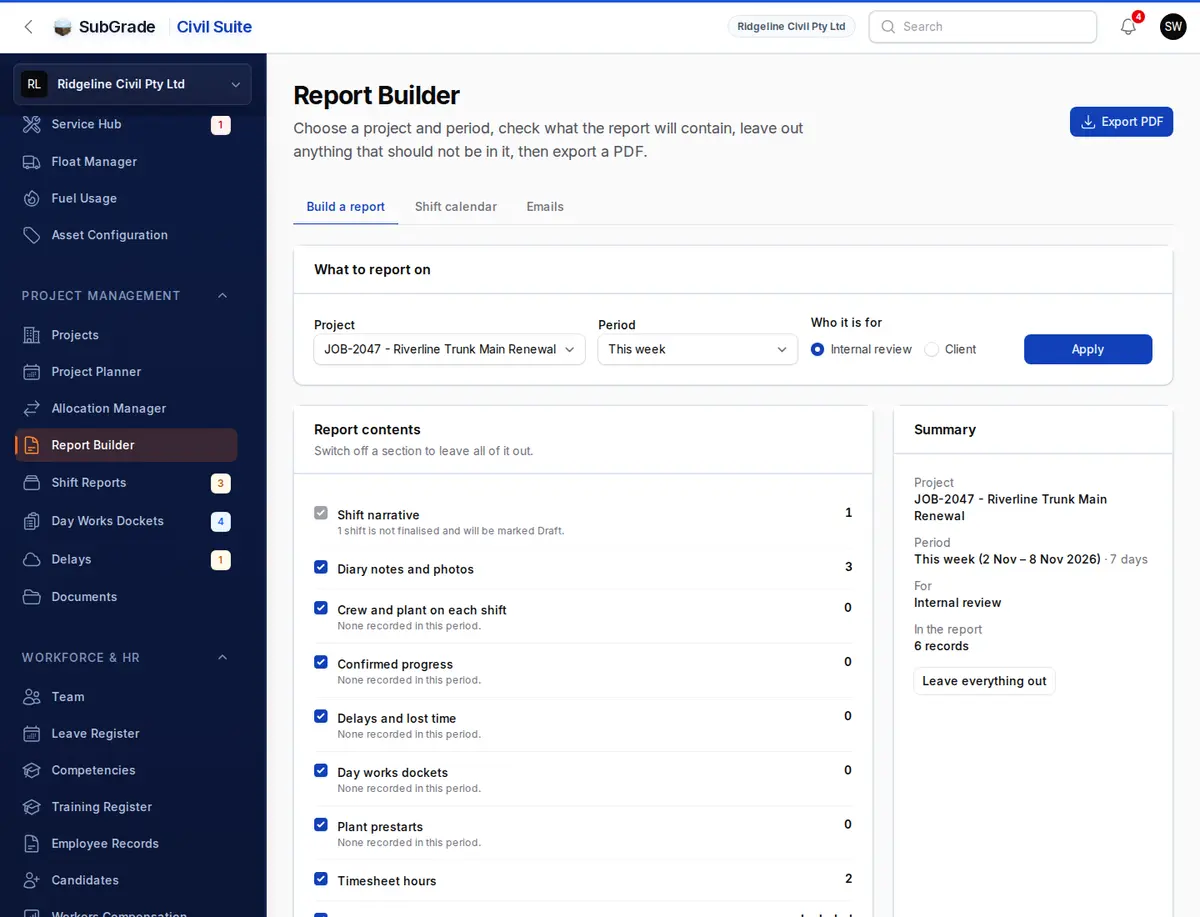
- Choose the project.
- Choose the period: Today, Yesterday, This week, Last week, This month, Last month, This claim period, Last claim period, or Custom dates. A report covers at most 92 days; a longer custom range is refused, so narrow it or split it.
- Choose who it is for.
- Internal review carries everything you're allowed to see.
- Client carries only what a client may see (see Client reports).
- Apply. Nothing loads until you do, and changing the project or period puts back anything you'd left out.
The Report contents panel then lists every section with its count, or a note saying why it's empty, restricted or switched off. Untick a section to leave all of it out. The Summary shows the project, period, audience and how many records are in the report.
What a report can contain
| Section | What it shows | Needs |
|---|---|---|
| Shift narrative | Each shift's date, shift, clock times as written on site, supervisor, weather and site conditions | — |
| Diary notes and photos | Notes in the order they happened, with their photos | — |
| Crew and plant on each shift | Crew and plant recorded on the shift. Worker names only appear for people who can see timesheets | — |
| Confirmed progress | Quantities the PM confirmed, each in its contract line's unit. A negative measure is shown as a correction. Crew observations not yet confirmed are listed separately, internal only | view budget tracking |
| Delays and lost time | Delays from the register with cause, impact and programme days lost. Totals appear only when every delay in the period is in the report | manage project delays |
| Day works dockets | Docket number, status, works and items, and who signed. Dockets carry no money. Days with day works hours no accepted docket covers are listed for internal review | view or manage day works dockets |
| Plant prestarts | Prestarts recorded against the project, or on a machine allocated to it that day, with hours, meter readings and litres | — |
| Timesheet hours | Hours booked to this project, by worker | view timesheets, internal only |
| Cost position | Posted cost by bucket for the period and project to date, stopping at the last posted day. Earned value and margin also need view margin. The yard shows its cost-centre position instead | view budget tracking, internal only |
| Fuel | The fuel part of plant cost (measured, from prestart litres, estimated) and fuel delivered to hired plant. Unpriced deliveries say so. Fuel is already inside plant cost, never added to it | view budget tracking, internal only |
A prestart with no project and no allocation covering its date is listed under Prestarts needing attribution in internal reports only. The machine being on this project today is not proof it was then.
Leave out individual records
Review records has a tab for each section with records in it. Leave out removes a record and Put back returns it; you can also select several and do both at once. Leaving out a shift leaves out its notes and crew too. Everything is checked again when you export, so what you see is what goes in.
Client reports
A client report never contains timesheets, cost, fuel, unconfirmed crew observations, prestarts needing attribution, or day works coverage gaps. It also carries:
- Only finalised shifts. Someone who can finalise shift reports can choose to include drafts, which are marked DRAFT, not finalised in the PDF.
- Only reviewed delays.
- Only day works dockets that are signed or verified.
Export the PDF
Export PDF saves the report exactly as selected and makes the PDF in the background. A panel shows its progress, then Download PDF. The PDF has your letterhead, a summary, progress by date and shift with photos, and then each section. Every page is numbered and carries a reference such as 0090-R004.
Reports for this project lists earlier exports:
- Use this selection loads one back, so exporting again makes a fresh report from today's records.
- Download is offered only when you're allowed to see everything in that report. A report with margin, for example, can't be downloaded by someone without view margin.
- A client report is kept for good once it has been downloaded. So is a report that has been marked sent, or that a saved email was drafted from. Other PDFs are removed after 30 days, though the report record stays.
Client update emails
From a client report you can draft a client update email. An AI drafts the body from the report, you check and edit it, and you send it from your own email. Nothing is ever sent from Subgrade.
Draft it
- Choose Draft client email on a client report, either in Reports for this project or on the export panel, or on the Emails tab for the project and period you've applied. You can also start from a finalised shift report: in its Client update section, choose Draft client update. That email covers just that shift, leaving out any other shift on the same day. Once an email about the shift exists, the same section lists it with Open and check, and the button becomes Draft again, which says first that a new draft uses another credit.
- The first time, choose who the update goes to from the project's client contacts, plus your sign-off. After that, Email settings on the Emails tab changes recipients, trade, sign-off and tone (needs manage projects) and whether rates are agreed (needs manage rate book).
- Drafting takes under a minute and uses one AI credit. One email covers at most seven shifts. If AI drafting is off for your company or you have no credits left, you'll see a message saying so instead of a draft.
Check it
- The email is on the left. Edit the subject and body directly; changes save as you type, and the original draft is always kept. You can also change recipients, switch the layout and choose photos without using a credit.
- Before you send lists anything to verify, such as a shift that isn't finalised.
- Flagged for action highlights anything that may need more than an email, such as a possible incident notification.
- Content removed shows what was left out of the email and why, such as profanity in a note.
- Open items proposes new items for the project's register and items to close. Nothing reaches the register until you tick what you want and click Confirm register changes. Items are never deleted; they stay listed with the date they were first raised.
Rates not agreed: until someone who manages the rate book marks a project's rates as agreed, the email may not mention dockets, claims, chargeable time, standby, stand-downs or rates. Wording like that blocks sending until you reword it. Operational phrases such as "flow rate" are fine.
Send it
- Copy and open email copies the formatted email and opens your mail app with the recipients and subject filled in.
- Paste the body, attach the PDF (Download PDF) and any chosen photos (Download photos) if you want them, and send.
- Back in Subgrade, click Mark sent and enter when you sent it. The shifts in the email are recorded as reported to those recipients.
If your browser won't allow copying, the text is shown for you to select and copy yourself.
The Emails tab lists every email saved for the project, with its status, such as drafting, ready, failed, opened but not marked sent, or sent.
- Open reads or edits one.
- Duplicate starts a new email from it without using a credit.
- Archive hides it; archived emails are one filter away and nothing is deleted.
- Draft again makes a new email and uses another credit, keeping the old one.
Shift calendar tab
Shift calendar is a read-only way to browse a project's shift reports month by month. Days are marked:
- Green: finalised.
- Amber: a draft.
- Red: needs a supervisor.
- Grey: more than one report that day.
Click a day to see its reports, with a link to open one in the editor. Nothing here changes the report.
Connected pages
- New Shift Report — where shift reports, crew, plant and diary notes are created and finalised.
- Manage Shift Reports — flagged entries and reports waiting for an owner.
- Projects — the project and its client contacts, who can receive client updates.
- Day Works Dockets — dockets and their signatures.
Tips & common mistakes
- Export PDF greyed out? Apply a project and period first, and make sure something is selected.
- A section says "Needs the … permission"? Ask whoever manages roles; that section stays out of your reports until then.
- Cost stops before the end of your period? Figures only cover posted days. The report says where they stop.
- Draft client email missing? It only appears on client reports and shift reports (as Draft client update), and only for people with send project reports. On a shift report it stays greyed out until the shift is finalised.
- Can't send an email? Check Before you send for blocked wording, confirm any open item changes, and make sure the project has a recipient.