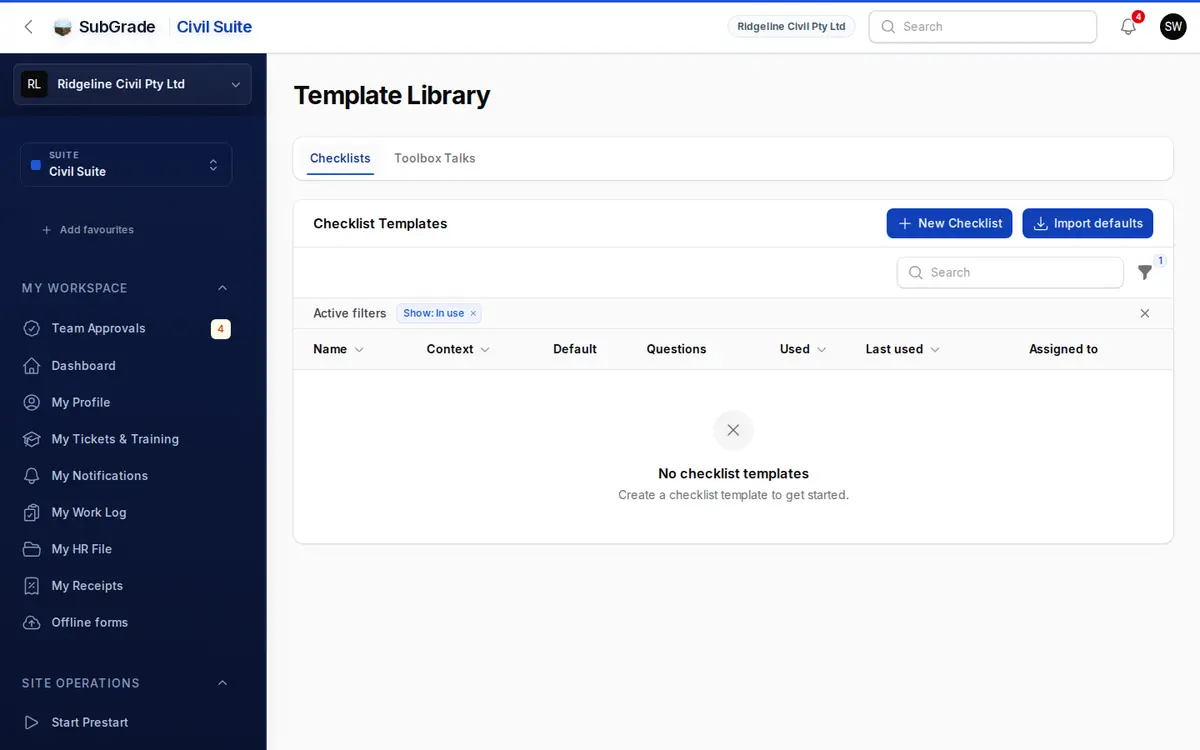
Checklist Templates is where you design the questions crews answer on the ground: a plant prestart, a toolbox talk, a daily timesheet checklist. Build the questions once, then attach the template to the place it's used.
Who can use it — You need "view checklist templates" to see the list, and "manage checklist templates" to create or change one. See Roles & Permissions for how access is set.
Where to find it — Administration → Template Library, on the Checklists tab. The Toolbox Talks tab beside it holds reusable talk wording.
How to use it
- Press New Checklist, or Import defaults to copy ready-made templates into your workspace and edit them. Imported templates with a name you already have are skipped.
- Enter a Checklist name and choose Where this checklist is used (see below).
- Turn on Default template if it should be the fallback for that use. Show fail options in forms shows defect fields when a worker fails an item.
- To save time, pick a Quick start template (Daily prestart or Toolbox talk) and press Load preset. Or copy an existing checklist with Start from template.
- Add a What this checklist is for description (optional).
- Build the Checklist items, one row per question, in order. Press Add item for each new row. At least one is required.
- For many questions at once, open Bulk add (optional) and paste one per line as
Label|type|critical (1/0)|options, then press Add to list. Example:Check Oil|pass_fail|1orSelect operator|select|0|Alice,Bob. - Set Category, Allowed Roles and Pinned under Visibility & Access.
- Save.
Question types
The same types are available for every use:
- Pass / Fail — compliance-style check.
- Yes / No / N/A — three-way answer.
- Text — free-text answer.
- Select — pick from a list you define under Options.
- Check — a simple tick.
- Header — a section heading with no answer.
- Information block (read only) — shows content with no answer.
- Signature (Drawn) / Signature (Typed) — captures a signature.
- File / Photo — an upload attached to the answer.
Mark an item Critical safety/compliance item when failing it matters. On a prestart, a failed critical item needs a description and becomes a defect, and the prestart is recorded as not safe.
The offline prestart only shows Pass / Fail, Check, Header and Information items. Anything else, including Yes / No / N/A and Photo, is sent blank. If crews often work with no signal, build prestart checklists from those types. See Start a Prestart.
Turn on Show advanced item options on an item to add:
- Extra instruction for worker — a helper line under the question.
- Attach Reference Document — link a policy or procedure, plus optional Reference text such as "Read pages 4-5".
- Content — for Information block items.
- Reference image — shown with the item.
Visibility & Access
- Category — tag the template (General, Safety, HR, Training, Daily or your own) to organise your list.
- Allowed Roles — record which roles this checklist is intended for.
- Pinned — flag the template as a favourite.
How templates get used
Where this checklist is used offers Asset prestart, Induction, Incident report, Toolbox talk and General form, or a new use you type yourself.
- Asset prestart — set Checklist operators get on an asset class in Asset Configuration. A prestart (Start a Prestart) uses the checklist assigned to the asset, then its category, then your Default template for prestarts. The offline prestart is different: it uses your workspace's newest prestart checklist for every asset.
- Toolbox talk — picked per talk when a supervisor turns on Include a checklist on a talk in Toolbox Talks. You can widen which uses are offered under Toolbox & Safety in Workspace Settings.
- Timesheet — this isn't a use on the list. In Payroll Settings, Mandatory Timesheet Checklist can point at any of your workspace's templates. It then appears in the first step of New Timesheet.
- Induction — company inductions now use a training module, set in Workspace Settings. A workspace already using an induction form keeps it until a module is chosen.
- Incident report and General form — available, but no SubGrade page reads them yet.
Site Inspection checklists aren't built here. Site Inspections use a fixed checklist maintained by SubGrade. A copy imported into your workspace doesn't change it.
Archiving and deleting
Archive takes a template out of use and keeps everything already recorded with it. You can Restore it any time. The list shows In use by default, and the filter shows Archived.
A template can't be archived while it's a default, assigned somewhere, the timesheet checklist, the induction form, or used by a toolbox talk template. SubGrade tells you which. Archive selected skips those and lists them. Delete is refused for a template in use, in the same way.
Connected pages
- Start a Prestart — where a prestart checklist is answered.
- Asset Configuration — assign a prestart checklist to an asset class.
- Toolbox Talks — where a toolbox checklist is attached and answered.
- Site Inspections — uses its own fixed checklist.
- Workspace Settings — toolbox options and the company induction.
Tips & common mistakes
- More than one Default template? Your workspace's newest one wins, so don't rely on having several.
- Bulk add appends, it doesn't replace. Check for duplicates if you run it twice.
- Bulk add's type names:
pass_fail,text,photo,select,header,check,file,signature,typed_signatureandinfo. - Editing a template changes the live form for everyone using it. The Used and Assigned to columns show where it's in use.