Subgrade covers a lot of ground, and almost none of it matters on your first day. This is the short list — what to do, in the order most people need it. Anything not here can wait until you hit it.
Who this is for — anyone new to a Subgrade workspace. If you haven't signed in yet, start with Getting Started.
Some steps below won't apply to you — the pages named are the ones in your sidebar, and the sidebar reflects your role. Skip what you don't have.
Day one
1. Check your details are right
Go to My Profile and read through it once. It's pre-filled from whatever the office entered when they set you up, and that's exactly why it's worth checking — nobody else will notice a wrong number.
Pay particular attention to:
- Emergency contact — the one field where being out of date has real consequences.
- Phone and email — how you'll be told about allocations, approvals, and anything urgent.
2. Get your tickets in
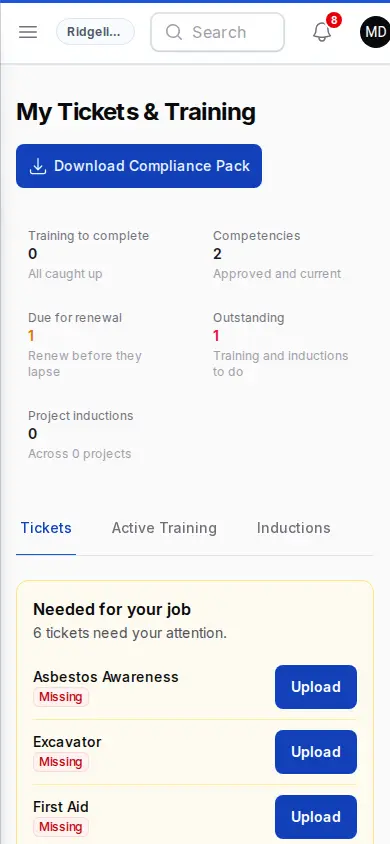
Open My Qualifications — it's My Tickets & Training in the sidebar — and upload photos of your licences and tickets. The page lists what your job needs under Needed for your job.
Do this before you need it. The office can't see a ticket that's in your wallet, and what you upload waits for a manager to approve it. Once a ticket with an expiry date is approved, Subgrade reminds you in the app as it comes up for renewal.
3. Learn the daily loop
Most field days are the same three steps:
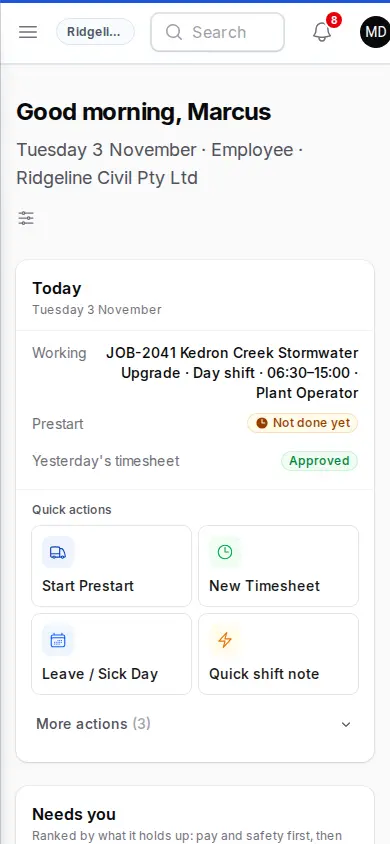
- Start a Prestart — the safety check before you use a machine or vehicle. Answer the checklist, confirm the meter reading, flag any defects.
- New Timesheet — your hours, against the right job. This is what feeds your pay, so the job you pick matters. You also choose the supervisor who'll approve it. If that list is empty, tell the office, because the timesheet can't be submitted until they fill it in.
- My Work Log — everything you've submitted, in one place. Check here when you want to know whether something was approved or sent back.
Do these on your phone, on site, as you go. Doing a week of timesheets on Friday afternoon from memory is how hours go missing. Your dashboard shows today's booking, whether the prestart is done, and buttons for both forms.
No signal? The prestart and timesheet both have offline versions, if you've opened them once with signal. See Getting Started.
Later in the week
If you supervise people
- Team Approvals is your queue — timesheets, leave, and other submissions waiting on you. It carries a badge with the count. Approvals held up here hold up someone's pay, so it's worth a daily glance rather than a weekly one.
- New Shift Report captures what happened on site that shift — crew, plant, progress, delays. It needs signal.
If you're a subcontractor
- My Subcontractor Work is your hub: log your work, track what's been approved, and see your finalised invoices and current rates. You only ever see your own. You use Log Work here rather than a timesheet.
If you're assigned a vehicle
- My Vehicle is where the odometer check-in goes. You'll find it on your dashboard and as a tab in My Work Log. It's quick, and it's what keeps servicing on schedule.
Everyone
- My Notifications — your inbox, plus control over what reaches you. Email starts switched off, so turn it on here if you want alerts by email. You can also turn on push alerts for your phone. SMS is set up by your office.
- My HR File — your HR record, and where you request leave.
- Dashboard — the landing page, showing what's waiting on you.
Tips & common mistakes
- Fill things in as you go, not at the end of the week. Every form here is quicker on site with the details in front of you than it is from memory on Friday.
- A submitted form isn't an approved one. Check My Work Log for anything sent back — a rejected timesheet sitting unnoticed is a missing day's pay.
- Put the right job on your timesheet. Hours are costed to the job you choose, so a wrong one quietly misreports the project as well as your pay.
- You won't have every page listed here, and that's normal — see Roles & Permissions.