The full document register behind every project — upload files or link out to external sources, control what type of document something is (and whether it needs sign-off or version history), and track which required documents a project is still missing.
Who can use it — this page is for administering documents, so it needs "manage project documents" or "manage document types". The Documents and Required tabs need "manage project documents". The Types tab needs "view document types" or "manage document types", and only "manage document types" can change them. People with view access read documents in the Project Library instead. See Roles & Permissions for how access is set.
Where to find it — Project Management → Documents in the sidebar. You'll also find document actions on a job's Compliance tab (its Required Documents and Documents sections), and from Project Library via its Add Document button.
Before you start — decide your document types first if you're setting this up for the first time. A document's type controls whether it needs sign-off, whether it keeps version history, and whether it's a required slot on every project — get the type right before uploading documents against it. See Document Types below.
How to use it
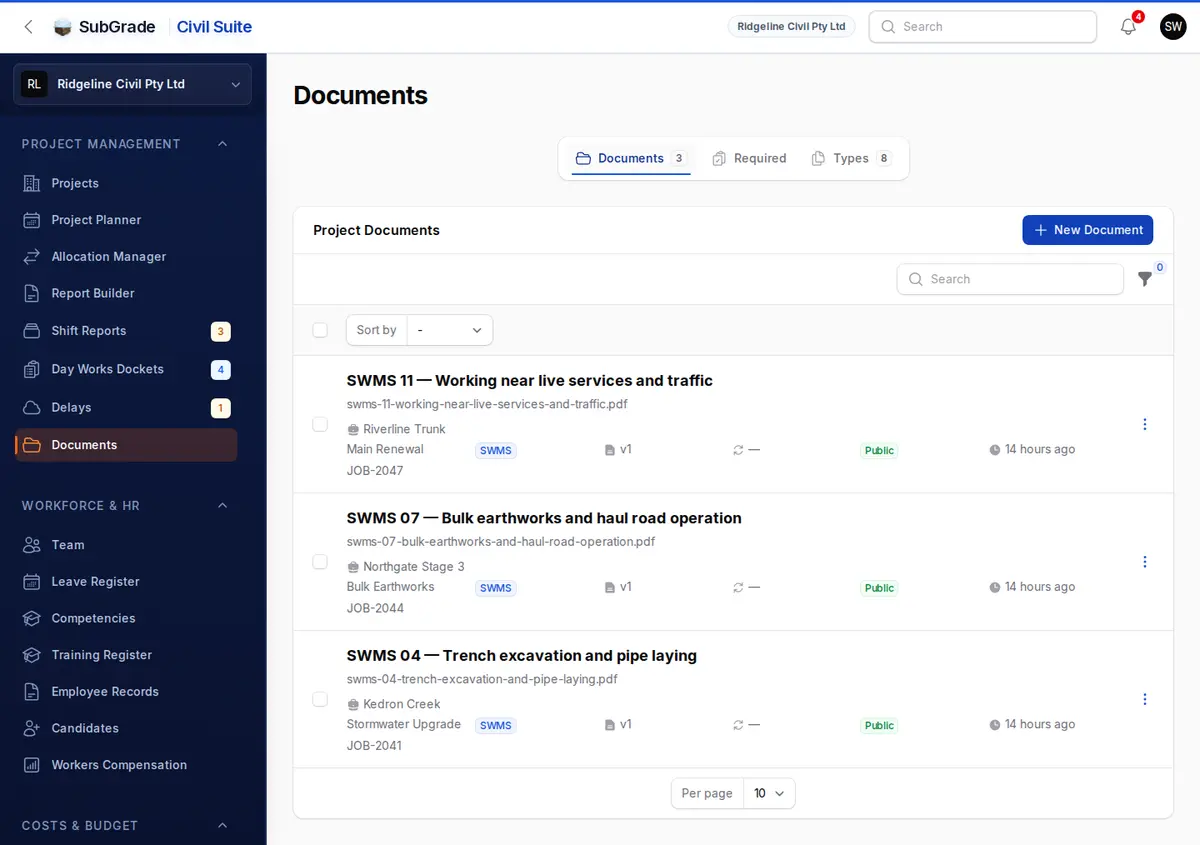
The page has up to three tabs, depending on your permissions:
- Documents — every uploaded file or external link across your projects. This is the main register.
- Required — every required document across your live projects, opening on what's still outstanding. The tab's red badge is the outstanding count.
- Types — the catalogue of document types and their rules (sign-off, versioning, mandatory).
If you have mandatory types, a line above the tabs shows how many jobs are covered and how many documents are awaiting review.
Documents
Each row shows the document, its project, type, version, revisions, visibility and when it was updated. Filter by Project, Document Type, Sign-off, Versioning, Visibility, Source, Updated in the last 30 days or Deleted records.
Uploading a document
Select New Document. It opens in a side panel:
- Project — search by job number or name.
- Document Type — controls sign-off and versioning rules for this document (see Document Types). Mandatory and system-purpose types (SWMS, VMP) sort to the top of the list.
- Label — the plain name the crew will see, e.g. "Site Drawing A".
- Public — toggle on to make the document visible in the Project Library and mobile Site Pack. Leave off to keep it internal-only. It'll still show in this register.
- Document date (optional) — when it was issued or last revised.
- Expires on (optional) — only for documents that genuinely lapse, such as a permit. This is a record only for now: nothing warns you or changes status when the date passes.
- Change log / notes (optional on the initial upload) — a short note describing this first version.
- Document Source — choose Upload File or External Link (an
https://URL, such as a SharePoint link). You can't change this later. For an upload, choose Document — PDF or Word (up to 25 MB) or Photo or scan (JPEG, PNG or WebP, up to 10 MB, resized before upload).
Once saved, an uploaded file becomes version 1 automatically. The record also has a Preview tab and an Access & Versioning tab summarising visibility, versioning, sign-off and the current version. If the type you need isn't listed, you can create one from the Document Type field. It starts with no sign-off and replace-style versioning, so check it on the Types tab afterwards.
Each row's menu has View, Edit, Upload new version (on versioned documents), Quick Preview (opens without leaving the page), and Delete, Restore and permanent delete. Documents that collect sign-off also get View Register and Export PDF for the sign-on register.
Editing and deleting
Edit lets you change the project, type, label, visibility and dates. Deleting moves a document to the Deleted records filter, where it can be restored. Anyone with "manage project documents" can also permanently delete it.
Document Types
Document types are the rulebook — every document picks one, and the type decides how sign-off and versioning behave. Open the Types tab and use New Document Type or Edit on an existing one:
- Name — what the crew sees, e.g. "SWMS – Excavation".
- Category — a free-text bucket like Safety, Design, or Operations, to keep the list tidy.
- System purpose — leave as None for an ordinary document. Set to SWMS or VMP only to wire this type into that system workflow (SWMS Center sign-on, or the Vehicle/Traffic Management Plan chip on Site Pack). Only one type per purpose is allowed per workspace — add variants (Drainage SWMS, Concrete SWMS) as separate documents under the one SWMS type, not as separate types. Once a type with a purpose has documents or requirement rows against it, the purpose field locks.
- Sign Off Method — None (no sign-off needed), Text Declaration (worker types their name), or Digital Signature Pad (worker draws a signature). This is what makes a document show up under Sign-off Required and drives the SWMS Center sign-on flow.
- Versioning — Standalone (no versions), Versioned, no history (replace) (each new upload permanently replaces the prior file), or Versioned, keep history (every version and its file is kept). A type that collects sign-off must keep history.
- Review every — optional, in months. It works out a review due date from the document date on required documents. Most types leave this blank. That date isn't shown or chased anywhere yet.
- Mandatory — when on, this type becomes a required document on every live project (Pre Tender, Post Tender, Active or On Hold). Rows are created in the background. This is what fills the Required tab.
A document type with a system purpose, marked Mandatory, or backing a required-document row can't be deleted until those are cleared. This stops a live SWMS/VMP workflow or compliance history being deleted out from under a project by accident.
Versioning a document
Versioning only applies to uploaded files whose document type is set to one of the two versioned modes — external links and standalone types don't get a Versions section.
Choose Upload new version from the document's row menu, the top of its record, or its Versions section:
- Attach the updated Document (same file-type rules as the original upload).
- Enter a required Change log / notes describing what changed.
- Submit.
What happens next depends on the type's versioning mode:
- Versioned, keep history — the new file is added as the next version number; every prior version and file stays on record and can still be opened.
- Versioned, replace — you're asked to confirm first ("Replace current document?"), because prior versions and their files are permanently removed. If any worker has signed a previous version, history is kept instead so the signatures stay on record, and the message tells you so.
Either way, the new version becomes the document's current version. If the document type requires sign-off (SWMS), publishing a new version resets everyone's sign-on status back to "needs sign" — see SWMS for that flow. Each version row in the list shows its version number, file, change note, and when it was added; View opens that specific version's file.
Document requirements & readiness
The Required tab has one row per job and required document type, across live jobs. It opens with Outstanding only on. Turn that off to see everything. Awaiting my review is a one-click queue. You can also filter by Project, Status (Missing, Provided, Waived, Not required) or Review (Not required, Pending review, Approved, Rejected). Export CSV gives the full readiness list.
The same rows appear on a job's Compliance tab, under Required Documents, with a summary ("X of Y required documents satisfied"). Both places offer these actions:
- Upload / Replace — jumps to the document upload form pre-filled with the project and required type.
- Link existing — points the requirement at a document that's already been uploaded against that project and type, instead of uploading a new one.
- Submit for review, Approve, Reject — moves a provided document through the review axis. A newly provided or relinked document normally lands as Pending review, unless the person providing it already has manage permission, in which case it's approved straight away.
- Waive (with a required reason) / Clear waiver — marks a requirement as not needed for this project instead of missing, or reverses that.
A document counts as outstanding if it's Missing, or Provided but not yet Approved. Waived and not-required rows are clear. Documents that aren't tied to a mandatory type stay out of this view. They're in the job's Documents section instead.
How this drives Project Library and SWMS
Two settings from this page decide what crews see elsewhere:
- Public toggle (per document) — only documents marked Public appear in Project Library and the mobile Site Pack view. Internal (non-public) documents stay in this register only.
- Document type sign-off — a document only shows up in the SWMS Center to be signed if its type's System purpose is SWMS and its Sign Off Method is Text Declaration or Signature Pad and the document is Public. Get any one of those wrong and the SWMS won't appear for workers to sign.
Connected pages
- Project Library — the crew-facing, public-only view of documents managed here.
- SWMS — where SWMS documents created here actually get signed and re-signed on each new version.
- Projects — a job's Compliance tab shows its Required Documents and Documents sections.
Tips & common mistakes
- Document not showing in Project Library? Check its Public toggle — internal documents never appear there, regardless of type.
- SWMS not appearing in the SWMS Center? It needs all three: type purpose set to SWMS, a sign-off method other than None, and the document marked Public.
- Uploaded a new version but can't find the old one? Check the type's Versioning setting. Replace mode permanently deletes prior versions on confirm, unless workers have signed them.
- Can't delete a document type? It's protected because it has a system purpose, is marked Mandatory, or already backs a required-document row — clear those first.
- A required document shows Pending review even though you just uploaded it? It still counts as outstanding until someone who can approve it does.
- Wanted two SWMS variants (e.g. Drainage and Concrete)? Don't create two SWMS-purpose types — add them as two separate documents under the single SWMS type instead.