Build the training content your workforce completes — safety inductions, toolbox-style courses, or policy sign-ons — from a block-based builder, then publish a version and assign it to people or roles.
Who can use it — Anyone with "view training modules" permission can open the list and read modules. You need "manage training modules" permission to create, edit, or publish one, and "assign training modules" permission to send a module to users, roles, or generate a guest link. See Roles & Permissions for how access is set.
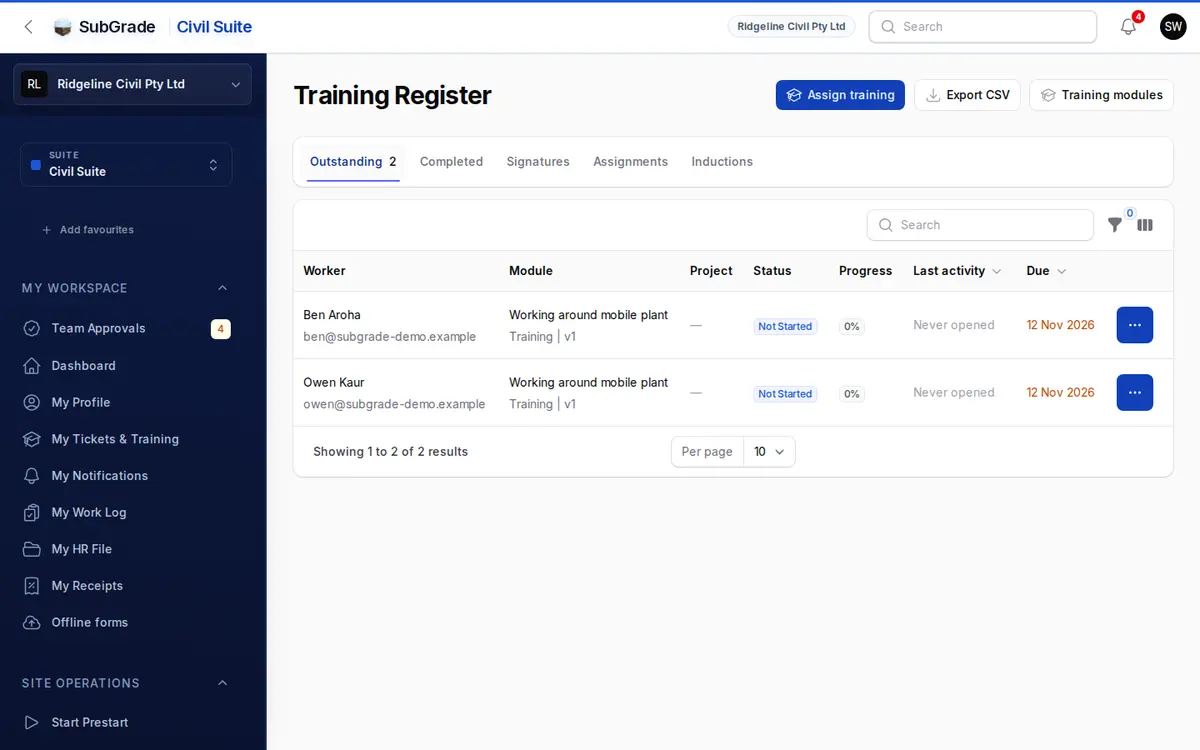
Where to find it — Open Workforce & HR → Training Register and click Training modules at the top. It has no sidebar item of its own. The list shows each module's status, how many people are Done and Outstanding, and View Register takes you to who still owes that module.
Before you start
- A module is only content until it's published — draft changes don't reach anyone until you publish.
- If a block references a Company policy, it must already exist and be active in Company Policies.
- Uploaded videos can be up to 100 MB. Modules marked for offline use have extra requirements (see below).
How to use it
- Create the module. Click New training module and fill in the Module Details:
- Title — the slug auto-fills from this (editable, must be unique).
- Type — Training, Company Induction, or Project Induction.
- Estimated minutes — optional, shown to learners.
- Description — optional free text.
- Can be downloaded for offline use — under Offline use. This adds stricter requirements to PDF and video blocks (below).
- Build the content under Module Content Blocks — add blocks in the order learners will see them (see Building the content below).
- Preview at any time with the Preview button in the header — shows a learner's-eye view of every block in order, including which company policy or upload each PDF resolves to.
- Save. Saving keeps everything as a draft — nothing is visible to learners yet.
- Publish from the Edit page when the module is ready (see Publishing and versions below).
- Assign the published module to users or roles, or generate a guest link for external inductees (see Assigning and sharing below).
A collapsible How To Build A Training Module guide sits at the top of the form with a quick step-by-step reminder.
Building the content
Content is built as an ordered list of blocks under Module Content Blocks. Click Add block, choose a type, and reorder with the drag handles or the reorder buttons. Every block can carry a Title, and (except Header / Title) can be flagged Is required — a required block must be satisfied before the learner can finish the module.
Block types:
- Text — a body of text, with an optional image, caption and alt text.
- Image — a standalone image (required), with caption and alt text.
- Header / Title — a heading and subheading to break up sections. Never required (it's just a divider).
- PDF / File Reference — either an active Company policy (pulled from Company Policies) or an uploaded PDF. Modules marked for offline use can only reference a company policy that is an actual file, not an external link.
- Video — either an uploaded video file or an external embed URL. Modules marked for offline use can't use external embeds, and need Bitrate, Resolution Height and Video Codec set within the limits shown.
- Quiz / Check — a prompt with a list of options (tags input) and a Correct answer picked from those options. Needs at least two options.
- Signature — an instruction plus a Signature mode (Typed or Drawn). Used to record a learner's attestation.
Any of Text, Image, PDF, or Video can also carry a Require acknowledgement checkbox — turn it on and set the checkbox wording (e.g. "I have read and agree to this section") to force a tick before moving on.
Progression rules (gating)
Each block has a collapsible Progression rules section that controls what a learner must do before advancing:
- Preset — the fast path. Options vary by block type:
- None — worker can continue freely.
- Read carefully (text/image/PDF) — scroll-to-end plus a 15-second dwell.
- Mandatory policy (PDF) — must open the document, view every page, and dwell 30 seconds.
- SWMS sign-on (PDF) — Mandatory policy plus a paired Signature block is automatically created straight after this one, already linked to it.
- Must watch (video) — at least 90% of the video watched.
- Custom — fine-tune the individual rules yourself (minimum dwell time, scroll-to-end, must open document, must view all pages, minimum watched %, minimum quiz score %, linked document for a signature, require witness co-signature).
- Bind a signature block to this document (PDF blocks only) — the manual version of the SWMS sign-on preset: ticking this creates a paired Signature block after the PDF on save, linked to it, without changing the preset.
A Signature block's Linked document block (under Custom) can only point at a PDF block earlier in the module — this is what ties a signature to the document it's attesting.
Publishing and versions
Saving the form only updates the draft — click Publish on the Edit page to make it real:
- A dialog asks whether this Requires reinduction and for an optional Change summary.
- Publishing validates the draft first — every required field per block type must be filled in (e.g. text blocks need a body, quiz blocks need a prompt/options/correct answer, signature blocks need a mode and instruction, PDF/video sources must resolve to a real file or URL). If anything's missing, publish is blocked with field-level errors.
- On success it creates a new, immutable version (an incrementing version number) snapshotting the content exactly as published, and the module's Status flips to Published.
- If you tick Requires reinduction, everyone already enrolled or assigned to the module is re-required to complete it again against the new version — use this only for compliance-impacting changes, not minor wording fixes. The Change summary becomes mandatory when reinduction is enabled, so people can see what changed.
- Uploaded media referenced by the draft is moved into the module's permanent storage path on publish, and any files no longer referenced by the draft or any past version are cleaned up automatically.
Each published version is a permanent record — editing and republishing later doesn't rewrite history, it adds version #2, #3, and so on.
Assigning and sharing
Once a module has at least one published version, two more actions become available on the Edit page (requires "assign training modules" permission):
- Assign — send the current published version to People and/or everyone in a role, with an optional Due by date and a Mandatory switch.
- Generate Guest Link — for external people (visitors, subcontractors) who aren't people in your workspace. Enter their name, company, email, phone, and participant type (Guest or Subcontractor), set when the link expires (24 hours by default), and a shareable link plus a scannable QR code are generated for them to complete the module without logging in.
Assignments are tracked on the Training Register. See Training Assignments for how they work. A worker's own view of assigned and completed training is My Qualifications.
Company inductions vs training modules
The same builder produces three Types of content — Training, Company Induction, and Project Induction — distinguished only by this field. All three go through the same authoring, publishing, and assignment flow described here; the type is what lets other parts of the app (like induction tracking) treat company/project inductions differently from general training courses.
Connected pages
- Training Assignments — sending a module to people, due dates and reminders.
- My Qualifications — a worker's own assigned and completed training modules.
- Training Register — who still owes a module, who has finished, and who signed.
- Company Policies — the source for PDF blocks set to "Company policy".
Tips & common mistakes
- Draft changes aren't visible to anyone — you must click Publish to create a version learners can be assigned or enrolled against.
- Publish blocked with field errors? Check each block type's required fields — a common miss is a PDF block left on "Company policy" with no policy selected, or a quiz with no correct answer chosen.
- Only tick "Requires reinduction" for real compliance changes — it forces everyone already assigned or enrolled to redo the module, so don't use it for a typo fix.
- Modules marked for offline use have extra rules — PDFs must reference an actual company policy file (not a link), external video embeds aren't allowed, and uploaded video needs bitrate, resolution and codec set. Turn this on early so you're not caught out at publish time.
- Signature blocks need something to sign against — link them to a PDF block via the SWMS sign-on preset (auto-pairs them) or the "Bind a signature block" toggle, rather than adding a floating signature with nothing to attest.
- Assign and Guest Link only appear once a version is published — if you can't see them, publish the module first.