There's no separate Compliance & Expiry page any more. The old register's live status, signature log and expiry forecast are now tabs on the Training Register, and an old link or bookmark takes you there. Tickets are tracked in Competencies. This article explains where to look and what an expiry actually does.
Who can use it — Ticket screens need "manage team" permission. The training tabs need "view training records". See Roles & Permissions for how access is set.
Where to look
| You want to see | Go to |
|---|---|
| Who holds what, and what's missing | Competencies → Compliance Matrix |
| Tickets expired or due for renewal | Competencies → Renewals |
| Which people need chasing | Team → Needs attention |
| Training not finished yet | Training Register → Outstanding |
| Completed training that is expiring | Training Register → Expiring |
| Who signed what, and when | Training Register → Signatures |
| Project inductions | Training Register → Inductions |
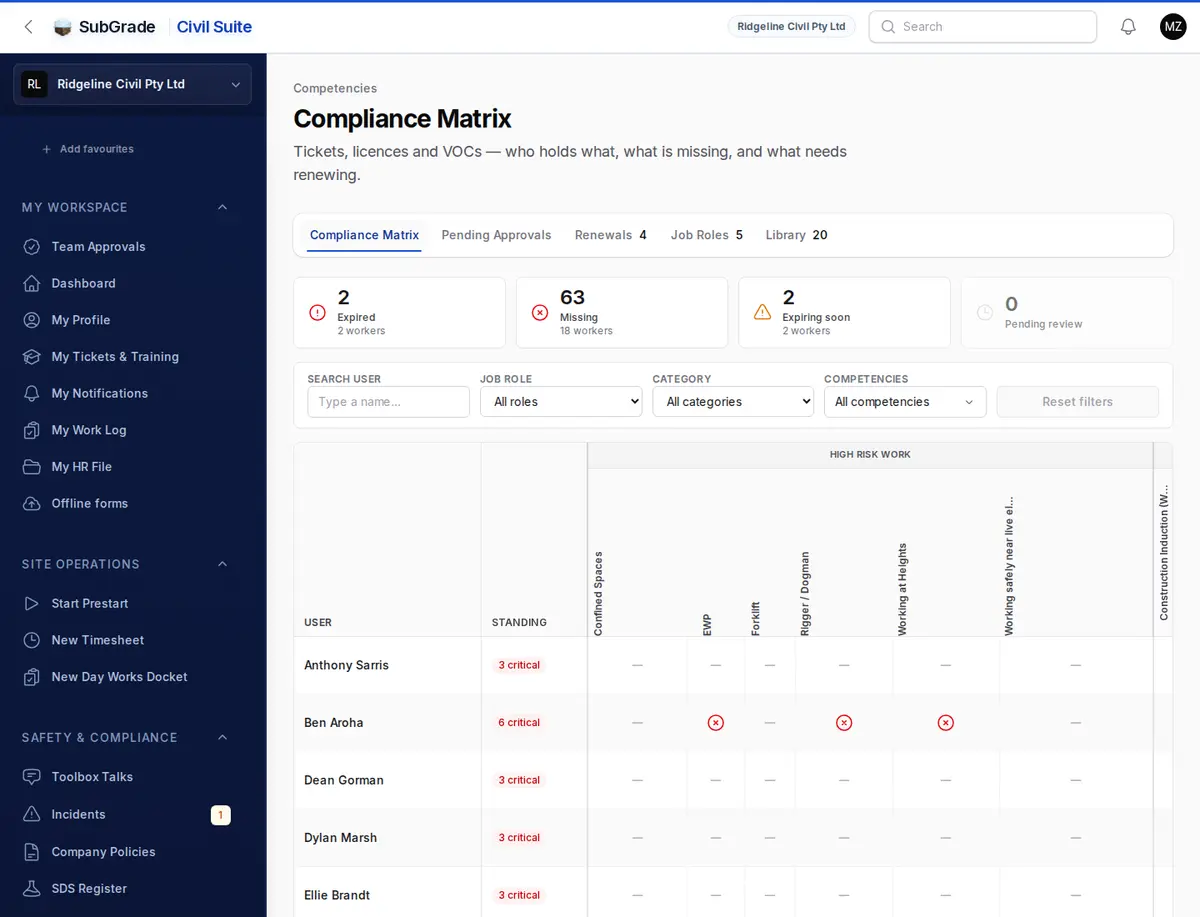
What an expiry does
An expired ticket doesn't block anything. A worker with an expired or missing ticket can still be allocated, do a prestart, and submit a timesheet. The only warning is on allocation, and it's for machine operators only. Keeping people on site with the right tickets is your call, and these screens are there to help you make it.
A ticket shows as expired the day after its expiry date. A training record works the same way.
When a ticket counts as due
Each ticket type in the Library has a Remind before expiry (days) setting. Leave it blank for 30 days. From that point the ticket shows as Expiring soon and appears on Renewals.
Who gets told
SubGrade checks tickets daily and sends alerts for active people:
- Expiring — when the reminder period opens, then 7 days before, then 1 day before.
- Expired — once.
No alert goes out for a ticket with no expiry date or for a missing ticket.
The worker always gets the in-app alert, and a push notification if they've set that up. Email is off by default. A worker only gets the email if they've turned on email and this alert type in My Notifications. Most workers won't see an email unless they do this.
Managers only get these alerts if they're subscribed to Workforce Qualification Alerts in Notification Manager. Nobody is subscribed by default, so set this up if you want them. Without a subscription, managers still see everything on the screens above.
Colours for training expiry dates
- Red — already expired.
- Amber — expiring within 30 days.
- No colour — more than 30 days away, or no expiry date.
These colours are fixed. They aren't set per module.
Connected pages
- Training Register — outstanding, expiring and completed training, signatures and inductions.
- Competencies — the matrix, approvals and renewals.
- Notification Manager — subscribe managers to expiry alerts.
- My Qualifications — the worker's own tickets and training.
Tips & common mistakes
- Looking for the Compliance & Expiry sidebar item? It's gone. Use the Training Register.
- Worker says they got no expiry email? That's expected unless they've turned email on in My Notifications. The alert is in the app.
- Managers not being told about expiries? Subscribe them in Notification Manager.
- Expired ticket but the worker is still on the board? Nothing stops this. Use Renewals or the matrix to follow it up.
- The Expiring tab isn't showing? It only appears once some completed training has an expiry date.