Everything you need in the first ten minutes: get signed in, lock the account down, put it on your phone, and learn where things live. If you've just set a password from an emailed access link, you're already past most of step one.
Who this is for — everyone with a Subgrade account, whatever your role.
Before you start — you need an account. You don't sign up for Subgrade yourself; someone in your company creates the account and emails you an access link. If you haven't received one, ask whoever handles your onboarding — usually your supervisor or the office. See User Onboarding for how that side works.
Setting up a new workspace? Do these first
Skip this section unless you're the person setting up the company. By default the admin, management and payroll roles can do both of these steps. Most people can go straight to step 1.
Choose who approves timesheets
Nobody can submit a timesheet until this is done. The supervisor list on the timesheet form starts empty, and a timesheet can't be submitted without a supervisor. No submissions means no approvals and no pay run.
- Open Workspace Settings under Account in the sidebar. Under Suite settings, choose Payroll Settings. (The Settings button on the Payroll Hub goes to the same place.)
- On the Timesheets & approvals tab, find Who approves.
- Fill in Timesheet Approver Roles, Specific Timesheet Approvers, or both. Everyone covered appears in each worker's supervisor list.
- While you're there, set Leave Approver Roles, then press Save Changes.
Nobody can send a timesheet to themselves unless Allow Supervisors to Approve Own Timesheets is on. If you name only one approver, that person will have no one to send their own timesheets to.
Connect Xero, if you use it
If you pay people through Xero, connect it early. Pay-run hours and approved receipts can then go across without re-keying.
- In Workspace Settings, under Accounting, open Xero.
- Press Connect Xero, sign in to Xero and pick your organisation. The person connecting needs Standard or Adviser access in Xero, and payroll admin rights for payroll.
- Work through the cards on the Xero page, starting with Employees and Pay items & leave. Nothing links itself.
Nothing is sent until someone presses Send or Publish, and you can disconnect at any time. Your payroll system still does tax, super, STP, payslips and bank payments.
If you don't see an Accounting section, Xero isn't available to you. Ask your Subgrade contact. Using other payroll software? Skip this and choose your format on the Export tab of Payroll Settings. See Completing a Pay Run.
1. Sign in
Your first sign-in normally happens automatically. The access link emailed to you opens a page where you choose your own password, and once you've set it you're taken straight into your workspace.
A few things worth knowing about that link:
- It's single-use and expires, normally after 72 hours, so use it when you get it rather than saving it for the weekend. Only the newest link works.
- If it's expired by the time you click it, the page lets you enter your email and press Email me a new link.
- It's a credential. Don't forward it, and don't use a shared site mailbox for your account if you can avoid it — anyone who can read that inbox can take the account.
After the first time, sign in with your email address and password and tick the box agreeing to the terms. If you forget your password, use Forgot password? on the sign-in page.
Your first sign-in may stop at a short form. In the Civil Suite, your office can ask you to check your details or finish an induction. You'll be brought back to that form until it's done. You can leave and return to where you were up to.
Joining a Trade Pack or Tender Portal workspace? You may get an invitation email instead of an access link. Open it and follow the steps.
You'll get an email whenever your password changes. If one arrives that you didn't cause, contact your administrator straight away — that email is the only warning you get that someone else may be in your account.
2. Turn on 2-factor authentication
Open My Profile and go to the Security tab. If you don't see a Two-factor authentication section, it isn't available. It adds a code from your phone on top of your password. The same tab is where you change your password.
It's worth the thirty seconds. Subgrade holds your personal details, emergency contact and pay — a password on its own is thin protection for that. Once enrolled, an access link alone won't get anyone in either: you'll still be asked for your code.
3. Put it on your phone
Subgrade runs in your phone's browser but installs like a real app — full screen, with an icon on your home screen. It needs signal for most things, but a few forms keep working without it, which matters in a cutting or a basement car park.
- Android / Chrome — a banner offers to install it. Tap Install.
- iPhone / Safari — tap the Share button, then Add to Home Screen. A banner reminds you how.
If you pressed Don't show again, use the browser menu's Install / Add to Home Screen option instead.
What works with no signal
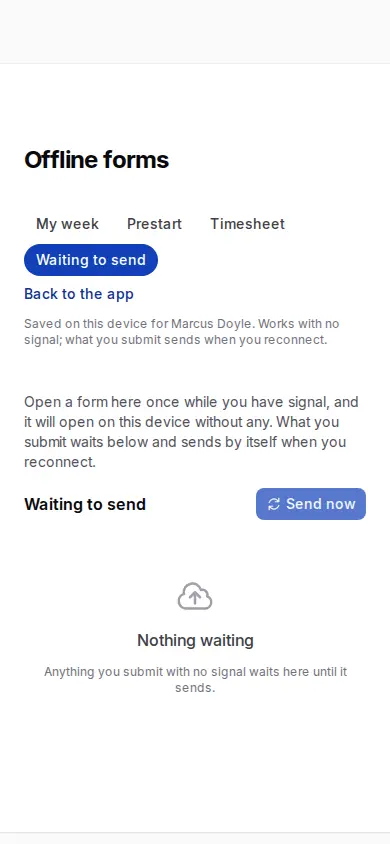
Open Offline forms under My Workspace while you have signal, then open each form you'll need once. That saves them on your phone. After that they work with none:
- Prestart — a shorter version of the full form. It skips some checks, such as the asset's own checklist and the review of existing defects.
- Timesheet — for your own day.
- My week — a read-only copy of your bookings for this week and next.
Toolbox talk sign-ons taken on the conductor's device also wait and send later.
What you submit shows under Waiting to send, and sends by itself when you reconnect. Send now tries straight away. Anything marked Needs you has to be fixed by hand.
Everything else needs signal, including shift reports, Day Works dockets, incidents and approvals. Signing out removes the saved forms, so open them again with signal next time you sign in.
4. Find your way around
Everything lives in the sidebar on the left, grouped by area of work. You will not see all of these — the sidebar only shows what your role gives you access to, so a short menu is normal and doesn't mean anything is broken. See Roles & Permissions.
| Group | What's in it |
|---|---|
| My Workspace | Your own stuff — dashboard, Team Approvals, profile, tickets and training, notifications, work log, HR file, receipts, offline forms |
| Site Operations | The daily field jobs — Start Prestart, New Timesheet, New Day Works Docket, New Shift Report |
| Safety & Compliance | SWMS, toolbox talks, risk assessments, incidents, policies, SDS register |
| Fleet & Assets | Plant and vehicles, servicing, float bookings, fuel |
| Project Management | Projects, planner, Allocation Manager, reports, shift reports, dockets, delays, documents |
| Workforce & HR | Team, leave, competencies, training, employee records |
| Costs & Budget | Budgets, jobs, cost setup, project financials |
| Payroll & Billing | Payroll Hub, timesheets, allowances, pay rates, subcontractors, expenses |
| Administration | Insurance register, broadcasts, notification settings, templates |
| Account | Workspace settings, billing, usage and credits |
The groups from Project Management down start collapsed — click the group name to open it. This list is the Civil Suite. The Trade Pack and Tender Portal have their own, shorter menus.
Three things that make the sidebar much faster:
- Favourites. Pin up to eight pages you actually use to the top of the sidebar.
- The workspace name beside the search box tells you which company you're in. If you belong to more than one, switch from the menu at the top of the sidebar. Nothing you do in one workspace crosses into another.
- Global search finds records and pages without navigating, and shows pages you opened recently.
5. Do the first real thing
Head to Your First Week for the handful of tasks that actually matter on day one, in the order most people need them.
Tips & common mistakes
- A short sidebar isn't a fault. Menus differ by role by design. If a page you genuinely need is missing, that's a permissions question for your administrator, not a bug.
- Don't share an account. Prestarts, timesheets, and sign-offs are legal records of who did what. A shared login makes all of them worthless as evidence.
- Open the offline forms before you need them. They only work with no signal if you've opened them on that phone with signal first.
- If you can't reach your workspace after setting a password, your account probably isn't attached to one yet, or your access was removed. Contact your administrator — there's nothing you can fix from your side.