The single register for every machine, vehicle, attachment and piece of equipment your business owns — one record each, with servicing, compliance, allocation history and photos in one profile.
Who can use it — Anyone with "view assets" access can browse the register and open a profile. Adding, editing or deleting an asset needs "manage assets" access; assigning an asset to a job or user needs "manage asset allocations" access. See Roles & Permissions for how access is set.
Where to find it — Fleet & Assets → Asset Manager in the sidebar.
How to use it
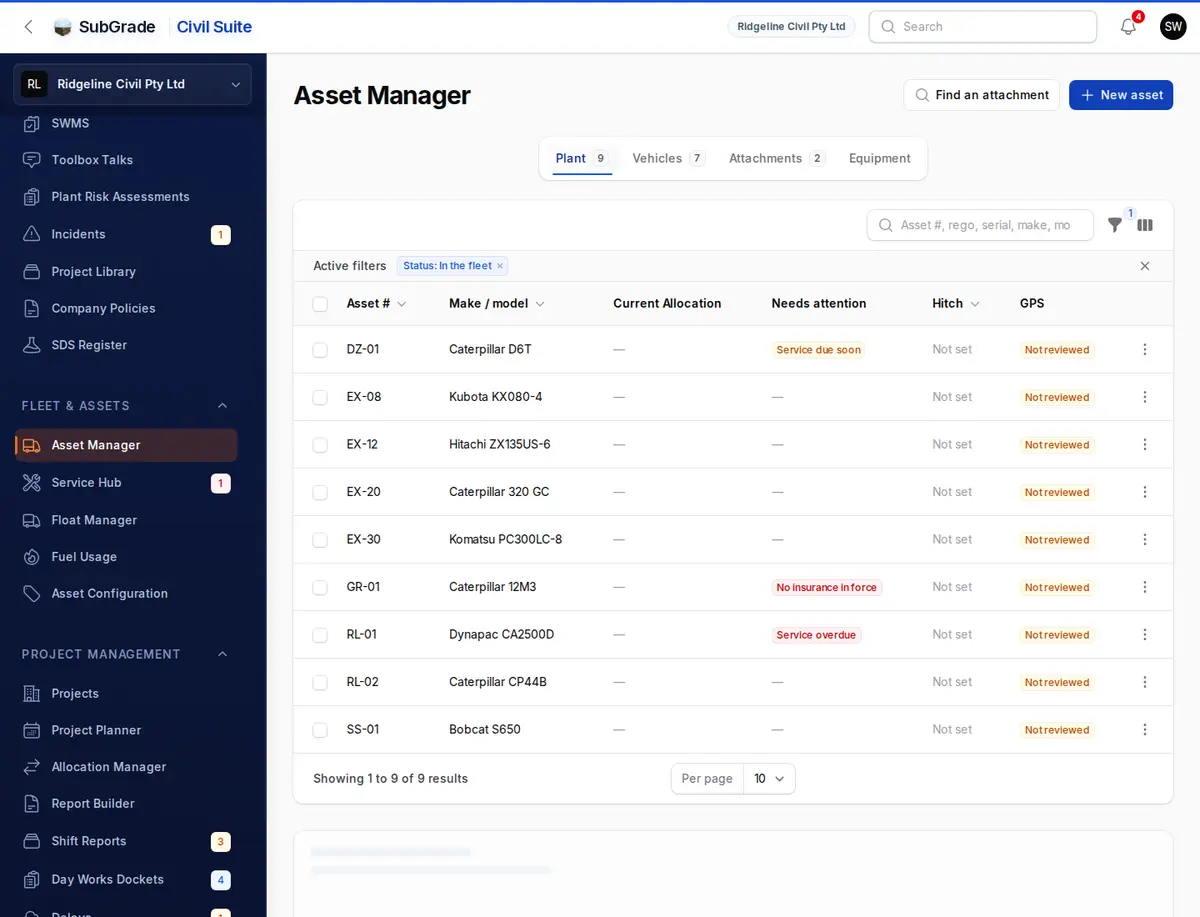
The list is organised into four tabs by asset kind: Plant, Vehicles, Attachments and Equipment. It shows assets in the fleet by default, so retired or sold assets need the Status filter. Below the list is your Global Asset Library coverage. Each row shows the asset number, make and model, current allocation, what Needs attention (such as service overdue, grounded or no insurance in force), hitch and GPS. The search covers asset number, rego, serial, make, model and width. Filter by Status, Needs attention, Hitch class, Width, Category, GPS machine control and Insurance. Open a row for the full profile.
Select several assets for Change Type, Set Category or Export Asset Pack. The export builds a ZIP with a folder per asset and CSV summaries, plus the compliance, risk assessment and service documents you tick. Costs, purchase prices and service invoices are off by default, because they show a client your cost base.
Find an attachment searches for attachments that fit a machine, by hitch and width.
To add an asset, use New asset and pick New Plant, New Vehicle, New Attachment or New Equipment. Each opens the form set to that kind.
Adding or editing an asset
The form is split into tabs:
- Identity — the Quick Start panel lets you search the platform-wide Global Asset Library by make/model to pre-fill technical specs (weight, dimensions, fuel, hitch size, etc.) without typing them by hand; anything already filled in is left alone. Below that: Type, Category, Asset # (must be unique per kind), Status, Make, Model, Year, Serial Number, and — for plant and vehicles — License Plate and Fuel Type.
- Technical Specs — VIN/chassis, engine number, operating weight, width/height, and for attachments, Hitch Size and Tooth Pin Code. Hidden for equipment.
- Maintenance — the service settings come from the category. Set Service Unit, Service Interval and the due soon and overdue thresholds here if this machine differs. This is where Current Reading, Last Service Date, Next Service Reading and Next Service Date live.
- Financials & Legal — vendor, purchase date/price, warranty and insurance expiry, and an optional Depreciation setting (straight-line or hours-based) that feeds the budget pipeline once your workspace enables it.
- Notes & Photos — free-text notes and, when creating a new asset, an initial photo.
Asset profiles
Opening an asset (View) is headed on every tab by its number and make/model, a photo (tap it for the Gallery) and three chips — in service, service due, and where it is today. Under that are four cards, each opening the tab that explains it: Next service (hours or km and the date, whichever comes first, with how old the meter reading is), Condition (open defects, worst first), Compliance (the worst document by name) and, for machines on interval servicing, On the job (days worked against days charged over 30 days — with the posted cost and charge for people who can see margin). Then the tabbed profile. The tabs available depend on the kind:
- Plant — Overview, Health & Service, Compliance, History, Gallery.
- Vehicles — Overview, Health & Service, Compliance, History, Gallery.
- Equipment — Overview, Health & Service, Allocations, Compliance, Gallery.
- Attachments — Overview, Allocations, Gallery.
Overview
Identification numbers (VIN, engine number, serial, plate, fuel type), acquisition details (supplier, purchase date/price, warranty), and any notes. Plant also shows dimensions/capacity and which attachments are currently fitted; attachments show which machine they're currently paired to. Use Search Global Library on the edit form to pre-fill this tab from a known make/model — the link is shown here and can be removed later with Unlink Library Model if the lineage is no longer wanted.
Health & Service
Next service shows both clocks as bars from the last service to the target — hours/km and calendar — with the one that decides it first, how old the meter reading is, an estimated date the hours fall due (from the last 90 days' readings), and when it was last greased. Open defects lists what is wrong with it now. Service record shows each service as a card, marked on time or N h late against the target the previous service set, with the year's spend and how much of it has a cost entered; Record service opens the same form as the Service Hub, reading pre-filled from a recent meter reading. Hour meter / Odometer charts 12 months of readings with services marked and the due target drawn in; every reading is in the table beneath it. From the profile's Manage menu you can ground a machine, or return it to service, with a required reason. Grounding warns and does not block. See Service Hub.
Compliance (plant and vehicles)
Legal Requirements tracks registration and insurance, each on its own card: Renew (registration) or Update (insurance) uploads the certificate and sets the new expiry, History shows past renewals, and the ⋮ menu holds Remove for a record filed by mistake. A cost nobody entered reads Not entered rather than $0.00. Plant additionally has Risk Assessments (upload a PRA with a version, publish and expiry date; Who has signed opens the register for that version — see Plant Risk Assessments) and vehicles have Vehicle Policy (create a policy document, request a handover or return signature from whoever's assigned the vehicle, and see the signing history). Both kinds have an Other documents list for anything else — manuals, lift charts, calibration certs — each with its expiry (or No expiry).
Equipment and attachments keep a lighter Compliance section for general documents only (no registration/insurance/risk-assessment tracking, since those don't apply).
History / Allocations
Plant and vehicles get a Timeline — moves, attachments fitted and taken off, services (by type and reading), status changes such as grounding (with the reason and who), and defects reported and fixed, in one feed, newest first, with where it is today highlighted. Use Relocate at the top of the profile, or Relocate Asset here, to end the current allocation and start a new one against a project, a user, or Administrative (no project) for yard time, repairs or dry hire. End Allocation takes it off the job. This is the quick move from the profile; for the fuller planning workflow (readiness checks, float booking) use the Allocation Manager. Plant profiles also show Machine Pairings here — Put on Machine fits an attachment (with a from/to time), Swap Attachment replaces a currently-fitted one, and Take off Machine removes it.
Equipment and attachments use a simpler Allocations tab with the same timeline plus an Allocate action for project/user assignment — attachments warn you first if allocating them will break an active machine pairing.
Gallery
Upload several photos at once, tap one to open it full size, mark one as the cover (shown at the top of every tab and in the list), reorder them, and — with manage permission — delete them. Each photo shows when it was uploaded and by whom. On a phone the buttons are always there; with a mouse they appear on hover.
Quick Start from the Global Library
The list page header shows your Global Library Coverage — the percentage of your assets linked to a canonical make/model entry — with a count of candidates for autofill. Linking an asset (via Search Global Library on the create/edit form) pre-fills specs and can auto-create or switch the asset's category based on the library's suggestion, without touching any value you've already entered manually.
Connected pages
- Allocation Manager — the full planning board for putting assets on jobs, with readiness checks and float booking.
- Service Hub — where defects and service status raised here get actioned.
- Asset Configuration — the categories and their servicing, prestart and cost settings that this register draws on.
- Float Manager — low-loader bookings referenced in an asset's move history.
- Plant Risk Assessments — the risk assessments uploaded and signed from a plant profile's Compliance tab.
- Start a Prestart — prestarts feed an asset's current reading, service status and greasing history.
- My Vehicle — the self-service view a driver gets of a vehicle assigned to them.
Tips & common mistakes
- Asset # must be unique within its kind — you can reuse a number across Plant and Vehicles, but not within the same kind.
- Set servicing on the category where you can rather than machine by machine. Then use Push to Assets on Asset Configuration to apply it.
- Pairing and allocation are separate things. A machine's Machine Pairings list tracks which attachment is physically fitted; allocation tracks which job or user the asset belongs to. Relocating a machine doesn't automatically unpair its attachments. Allocating an attachment that's currently on a machine does end the pairing, so you'll be asked to confirm first.
- Grounding is a person's call. A meter reading or a service won't clear it. Only someone returning the machine to service ends it.
- Global Library links don't overwrite your data — picking a model only fills blank fields (category is the one exception, which always follows the library's suggestion).