One register for who has done what: outstanding and completed training, expiries, signatures, assignments and project inductions. Use it to see who's covered and to follow up anyone who isn't.
Who can use it — You only see the tabs your permissions allow:
- "View training records" — Outstanding, Expiring, Completed and Signatures.
- "View training modules" or "manage training modules" — Assignments.
- "View project inductions" or "manage project inductions" — Inductions. You need "manage" to record or change one.
See Roles & Permissions for how access is set.
Where to find it — Workforce & HR → Training Register in the sidebar. This is the single training entry in the sidebar. The buttons at the top take you to everything else:
- Assign training — see Training Assignments.
- Export CSV — downloads the filtered view of the tab you're on.
- Training modules — opens Training Modules.
- Record induction — on the Inductions tab.
Before you start — to record an internal induction, the project needs an Induction module selected. Set it on the project's Induction tab in Projects. Without it, you'll see "Project induction module missing."
Outstanding
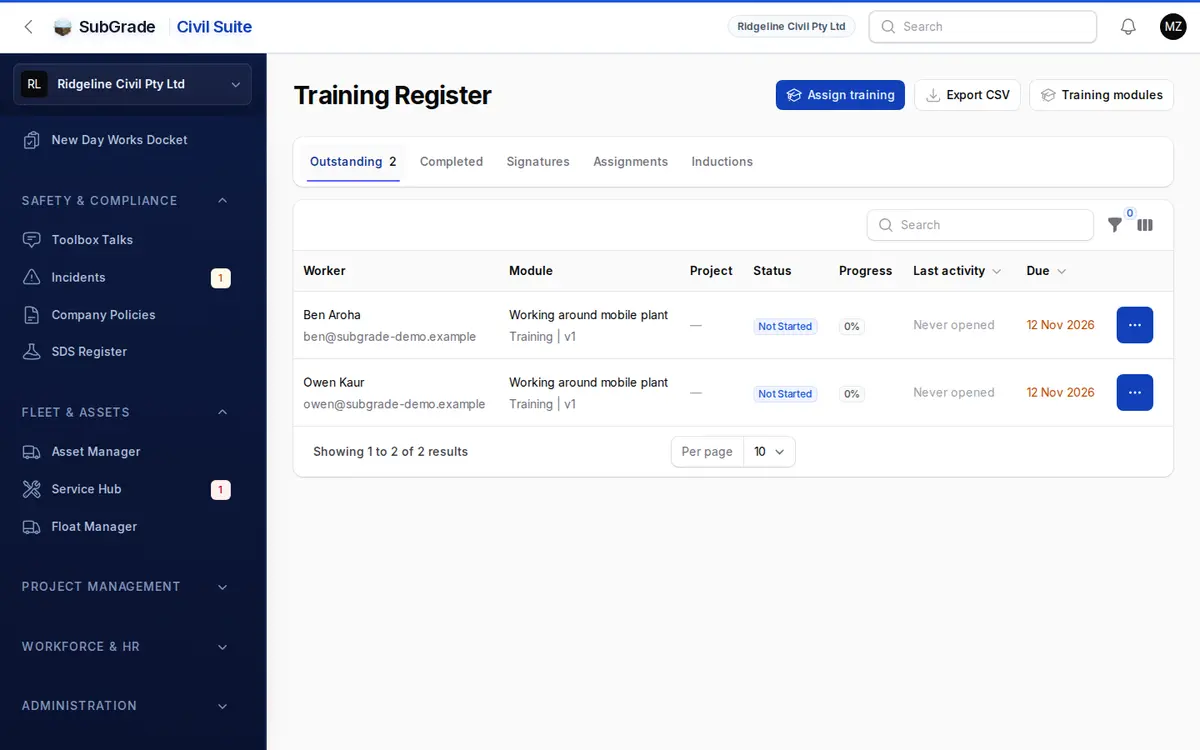
Everything assigned that isn't finished yet: the Worker, Module, Project, Status, Progress, Last activity and Due. Filter by Overdue or Status. Withdrawn assignments drop off this list.
Use the row menu for View record or Send reminder, which notifies the worker with the module and due date.
Expiring
Completed training with an expiry date. This tab only appears once there is some. Horizon shows the next 7, 30 or 90 days, or all future expiries, and Already expired only narrows it to what has lapsed. Red dates have passed. Amber dates are within 30 days.
Completed
Finished training, with the attempt number, certificate and signatures. Filter by module, participant, or Completed between. Open certificate appears when a certificate was issued.
Signatures
Every training signature captured: the Signature, when it was Signed, the Worker, the Document and its version, the Module, the Method (typed or drawn), the IP address, any Witness, and whether it was Revoked.
Hide revoked is on by default. Turn it off if you're looking into a dispute and need to see everything. Filter by Method, Training record or Signed between. View signature opens the image, and View training record opens the record it belongs to.
Assignments
One row per assignment, with how many workers have finished. See Training Assignments.
Inductions
One row per worker per project: the Worker, Project, Mode, Status, who Performed it, the date Inducted and Expires. Filter by Outstanding only, Project or Mode. An induction shows as expired once its expiry date has passed, even if nobody has touched the record.
Recording an induction
If you can manage inductions, click Record induction:
- Pick the Project and the Worker.
- For a project using an internal induction, pick who Performed it. This is a manager or supervisor.
- Set the Induction date and an optional Expiry date.
- Attach a Proof / certificate file if you have one, and add Notes.
Workers can also record their own from My Qualifications.
Updating an induction
From the row menu:
- Mark completed — set the completion date, expiry date, performer, proof and notes.
- Set pending — the worker counts as not inducted again. The recorded completion date and evidence stay on the record.
- Open proof — opens the attached file, if there is one.
Internal and external inductions
Each project sets Who runs the induction on its Induction tab:
- Internal — your own supervisors run it, using a published project induction module. Workers can complete it themselves from My Qualifications. A record you enter here always needs a Performed by.
- External — someone outside your business runs it, such as a client or head contractor. There's nothing to take in the app. A manager records the date and proof, or the worker logs it on My Qualifications.
A project's own inductions tab can also mark a whole crew complete in one action with Bulk Mark Induction Complete.
Connected pages
- My Qualifications — where a worker sees their own training and inductions.
- Training Modules — where induction and training content is built.
- Training Assignments — how training is sent to people.
- Projects — where a project's induction settings live.
- Compliance & Expiry — what an expiry does, and who gets told.
Tips & common mistakes
- "Project induction module missing" means no induction module is selected on the project yet. Fix it on the project's Induction tab.
- Can't save an internal induction? It needs a Performed by. External ones don't ask for it.
- A tab is missing? Tabs follow your permissions. Expiring and Assignments only appear once there's something to show.
- Induction shows as expired but nobody changed it? That's expected once the date passes. Use Mark completed to record a fresh one.
- Induction should last the whole project? Leave Expiry date blank. A blank expiry never lapses.