Your own space for subcontractor work: log the work you've done on a job, send it for approval, and track where it's up to. If you're your business's billing contact, this is also where you see your rates, RCTIs (recipient-created tax invoices) and insurance.
Who can use it — Only subcontractors with an account: your People record must have worker type Subcontractor and be linked to a supplier. If either isn't set, the page won't appear in your sidebar, so ask an admin to check your profile. Logging work comes standard with the Subcontractor role. See Roles & Permissions for how access is set.
Where to find it — My Workspace → My Subcontractor Work in the sidebar, or Log Work on your Dashboard.
What you see depends on your role in the business:
- A worker linked to a supplier sees their own work logs only, with no rates, RCTIs or dollar totals.
- A billing contact sees Work, Rates, Invoices and Insurance tabs. The Work tab shows everything logged under the business's ABN.
Either way, you never see another subcontractor's work, invoices or rates, and you don't see the office's management screens.
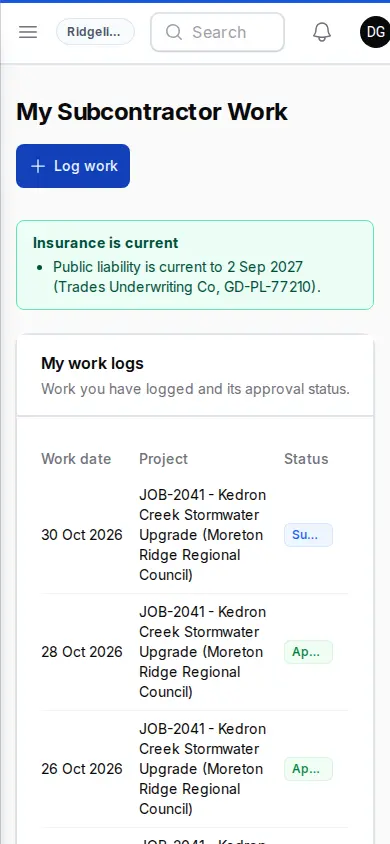
Banners at the top
- Insurance — shows whether the cover on file is current. A warning is a heads-up, and you can keep logging work.
- Your RCTI agreement is waiting for you — billing contacts only. See The RCTI agreement.
- No longer active here — your business has been deactivated in this workspace. You can't log new work, but your past work, rates and invoices stay here.
Logging your work
- Select Log work. A form slides in.
- Fill in Work details:
- Project — the job you worked on.
- Work date.
- Send to (approver) — the supervisor who reviews it, from the same list your site uses for timesheets. You need to pick someone unless your workspace has no supervisor list. It can't be you, or someone from your own business.
- Notes (optional).
- Add Work items, one for each thing you did:
- Rate card — pick an approved rate and the Type and Unit fill in. If you have just one rate, it's picked for you. Billing contacts see the Rate, locked at the approved amount, and can leave this blank to enter a manual rate. Workers see this field as Rate, and the office prices anything left blank.
- Description of the work.
- Quantity — on hours items you can enter Start, Finish and Break (min) instead, and the quantity is worked out for you.
- Cost code (optional).
- Attach Photos & attachments if useful: up to 20 images, 10 MB each, 100 MB total.
- Select Save and send to send it for approval, or Save as draft to finish it later.
A log needs at least one work item with a quantity before it can be sent. If it can't be sent, it's saved as a draft and a message tells you.
Drafts, approval and rejection
- SubGrade may have a draft waiting for you. If you're allocated to a job, a draft work log can be created for that day from your allocation, ready for you to check and send. Nothing is sent for you.
- To finish a Draft, select Edit on your list, then Send for approval.
- Once a log is Submitted, you can no longer change it here. If something's wrong, contact your approver or the office before it's approved.
- You'll get an email and an in-app notification when a log is approved or rejected, with the reason if it was rejected.
- Approved and Rejected logs are locked. To correct a rejected log, log the work again with the fix.
Approved work goes onto your business's RCTI for the period and posts to the project's budget. You can't undo it yourself.
Rates (billing contacts)
My rate card shows the rates you're priced at and anything you've sent for approval, with each rate's type, amount, unit and status (Awaiting the office, Approved or Not approved).
Propose a rate sends a new rate to the office as pending. You can pick it on a work log once it's approved.
Invoices (billing contacts)
My RCTIs lists the finalised RCTIs issued to your business, with the RCTI number, period, total including GST and payment status. A draft building up in the background isn't shown until the office finalises it. How often that happens depends on the period set for your business: weekly, fortnightly or monthly. Download gets the PDF.
Insurance (billing contacts)
My insurance lists the certificates of currency held for your business. Upload insurance certificate adds one: choose the kind of cover, then enter the insurer, policy number, cover dates and sum insured, and attach a PDF or clear photo, up to 20 MB. It goes straight onto your record.
Business details (billing contacts)
Business details lets you keep your ABN, Registered for GST setting and Accounts email up to date. These go on your RCTIs. Each RCTI is emailed to the accounts email when it's issued, or to you if that's blank.
The RCTI agreement
The office can't issue your RCTIs until your business has accepted the agreement. Select Accept RCTI agreement, read it, and tick to confirm you can sign for the business.
Connected pages
- Subcontractors — the office side of subcontractor work and RCTIs.
- Roles & Permissions — how the Subcontractor role is set up.
- My Profile — shows the business you bill under.
- My Qualifications — your tickets and training.
- My Notifications — where approval and rejection alerts land.
Tips & common mistakes
- Page not showing up? You need worker type Subcontractor and a linked supplier. An admin sets these, not you.
- Can't send a log? You need at least one work item with a quantity, and a supervisor in Send to (approver).
- Rate greyed out? It came from your rate card and is locked at the approved amount. To use a different rate, propose it or talk to the office.
- RCTI missing? Only finalised RCTIs show. Recent work may still be sitting in the current period.
- No rates or RCTIs at all? Those are for your business's billing contact. Ask them, or the office.