Service Hub is where servicing and maintenance across plant, vehicles and equipment get actioned. It sorts machines by what needs work first and holds the defects raised from prestarts, along with the tools to record a service or ground a machine.
Who can use it — You need "manage asset services" permission to open the page. There is no view-only access here. Changing defects needs the defect permission, and without it a defect opens read-only. The GPS queue only shows to people who manage assets or approve timesheets. See Roles & Permissions.
Where to find it — Fleet & Assets → Service Hub in the sidebar. A red badge on the sidebar item counts open critical defects.
Before you start — a machine only shows as due or overdue if it has a service plan. If neither its category nor the machine has a service interval, it will not appear, however many hours it runs. That setup lives in Asset Configuration.
How to use it
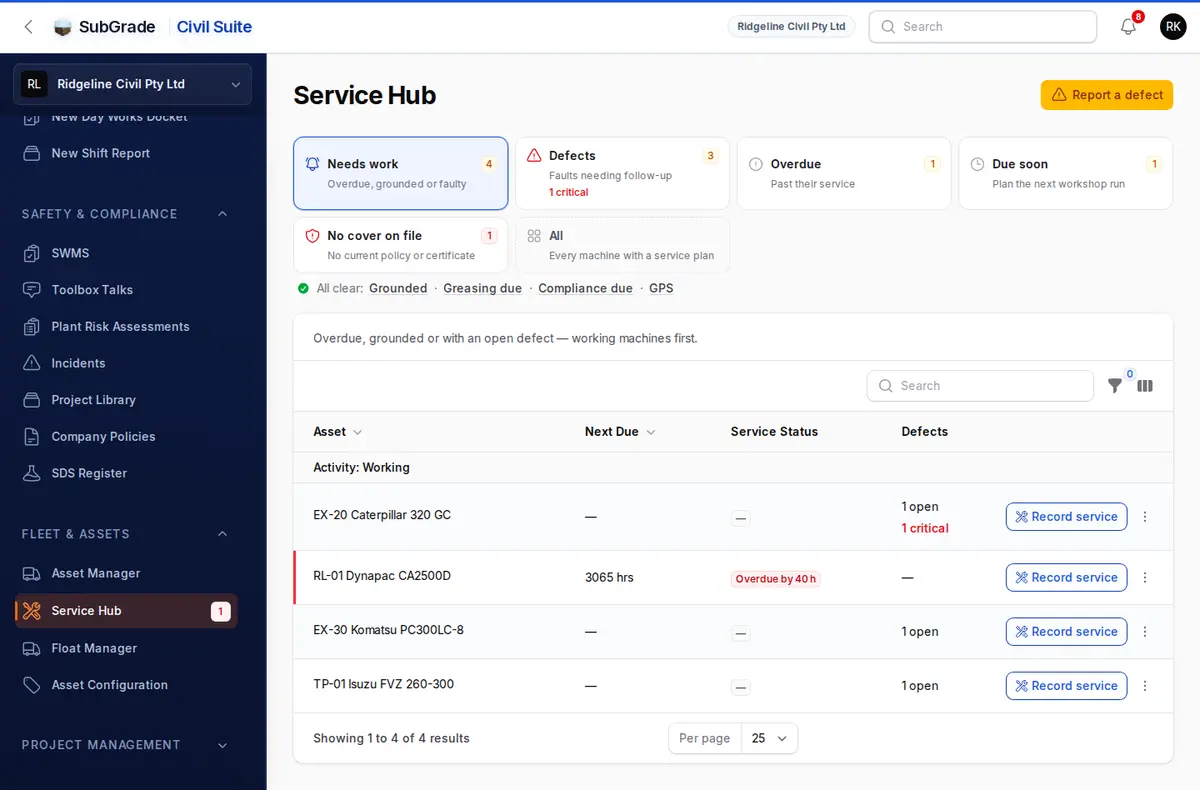
The page opens on Needs work. Each queue is a card with a count, and tapping one shows it below. Empty queues fold into an All clear line and stay one tap away.
The queues are Needs work, Defects, Overdue, Due soon, Grounded, Greasing due, Compliance due, No cover on file, GPS and All.
Machines, vehicles and equipment still in the fleet appear. Attachments have no service clock, so they only appear under No cover on file. Filter by Asset type and Category. Clicking a row opens the asset's profile, on Health & Service or, from Compliance due, on Compliance.
Report a defect, top right, raises a defect against any asset without doing a prestart.
Needs work
Machines that are overdue, grounded or carrying an open defect, working machines first. The list shows Asset, Next Due, Service Status and Defects.
Defects
Faults logged from failed prestart items, reported damage and Report a defect. Buttons above the table switch between Open, Critical, Needs verifying, Resolved and All. Columns include Asset, Defect, Area, Reports (how many times the same fault came in), Priority, Status and Open for.
Update on a row sets Where it is up to (Open, Being fixed or Fixed), How bad it is, Who is fixing it, and a note. Other actions appear as they apply:
- Ground or keep running — for a critical defect. Record the decision, and why it is safe if you keep it running.
- Confirm fixed and Still faulty — for a fix an operator reported. Confirming closes the defect and tells whoever reported it. Still faulty reopens it.
- Record repair — records the work against the defect.
- Merge into another — for a duplicate. Its reports, photo and history move to the defect you pick.
Select rows for Mark In Progress, Set Priority and Resolve Selected.
Overdue and Due soon
Overdue shows machines past their service on hours, km or date. Due soon shows machines inside their warning time. Both use Service Status badges such as "Overdue by 40 h".
Grounded
Machines grounded by a person. SubGrade never grounds a machine by itself.
Greasing due
Plant whose category records greasing, and that has worked in the last 7 days with no greasing logged. The list shows Last Greased and Elapsed.
Compliance due
Registration, insurance, finance, lease, compliance documents and risk assessments expiring in the next 60 days, plus anything already lapsed. Lapsed items turn the badge red. Document narrows it to one kind. Open compliance goes straight to the asset's Compliance tab.
No cover on file
Assets with no current policy or certificate, including attachments. A machine with no insurance never reaches an expiry list, so it needs its own queue. Each one shows whether it is working or idle, and the cover it was last on. Record the renewal and Manage policies take you to the insurance records.
GPS
GPS answers from timesheets that disagree with what the fleet records. Settling one records what you established. It never changes the timesheet.
All
Every machine with a service plan, most urgent first.
Recording a service
Record service on a row opens a side panel:
- Service record — attach the invoice or job card. Where it is switched on, SubGrade reads it and fills in the details for you to check. If it is off, you attach the file and type the details.
- What was done — Service type (Minor service, Major service, Repair, Inspection or Other), Serviced on and Reading at service.
- Defects this fixes — ticked defects close with this record, and whoever reported them is told.
- Who did it and what it cost — Provider, Cost (ex GST) and Invoice #.
- Next service — leave Next service reading and Next service date blank and SubGrade works them out from the interval.
- Parts, notes and schedule.
Only a minor or major service resets the service clock. A repair, inspection or other record is kept in the history and leaves the due date as it is.
If the machine is grounded, the form says so. Tick Return to service only if this work makes it safe to run.
Grounding and returning to service
The ⋮ menu on a row has Ground or Return to service, depending on the machine. Both ask for a Reason, which is kept in the status history on the asset's profile, with who did it and when.
A grounded machine stays grounded until a person returns it to service. A meter reading or a service will not clear it.
Grounding warns. It does not block:
- The machine shows as grounded on the Allocation Manager.
- Booking it needs a tick to confirm.
- Its prestart shows a warning and can still be saved. See Start a Prestart.
This lets you book a grounded machine to the workshop or yard. If it needs to stay off the job, make sure the crew knows.
Bulk actions
- Log greased today (Greasing due) — records greasing for every selected machine. It is not a prestart.
- Ground for inspection — grounds every selected machine with one shared reason, with a history entry for each.
Tips & common mistakes
- A machine never shows as due or overdue. It has no service interval on the machine or its category. See Asset Configuration.
- Grounded a machine but someone still prestarted it. Grounding warns but does not block. It stays grounded until someone returns it to service.
- Recorded a service but the due date didn't move. Check the type. Only minor and major services reset the clock.
- The same fault keeps coming back. Check the Reports count, then use Still faulty rather than raising another.
- Compliance due looks short. It looks 60 days ahead. Anything further out appears once it is inside that window.
Connected pages
- Asset Manager — full asset profiles, including the Health & Service and Compliance tabs this page opens.
- Asset Configuration — service intervals, warning times and greasing.
- Start a Prestart — readings drive service status, and failed items and reported damage create defects here.
- Incidents — for damage or faults serious enough to need an incident report.