Subgrade is one connected platform for civil and trade contractors. It puts timesheets, prestarts, day works dockets, safety documents, plant and assets, projects and payroll preparation in one place, instead of a scatter of spreadsheets and separate apps.
On payroll, Subgrade gives you budget estimates and export quantities. Your payroll system does the tax, super, STP, payslips and bank payments.
Your workspace
Everything in Subgrade lives inside a workspace — that's your company. Your people, projects, assets, settings, subscription, and data all belong to the workspace, and each workspace is kept separate from every other.
- You're invited into a workspace rather than signing up cold — see User Onboarding.
- You can belong to more than one workspace (for example, if you work across related companies) and switch between them from the menu at the top of the sidebar. The workspace you're in is shown beside the search box.
- What you do in one workspace never crosses into another.
The three suites
A workspace can hold one or more suites. They share one login, and each has its own menu:
- Civil Suite — projects, allocation, shift reports, timesheets, payroll preparation, fleet, safety, HR, dockets and costing.
- Trade Pack — quotes, work orders, dispatch, invoicing and service due, for trades generally.
- Tender Portal — tender folders and pricing.
If you can use more than one, the Suite switcher sits below the workspace menu in the sidebar. Otherwise you won't see it.
How the app is organised
In the Civil Suite, the sidebar groups everything into areas of work. Most of these match the sections of this documentation:
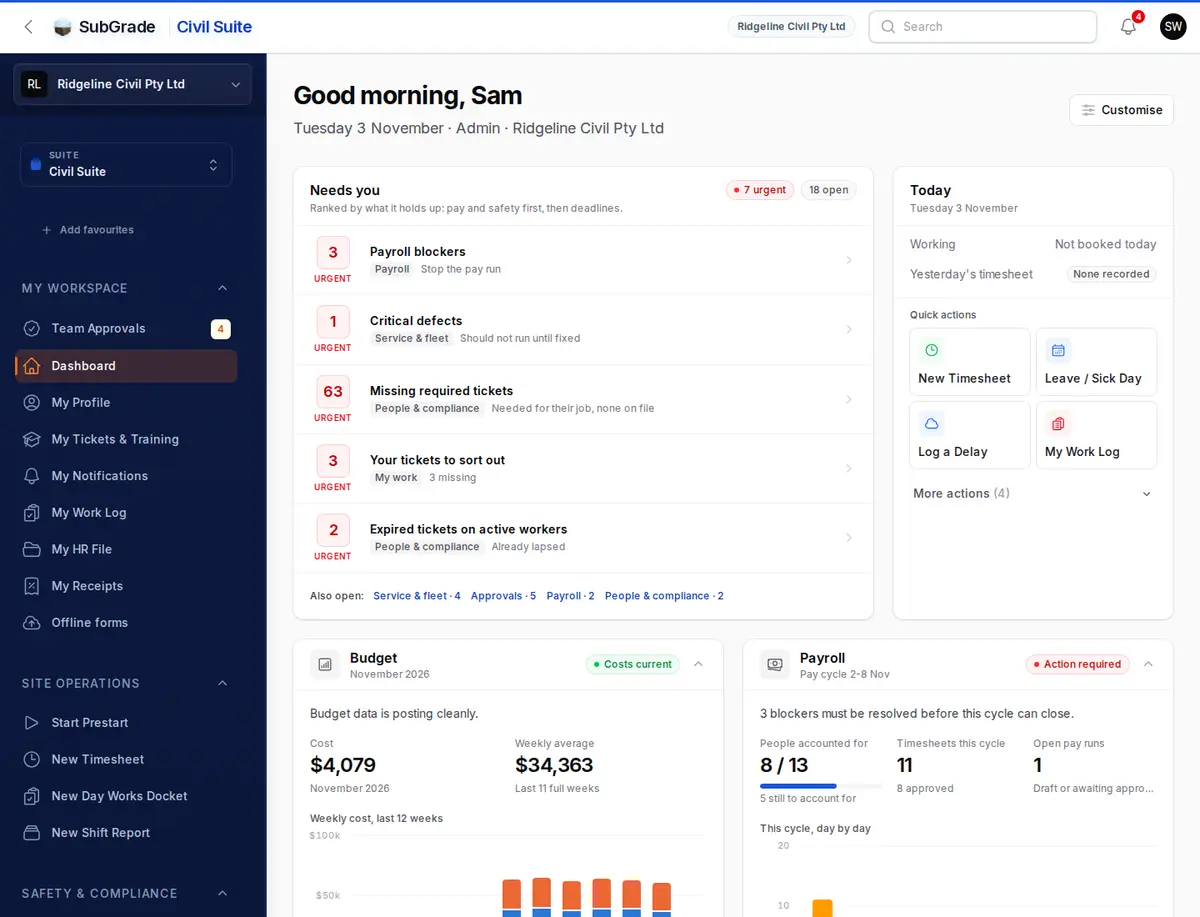
- My Workspace — your personal home: your dashboard, Team Approvals, profile, tickets and training, work log, and notifications.
- Site Operations — the daily field jobs: prestarts, timesheets, dockets, and shift reports.
- Safety & Compliance — toolbox talks, SWMS, risk assessments, the SDS register, incidents, and policies.
- Fleet & Assets — your plant, vehicles and equipment: the register, servicing, float bookings, and fuel.
- Project Management — projects and clients, planning, allocation, documents, dockets, and reporting.
- Workforce & HR — your team, leave, competencies, training, and records.
- Costs & Budget — project budgets versus actuals, overheads, and rates.
- Payroll & Billing — pay runs, allowances, subcontractors, and expenses.
- Administration — templates, notification settings, the insurance register, and broadcasts.
- Account — workspace settings, billing, and usage and credits.
This documentation is under Help & docs in the menu behind your avatar, top right.
Why people see different menus
Two people in the same workspace can see different things. What you see comes down to:
- Your role and permissions — you only see the parts of the app you're allowed to use. This is the usual reason a menu you have is missing for a workmate. See Roles & Permissions.
- Your workspace's suites — for example, whether it has the Trade Pack, and which suite you're in.
Trade Pack
Some workspaces have the Trade Pack, for job workflow in any trade — work orders, a dispatch board, and job billing. It has its own menu rather than a group in the Civil sidebar. A workspace with only the Trade Pack opens in it and won't show the civil-operations areas. If you can't get to it from the Suite switcher, either your workspace doesn't have it or your role doesn't include it.
Getting help
This documentation covers each page in the app. To keep up with what's new, see Updates.
Related pages
- Roles & Permissions — why you can see what you can see.
- User Onboarding — how people join a workspace.
- Migration — moving your existing data in.