The management side of subcontractor work: approve what subcontractors log, keep their rate cards current, manage the supplier register, and issue the RCTIs that pay them. Subcontractors are paid through RCTIs and your accounts, never through payroll. This is the office view; subcontractors track their own work from My Subcontractor Work.
Who can use it — You need at least one of View Subcontractor Work Log, Approve Subcontractor Work, Approve Subcontractor Rate Cards or Manage Supplier Invoices to see the page. Which tabs you can use depends on which of those you hold, plus Manage Subcontract Claims for claims. A plain subcontractor doesn't see this page. A subcontractor who also supervises does, but can't decide work billed to their own company. See Roles & Permissions.
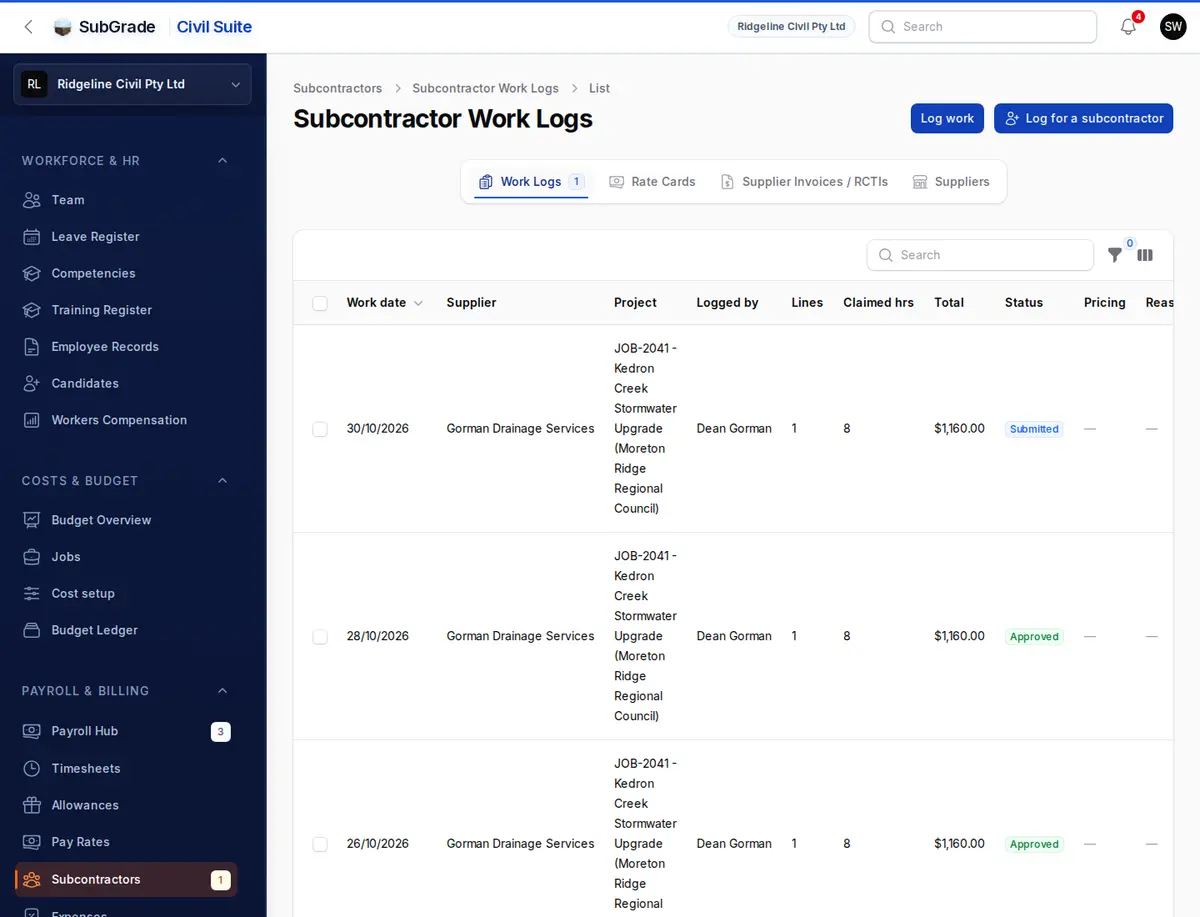
Where to find it — Payroll & Billing → Subcontractors in the sidebar. It opens on Work Logs; Rate Cards, Supplier Invoices / RCTIs and Suppliers run along the top. Subcontract Claims joins them once your workspace has a claim. A badge in the sidebar shows how many work logs and rate cards are waiting on a decision.
Before you start
- A subcontractor needs a supplier record. Add subcontractor on the Suppliers tab sets up the business, its RCTI agreement and insurance, and its people in one go.
- Before you can issue an RCTI to a supplier, that supplier needs a valid ABN and a recorded written RCTI agreement, and your workspace needs GST registration and a valid ABN under Administration → Civil Suite Settings → Billing / RCTI. The Supplier Invoices / RCTIs tab lists anything missing, with a link to fix it.
How to use it
Work moves in one direction: a work log is submitted → you approve it, which posts its cost to the project budget and adds it to that supplier's RCTI for the period → once the period has ended you issue the RCTI → it is paid and marked paid. Rate cards and suppliers are the setup that work logs draw on. Subcontract Claims is a separate lump-sum path that doesn't go through work logs.
Submitted work logs can also be approved from the Subcontractor Work tab on Team Approvals, where a regular approver sees the logs sent to them. The Work Logs tab here shows every log in the workspace if you hold View or Approve access.
Work Logs
Lists subcontractor work logs (or just your own, if you can only log work) with Work date, Supplier, Project, Logged by, Lines, Claimed hrs, Total, Status (Draft, Submitted, Approved, Rejected), Pricing and Reason. The Pricing badge flags a log with a manual rate on it, worth a closer look before approving.
Reviewing and approving
- View shows the full log: work items, quantities, rates and attachments.
- Approve is the single chokepoint for incoming subcontractor cost. The confirmation shows the claimed hours and a cross-check of the site shift reports for that project and date, which never blocks approval. Approving posts the cost to the project's budget ledger straight away and adds the lines to that supplier's RCTI for the period the work date falls in.
- Approval is refused if lines still need a rate, the budget period is closed, or, where your workspace enforces it, the subcontractor had no current insurance that day.
- Approval is final once the RCTI is issued. Before then, see Reverse approval below; after, correct it with a credit.
- Reject requires a reason. Pick a quick reason or type your own. The subcontractor is notified and can fix and resubmit.
- Approve selected approves every selected Submitted log in one go. Anything that can't be approved is skipped and the count reported.
- Reverse approval only appears while the RCTI for that period has not been issued. It reverses the cost off the budget, removes the lines from the RCTI, and returns the log to Submitted.
- Bill on the current period appears on a submitted log whose RCTI has already been issued. It approves the work onto the current open period. The work date doesn't move, so the cost still posts to the original date.
- Create client docket (approved logs only, needs Day Works Dockets access) copies the work into a draft Day Works docket so you can on-bill the client. Only the work is copied, never the cost rates, so you enter fresh client rates.
Logging on behalf of a subcontractor
Use Log for a subcontractor for a worker without their own account. Pick the Subcontractor / supplier, optionally the worker's name, the Project, Work date and Send to (approver) (the same supervisor list timesheets use; you can't send it to yourself), then add Work items priced from that supplier's approved rate card or a manual rate. Choose what happens on save:
- Send straight for approval — the entry goes to the approver now.
- Email the worker to confirm it first — the worker gets a single-use link to review and confirm it, and it goes to the approver once they do. Hide rates on the confirmation page keeps prices off that page.
A plain Log work button also appears for anyone who holds "Log Subcontractor Work" themselves.
Rate Cards
The prices subcontractors can charge. Each card has a Type (Plant, Labour or Custom), Description, Unit, Rate, an effective date range and a Status (Pending, Approved, Rejected or Superseded).
- New rate card raised by the office, with its Supplier chosen, is already Approved. A subcontractor's own card lands as Pending for your approval.
- Approve and Reject act on pending cards. Rejecting needs a reason.
- Supersede with new rate ends the current rate the day before a new effective date and creates a fresh approved card. Work already approved at the old rate keeps it.
- Only an approved, current card can be picked when logging work.
Subcontract Claims
A separate lump-sum path, useful for a single claim against a claim number rather than itemised daily work. Needs Manage Subcontract Claims. Until your first claim exists there's no tab: start with Record a lump-sum claim on Supplier Invoices / RCTIs.
- New Subcontract Claim captures the Subcontractor, Project, the subcontractor's own Claim Number (unique per subcontractor), Claim Date, Claim Amount and an optional Cost Code. It starts as Draft.
- Approve posts the claim's cost to the project budget and locks the claim.
- Mark paid moves an approved claim to Paid.
- Cancel marks the claim Cancelled but does not reverse the posted cost. If it was already posted, reverse it with a manual credit yourself.
- Approved and paid claims can never be permanently deleted.
Suppliers
The supplier register everything else hangs off. Needs Manage Supplier Invoices. The list has Status and Ready for RCTIs filters.
- Add subcontractor sets up a new business and its people. Add people adds to an existing one. New supplier adds a plain supplier record.
- Name, ABN, and GST registered, which decides whether their RCTIs include GST.
- Paid — how often this subcontractor gets an RCTI: weekly, fortnightly or monthly. Weekly and fortnightly follow your pay week.
- Payment terms (days) — days from issue to due. Accounts email — where each RCTI is emailed.
- Linked subcontractors — people with accounts who bill under this supplier, the same link as the "Linked supplier" field on their employee record.
- Billing contacts — the linked people who see rate cards, RCTIs and dollar amounts. Everyone else linked can log work but never sees a price.
- Record RCTI agreement confirms a written agreement is on file, which the ATO requires before you issue an RCTI. A billing contact can also accept it from My Subcontractor Work.
- Insurance — certificates on file for the supplier, on its edit page.
- Guest work-log links (on the edit page) — Create guest link makes a single-use link for submitting work without an account, optionally limited to one project, with an expiry date. Tick This link is for a worker to hide all rates. Enter an email to send it, or copy it; it is shown once and never again. Resend revokes it and emails a fresh link; Revoke cancels it.
- Deactivate stops work being logged for a supplier, and can finish up its linked people. Reactivate reverses that, but revoked guest links stay revoked.
Supplier Invoices / RCTIs
Each supplier gets one Recipient-Created Tax Invoice per period, on the frequency set on the supplier. Needs Manage Supplier Invoices. There's no manual create: an RCTI starts itself the first time a work log for that supplier and period is approved, and keeps collecting lines as more are approved.
Cards along the top are the stages, and each opens its list:
- To issue — the period has ended and it hasn't been issued.
- Open — still collecting this period's work.
- To Xero — issued but not yet a bill in Xero. Only shown if your workspace is connected to Xero.
- Awaiting payment — issued and not paid, with a count of any overdue.
- Paid and All.
The list shows Number (a placeholder until issued, then RCTI-{year}-{sequence}), Supplier, Period, Ex GST, GST, Inc GST, Due, Status (Draft, Approved, Paid, Cancelled) and, where connected, Xero.
- Finalise & issue RCTI is the period lock. It checks your workspace's GST registration and ABN, and the supplier's ABN and RCTI agreement, and lists anything missing. It also checks for insurance. If you proceed, it allocates the number, works out GST line by line (only if the supplier is GST-registered), records both ABNs and the insurance position, makes the PDF, sets the due date and locks the period. The RCTI is then emailed to the accounts email and billing contacts.
- If work for the period is still awaiting approval, you must tick to issue anyway. That work can't go on this RCTI afterwards, but it can still be billed on a later period or rejected.
- Issue all issues everything in To issue at once and tells you why any were left. Any with work still awaiting approval are left for you to look at.
- Send to subcontractor emails the PDF, or Send again. Download RCTI opens it.
- Send to Xero makes the RCTI a bill in Xero with the PDF attached, and Send all does the whole To Xero list. Pay it from Xero as usual; paid comes back here within the hour. Refresh from Xero checks now. Without a Xero connection, these don't appear.
- Mark paid records the date and a payment reference, for an RCTI paid some other way.
- Cancel marks the RCTI Cancelled and automatically reverses its cost off the project budget. Do not also post a manual credit. A paid RCTI can't be cancelled; correct it with a credit. If it is a bill in Xero, void it there, then Refresh from Xero, then cancel.
- Settings sets your default payment terms and whether issued RCTIs go to Xero automatically.
Retention — read before trying to delete one
Approved or paid RCTIs are tax and financial evidence and can never be permanently deleted, whoever is asking. If an RCTI needs to be undone, the path is Cancel, never a delete. The same rule applies to Subcontract Claims.
Connected pages
- My Subcontractor Work — the subcontractor's own page: logging work, viewing their issued RCTIs and checking their rate card.
- Team Approvals — the Subcontractor Work approval queue.
- Budget Ledger — where approved work-log, RCTI and claim costs land against the project.
- Roles & Permissions — how the permissions used here are set up.
Tips & common mistakes
- Can't issue an RCTI? The message lists what's missing: usually a supplier ABN, the RCTI agreement, or your workspace's GST and ABN details.
- Approved the wrong work log? Use Reverse approval before the RCTI is issued. After that, it's a credit.
- Work arrived after the RCTI was issued? A finalised period is locked. Use Bill on the current period on the log. If the current period is also issued, cancel that RCTI to reopen it, or reject the log.
- Rate card missing when logging work? Only approved, current cards are offered. Check its Status and dates on the Rate Cards tab.
- Cancelling a claim doesn't zero the budget? That's expected. Unlike an RCTI, a claim needs a manual credit.
- Trying to delete an approved RCTI or claim? You can't. See Retention above.