Plan the work before you allocate the people and machines. The Project Planner is where you lay out tasks on a timeline against a project, or a job you expect to win, and say what each task needs. Roles and machine classes go here. The actual names go on through Create allocations or the Allocation Manager.
Who can use it
- Seeing the Planner needs "view projects" or "manage project tasks".
- Creating, moving or deleting tasks needs "manage project tasks".
- Create allocations and Move linked bookings also need "manage asset allocations".
- Send Works Report needs "manage broadcasts" as well as "manage project tasks".
See Roles & Permissions for how access is set.
Where to find it — Project Management → Project Planner in the sidebar, directly above the Allocation Manager. The natural flow is to plan the demand here, then allocate the supply there. From a job's Delivery tab, the Planner opens on just that job. Show every job clears that.
Before you start — a task sits on one of two things:
- An awarded project already set up in Projects, optionally down to an area of the site.
- A job you haven't won yet: just a name and an optional client. These tasks reserve demand only. They never reach billing, payroll or Day Works.
How to use it
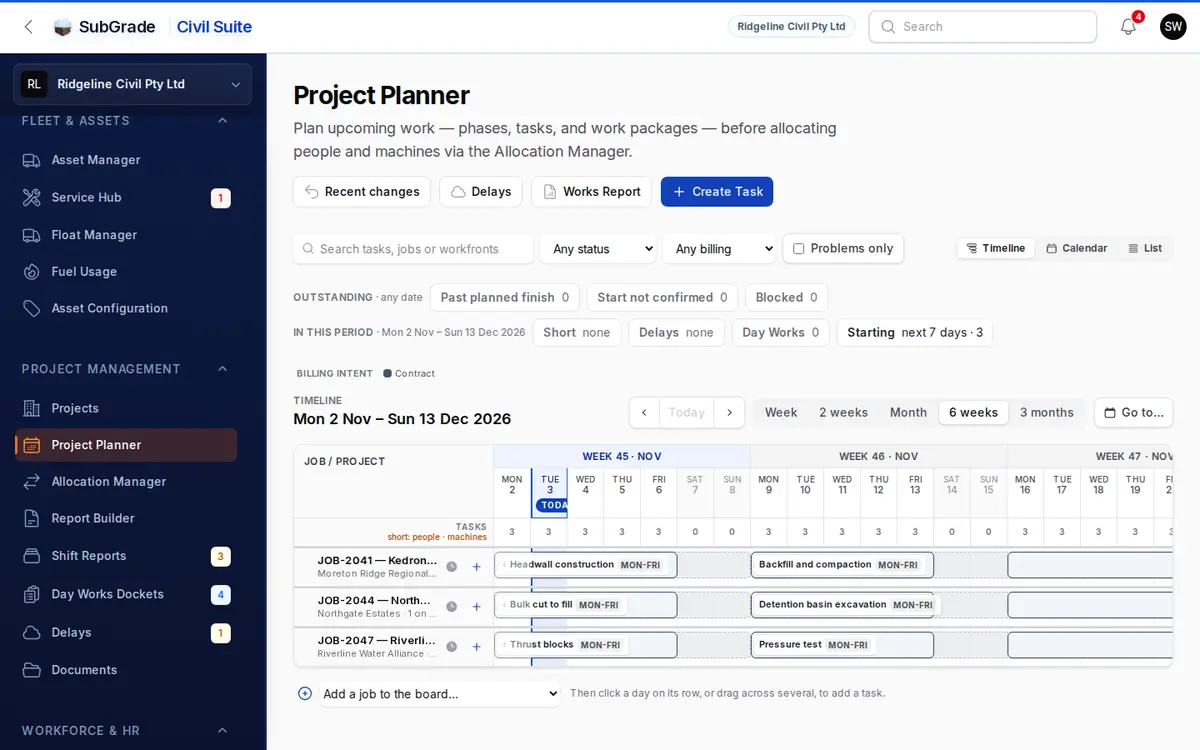
- Choose your view. The Planner opens on six weeks from this Monday. Pick Timeline, Calendar or List, and it remembers your choice. On a phone it's always the calendar.
- Set the period. Use the arrows, Today, Week, 2 weeks, Month, 6 weeks, 3 months or Go to….
- Put a job on the board with Add a job to the board… if it has no tasks yet.
- Create a task. Click Create Task, click a day on a job's row, or drag across several days. The button starts on next week. A click or drag on the board starts on the days you chose.
- Say what it needs, then save.
- Reschedule by dragging. Drag a bar to move it, or drag an edge to resize it. It saves straight away and offers Undo.
- When it's time to commit, use Create allocations on the task.
Reading the board
Filters. Search tasks, jobs or workfronts, filter by status or billing, or tick Problems only. The filters apply to every view.
The counters say what needs a decision. Click one to list its tasks.
- Outstanding covers any date: Past planned finish (in progress, its finish has passed), Start not confirmed (due to have started, nobody marked it) and Blocked.
- In this period covers what's on screen: Short (a role or machine uncovered on at least one working day), Delays, Day Works and Starting in the next 7 days.
The timeline groups tasks by job, then by area of the site. Forecast jobs are marked and sit at the bottom.
- Bars are coloured by billing, with a key above the board. Night shifts are shaded.
- Each day shows how many tasks are working and how many people and machines are short. Click a total to open that day.
- Weekends, public holidays and delays are marked, and today is highlighted.
- Solid segments show actual working days, so a Mon–Fri task shows gaps over a weekend.
- Each job row has a history button for the last 90 days, and a + to add a task.
Click a bar for its panel: Edit, Mark started or Mark complete, Change dates… and Manage allocations, which opens the Allocation Manager on that job and those weeks. More has Details, Duplicate, Move linked bookings… and Delete.
To change several tasks, hold Shift, Ctrl or Cmd and click the bars. A bar appears with Shift by… (working days, so a Mon–Fri task skips the weekend), Change dates…, Mark complete and Delete.
Recent changes lists what you changed in the last 10 minutes, with Undo where it's still possible.
On a computer, the left and right arrow keys step the period, T goes to today and / jumps to search.
Creating and editing a task
- Task — What is the work?, Project, Area of site (or Whole job). Turn on Not won yet (tender or forecast) to enter a job name and optional client instead.
- When — start and end dates.
- What this task needs — Roles required and Plant required, with how many of each.
- Shift, hours & billing — working days, shift start and finish, How it's billed (Contract, Day Works or Mixed) and Status (Draft, Scheduled, In Progress, Blocked or Complete). New tasks are Scheduled. Blank shift times use the job's, then your company's.
- More — Notes and an optional Production target per day.
How it's billed is a planning signal only. What's billed as Day Works still comes from timesheets and signed dockets.
Stating demand, not names
A task says "3 pipelayers, 2 of a 20t excavator". It doesn't name anyone, and nothing here books anyone. Short tells you where a task's needs aren't covered yet, and picking fewer than required is fine: the shortfall keeps showing.
A role with no charge rate is still counted, and reported as unpriced rather than costed at zero.
Turning a plan into real allocations
Create allocations is on the task's Details panel when the task is on an awarded project and has roles or plant listed.
- For each role and machine class, pick who or what goes on.
- Each pick becomes an approved allocation that takes the task's dates, work pattern, shift and billing, and stays linked to the task.
- Anyone already committed elsewhere is shown with a Replace those allocations toggle. It's off by default, so they're skipped, not moved.
- You can run it again: anything already on the task isn't allocated twice.
- A forecast task has nothing to allocate until you edit it onto a real project.
Check the Allocation Manager afterwards. That's the record of who and what is actually committed.
When a task moves
Changing a task's dates doesn't move its bookings. After a move, the saved message says how many bookings are still on the old days and offers Move linked bookings…, which shows a preview first. You can also find it under More on the task.
Delete removes the task and leaves its allocations alone. Deleting several at once can be undone for 10 minutes through Recent changes.
Sending a Works Report
The Works Report menu (shared with the Allocation Manager) composes a snapshot of upcoming tasks, current allocations or both over next week, the next 30 days or a custom range.
- Send Works Report sends it as a broadcast: in-app always, plus email or SMS if you choose. You can attach PDF and Excel copies, pick the audience and send yourself a preview first. SMS only carries a short "report is ready" nudge.
- Download Works Report saves it as a PDF or Excel file.
- Include forecast value adds expected charge. It's removed automatically if the audience includes subcontractors or external contacts.
See Broadcasts.
Connected pages
- Allocation Manager — where people and plant are named and committed.
- Projects — the awarded projects and their locations.
- My Work Log — crew see shifts from allocations, not planner tasks.
- Report Builder — reports on what actually happened on site.
Tips & common mistakes
- A task is a plan, not a booking. Nothing changes in the Allocation Manager until you run Create allocations.
- Forecast jobs never bill or pay. Use them to hold demand against work you expect to win.
- A job isn't on the board? Jobs only show when they have a task in the period. Use Add a job to the board….
- Dragging a bar changes real dates immediately. Use Undo on the saved message if it was a slip.
- Moved a task and the crew stayed put? That's deliberate. Use Move linked bookings….