Create and maintain the jobs your business runs, and the clients they belong to. Every timesheet, plant allocation, shift report, docket and document points back to a project, so getting the basics right here (job number, client, status, dates) keeps everything downstream honest.
Who can use it
- Projects tab: "view projects" to see it, "manage projects" to create, edit or delete a project.
- Clients tab: "view clients" to see it, "manage clients" to create, edit or delete a client. You also need "view projects", because the Clients tab sits inside this page.
- Testimonials tab: only shows if you have access to testimonials.
- Pay & travel fields on a project: anyone who can edit a project can read these, but only people with "manage compensation" can change them.
- Cost coding on a project: only shows for people with "manage cost codes".
See Roles & Permissions for how access is set.
Where to find it — Project Management → Projects in the sidebar.
Before you start — a project must belong to a client. You can add a new client from the Client field on the project form, so you don't have to leave the form. If you want workers to complete an in-app induction for the job, a published project induction needs to exist in Training Modules first. Without one, leave the project on External.
How to use it
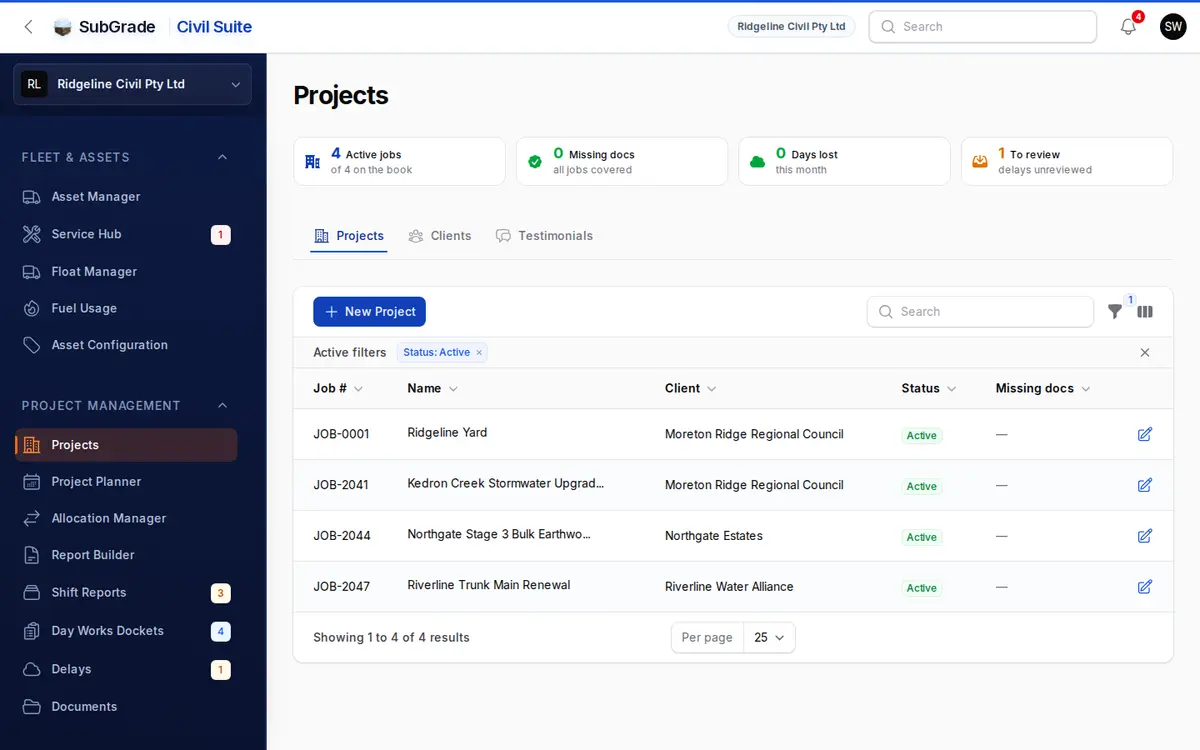
The tiles at the top show what needs you:
- Active jobs, out of everything on the book.
- Missing docs — how many jobs have required documents outstanding. Click it to open those documents.
- Days lost this month, and delays To review. These two only show if you can log or manage delays, and each opens the delay register.
The Projects tab lists each job with its Job #, Name, Client, Status and Missing docs. Docs filed, Away job, Start and End are in the column picker. The list opens filtered to Active jobs, so clear the Status filter to see the whole book. It sorts by job number. You can also filter by Client, Away job or a Start date range.
Click a row to open the job, use the pencil to edit it, or click New Project to create one.
Creating or editing a project
The form has four tabs.
Job
- Project Details — Client (required), Job Number (required, up to 10 characters), Name (required), How it's charged (Contract or Day Works) and Status: Pre Tender, Post Tender, Active, On Hold, Inactive or Completed. New jobs default to Active.
- The next job number is filled in for you. Change it if the job has its own. Two jobs can't share a number, and the message names the job that holds it.
- Timeline & Notes — optional Start Date, End Date and Description.
- Shift Times — optional. Add a shift's start and finish when this job doesn't run your company hours. These set timesheet prefill and the day length a daily hire rate converts against.
Site
- Site compound location — optional coordinates, or paste a location. This is the map link in allocation notifications.
- Site Rules & PPE — rules that apply to every shift on the job. Workers see this on their Shift Details, so keep it short.
Time & money
- Pay & travel — Company base / yard marks the one project that is your depot; ticking it on another project moves it there. Travel km paid and Travel time paid are per return trip and are used exactly as entered, so leave them blank if the site has no paid travel. Vehicle this job requires stops own-car kilometres being counted on a company-vehicle job.
- Away job — for jobs where the crew stays away overnight. The living away allowance is counted per night of a confirmed away trip, and travel in and travel out once per trip. It also reveals an Away job note for managers.
- Cost Coding — the default cost code for labour and plant on this job.
These figures feed budget estimates and the quantities in your payroll export. Your payroll system still does the pay itself.
Induction
- Who runs the induction — External (the default) or Internal. Internal needs a published project induction chosen in Induction module, and the form won't save without one.
To start from a similar job, open it and choose More → Copy to a new project, or use Copy from a project at the top of the new project form. It fills the form with that job's settings. The job number, name, dates and status are never copied, and nothing saves until you press Create.
There's no budget or contract value field on the form. A job's contract and costs are on its Budget tab. See Budget Overview.
The project record
The buttons at the top of a job are Edit, Site Pack, Shift report and Client report, which opens Report Builder on this job and week. You only see the ones you have access to. Under More are Log a delay, Upload document, Copy to a new project, Mark complete and, for a completed job, Reopen job and Ask for a testimonial.
Site Pack is a phone-friendly, worker-facing view of the job's current field documents, separate from the full document register.
The record has four tabs:
- Overview — what needs attention, the job at a glance, site rules, how the job is set up, the site and its contacts.
- Delivery — Shift reports, Delays, Locations (workfronts within the job), Contacts, and links to the Project Planner and Allocation Manager.
- Compliance — Required Documents, Documents, Project Inductions and Site Inspections. See Documents and Site Inspections.
- Budget — the job's cost position (if you can see cost), Contract, Variations, and Standard hours (charge). Your yard shows Cost centre budgets instead of a contract.
Mark complete takes the job off active work without touching anything filed against it, and you can reopen it at any time.
Clients tab
Lists each client with Name, Projects, Contact and Phone, sorted by name. Email and Updated are in the column picker. The Projects count opens that client's jobs.
New Client asks for the Client Name and optional Billing notes. Click a client to open their profile, which shows their primary contact, Contacts and jobs. From there, New job for this client starts a project with the client already picked, and Ask for a testimonial starts a request.
In a client's Contacts list:
- Add Contact captures Name, Role, Phone, Email, whether they're the main contact (one per client), and which jobs they look after, plus Company and Notes.
- Row actions are Set as Primary, Manage Projects and, if you have the permission, Request testimonial. See Testimonials.
- A contact who has been sent a signature request can't be deleted.
Connected pages
- Project Planner — plans the work needed on a job.
- Allocation Manager — where crews and plant are allocated onto a job.
- Documents — the full document register.
- Day Works Dockets — dockets raised against a job.
- Budget Overview — cost and margin tracking per job.
Tips & common mistakes
- Can't find a finished job? The list opens on Active jobs only. Clear the Status filter.
- Project labels — pickers across the app show a job as
Job Number - Name (Client), so a clear job number and name pay off everywhere. - Only one base project — set Company base / yard once, on your actual yard or depot.
- Deleting is only for mistakes. A project can only be deleted from its edit page, one at a time, and only while nothing is recorded against it. If it has any history you'll see what's blocking it. For a finished job, use Mark complete or set the status to Inactive.
- Can't change travel or Away job? Those fields need "manage compensation".