Book a float (low-loader) to move a machine between jobs — schedule the date and time, pick the float company, send them the request by email, and track whether they've confirmed.
Who can use it — "Manage asset allocations" lets you create and action bookings. "View assets" shows the page read-only. This is normally a dispatcher, fleet coordinator, or supervisor. See Roles & Permissions for how access is set.
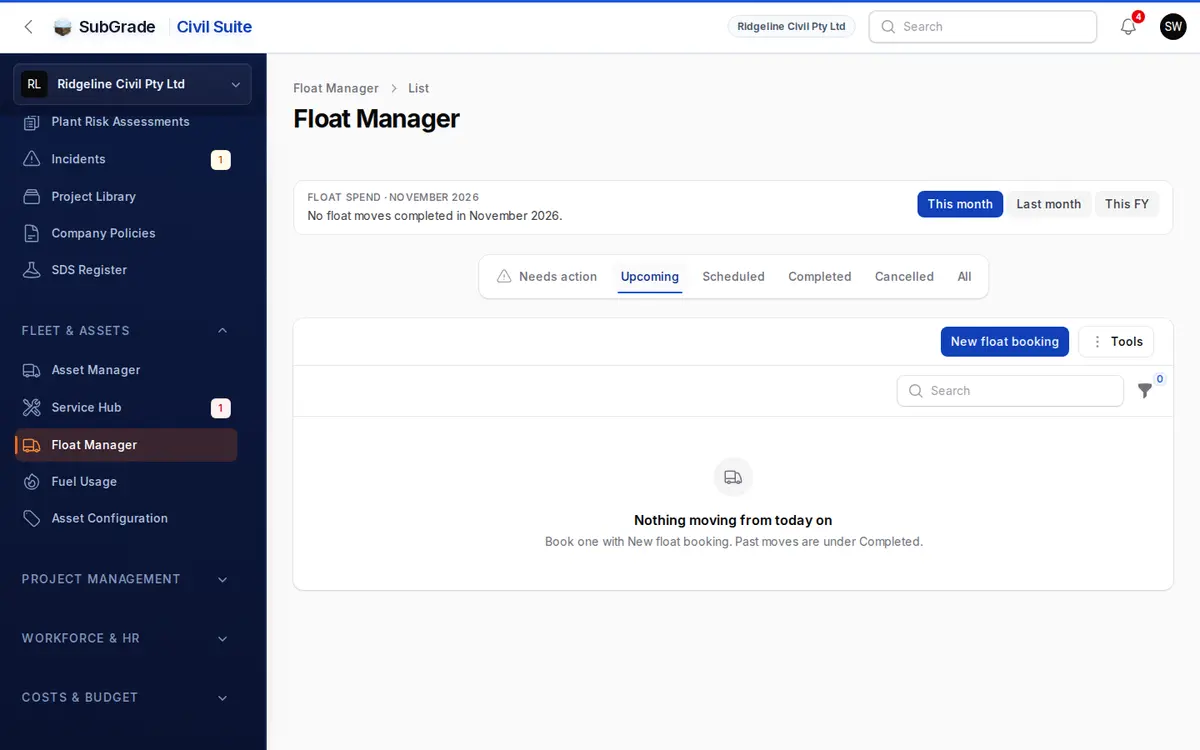
Where to find it — Fleet & Assets → Float Manager in the sidebar.
How to use it
- Create a booking. Click New float booking. Pick the Machine (tick Show attachments and other equipment for anything else) and where it is Going to. Coming from fills from the job the machine is booked on for the move date, and you can change it. Set the Move date, Pickup time and Float company, and optionally a Quote (ex GST), Driver / contact and Transport notes, which are sent with the request. The form shows the machine's size for the float company and warns if no operating weight is on file, or if the machine already has a float that day. The two jobs must be different.
- New float company? If the company isn't in the list yet, use the inline "create" option on the Float Company field to add one on the spot (name, contact name/phone/email) without leaving the form.
- Send the request once the booking is scheduled — see below. This is a separate step from creating the booking; a booking with no request sent shows Not sent in the table.
- Track confirmation as the float company replies, and use Mark complete once the machine has moved.
Sending the request
Use the Send request action on a scheduled booking to email the float company. It opens in a side panel over the list or the booking, and covers:
- To the float company — email and name, pre-filled from the float company's contact details if set, plus any CC addresses.
- Who meets the float on site — a site contact is required. Pick one from the destination project (if the job has only one, it is already picked), or enter a name and email.
- Pickup, drop-off and access — folded away, since the destination job's map pin is sent regardless. Open it to choose an Area of site and add a Pickup address, Drop-off address or Access / loading notes; the folded heading lists what you have filled in.
- Vehicle movement plan (VMP) — a vehicle movement plan document from the destination project can be attached (or linked, if the file is too large to attach). If none is on file, the request is sent without one and the booking's Upload VMP action can add one to the project afterwards.
- Notes — defaults from the booking's transport notes.
The request is queued and delivered by email shortly after. Each send is recorded as a row in Float Requests history on the booking, showing its status (Queued, Sent, or Failed), who sent it, and when.
- Resend re-delivers the same request content to the float company (available once a request has been sent).
- Retry re-queues a request that Failed to send.
- If a booking's details change after a request was already sent, the booking shows a warning that the request may be stale — resend it so the float company has the current details.
Confirmation
Once a request has been sent, use the Confirmation menu on the booking to record the float company's reply: Mark confirmed (with an optional reference), Mark declined, Mark needs info, or Reset to awaiting. This is a manual record — float companies don't log into SubGrade, so someone on your team enters what they were told by phone or email. The Needs action tab and the badges on each row surface anything that needs attention.
Booking status and lifecycle
A booking moves through:
- Scheduled — the normal state; can still be edited, have requests sent, or be cancelled.
- Completed — use Mark complete once the float has moved the machine. It asks What did the float cost?: Enter the cost, Invoice not in yet or No charge. An entered cost posts to the destination job on the move date. If the invoice is not in, the booking reads as uncosted until you use Enter cost. A saved cost cannot be changed here. Completing locks the booking and, if the machine isn't already on the destination job, moves it there from the move date, so you don't need to update the Allocation Manager by hand.
- Cancelled — use Cancel to call off a scheduled move. If a request had already been sent to the float company, cancelling shows a warning to contact them directly, since SubGrade doesn't automatically notify them.
The page opens on Upcoming. The other tabs are Needs action (never sent, send failed, company declined or needs info, or the date passed without being closed), Scheduled, Completed, Cancelled and All. Tools → Export what is shown (CSV) exports the current list.
If you can see budgets, Float spend at the top totals completed moves for This month, Last month or This FY, by job.
Float transport notice on prestart
This is the important cross-page behaviour: if a machine has a scheduled float booking within 48 hours (before or after), an operator doing a prestart on that machine (see Start a Prestart) sees a red Float Transport Notice banner with the move details, the float company, and contact. If the request hasn't been sent to the float company yet, the banner flags that too. The operator must tick "I acknowledge this machine is scheduled for transport and understand it may not be available" before they can submit the prestart — it's a required checkbox, not just a warning.
Every acknowledgement is recorded against the booking (who, when, and which prestart it came from) and shown in the Acknowledgements section on the booking's detail view, so you can see who's aware a machine is about to be moved.
Managing float companies
Float companies (the low-loader operators you book) are managed from the Tools → Manage companies action on the Float Manager page, opened as a slide-over rather than a separate page. Each company has a Company Name, ABN, Contact Name/Phone/Email, Active flag, and Notes. Only active companies are offered when scheduling a booking. A company with existing bookings against it can't be deleted — deactivate it instead so it drops out of the picker but the booking history stays intact.
Connected pages
- Start a Prestart — where operators see and acknowledge the float transport notice.
- Allocation Manager — receives the automatic reallocation when a float booking is marked complete.
- Asset Manager — the asset register the Asset field is drawn from.
Tips & common mistakes
- Forgot to send the request? Creating a booking doesn't email the float company — you still need to run Send request separately. The Unsent requests stat and the Not sent badge on the row are there to catch this.
- Changed the date or company after sending? The booking flags the request as possibly stale — resend it rather than assuming the float company already has the update.
- Can't edit or delete a booking? Both are blocked once it's Completed, and it can't be cancelled either, since the move already happened.
- Job cost looks short? Filter Cost by Completed, cost not entered and use Enter cost.
- Cancelling after a request was sent? SubGrade doesn't notify the float company automatically — you need to contact them yourself to call off the move.
- No VMP available? The request still sends without one; use Upload VMP on the booking afterwards to add the document to the destination project for next time.