Set, for every kind of alert your workspace uses, which people, roles and external contacts receive it, and on which channels. This is the admin control behind the alerts. Each person's own preferences are on My Notifications.
Who can use it — Anyone with "manage tenant notifications" permission. This is separate from "manage my notifications", which lets a person manage their own inbox. See Roles & Permissions for how access is set.
Where to find it — Administration → Notification Manager in the sidebar.
How to use it
The page is a table with one row per kind of alert, such as Critical Defect Alerts or Workforce Qualification Alerts, grouped by Category.
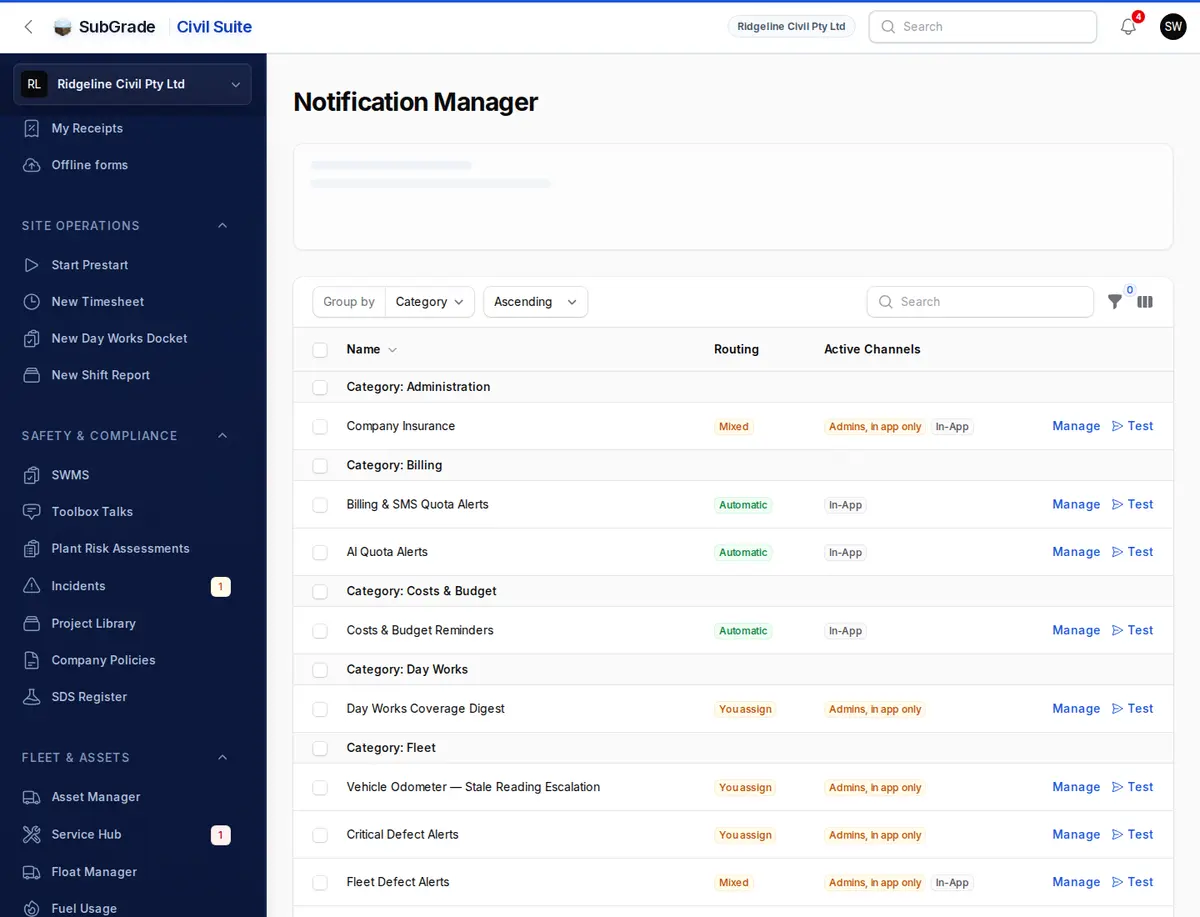
- Routing says who the alert goes to.
- Automatic — it goes to the person it's about. Adding someone only copies them in.
- You assign — it reaches the people you assign. With nobody assigned, it goes to your admins in the app only.
- Mixed — some of each.
- Active Channels shows what will fire right now: SMS, Email, In-App, or Admins, in app only when alerts need someone assigned. Muted means nothing is set to receive it.
- Key is a technical identifier, hidden by default.
Each row has Manage and Test. The Needs someone assigned filter shows only the gaps. To fill several at once, tick the rows and use Assign people to selected, which adds recipients and keeps the existing ones.
Assigning recipients
Press Manage on a row. There are three sections:
- Internal Team — add workspace members and tick Email and/or SMS for each.
- Roles — add a role so everyone holding it receives the alert, with the same channels. A role with no members doesn't count as coverage.
- External Contacts — add suppliers or other third parties. Pick an existing contact, or create one here with Name, Company Name, Email and Phone.
Press Save Changes to apply.
SMS is admin-assigned, not personal
SMS is never a self-service setting. A person can't turn it on for themselves on My Notifications. You assign it here, per alert. Because SMS uses your workspace's credits, keep it for alerts that truly need an instant text. See SMS Usage for what's left.
Email is shared: you can assign it here, and a person can also manage it on their own My Notifications Settings tab. In-app delivery is always on for anyone an alert is addressed to.
Testing a notification
Test sends a real notification through the normal delivery path:
- Pick a Scenario. One row can cover several alerts, such as Service Due Soon and Service Overdue.
- Pick a Channel. The choices depend on the scenario.
- Optionally change the Message.
- Press Send Test.
Blind Spot Warning
The banner at the top lists every alert that needs a recipient and doesn't have one. Until someone is assigned, those alerts go to your admins in the app only, with no email or SMS. The most important are tagged Critical and listed first. Press Assign to go straight to that alert. When nothing is missing, the banner shrinks to "Every alert that needs a recipient has one."
Spam Radar
At the bottom of the page, a stacked bar chart shows this week's delivery volume per alert, by channel (In-App, Email, SMS, Push). Use it to spot noisy alerts or heavy SMS use. SMS bars are amber. With nothing delivered this week, a short message shows instead.
Connected pages
- My Notifications — where people read their alerts and manage their own email.
- Broadcasts — messages you write yourself, separate from the alerts set up here.
- SMS Usage — your SMS credit balance.
Tips & common mistakes
- "Admins, in app only" on a row? Press Manage and assign the people who act on it. Critical defect alerts, for example, reach only your admins until you do.
- Adding someone to an Automatic alert doesn't move it. It still goes to the person it's about, and you're just copied in.
- Don't over-assign SMS. Every SMS recipient draws from the same credit pool.
- Use Test after a change to confirm it lands, rather than waiting for the real event.
- Someone isn't getting an alert? Check here first whether they or their role is a recipient, then check their own email setting on My Notifications.