Run your workers compensation claims register: lodge a claim, track its status through to closure, log appointments and capacity certificates, record disputes and costs, and pull reports across the workspace.
Who can use it — Access is split by permission:
- "View workers compensation claims" — see the claims register and open a claim's details.
- "Manage workers compensation claims" — create and edit claims, change status, log appointments/notes, and manage most of a claim's sub-records (Contacts, Appointments, Capacity Certificates, Return-to-Work Plans, Expenses).
- "View workers compensation confidential notes" (or manage claims) — required to see the Case Notes tab at all.
- "Manage workers compensation disputes" (or manage claims) — required to see and edit the Disputes tab.
- "Run workers compensation reports" — needed for Export CSV and to open the page without claims access.
You need at least one of view/manage claims or run-reports to see Workers Compensation in the sidebar at all.
Where to find it — Workforce & HR → Workers Compensation. The page is headed Workers Comp Reports and holds both the claims list and the reports. Open a claim from the list.
How to use it
Claims list
The page lists every claim with Employee, Claim Number, Status, Injury Date, Capacity, Certificate Expires, Next Appointment and Updated. Above the table, six tiles show Active claims, No current certificate, Certificates expiring ≤7d, Appointments ≤7d, Open disputes and Open claim cost. Click a tile to go to the matching view.
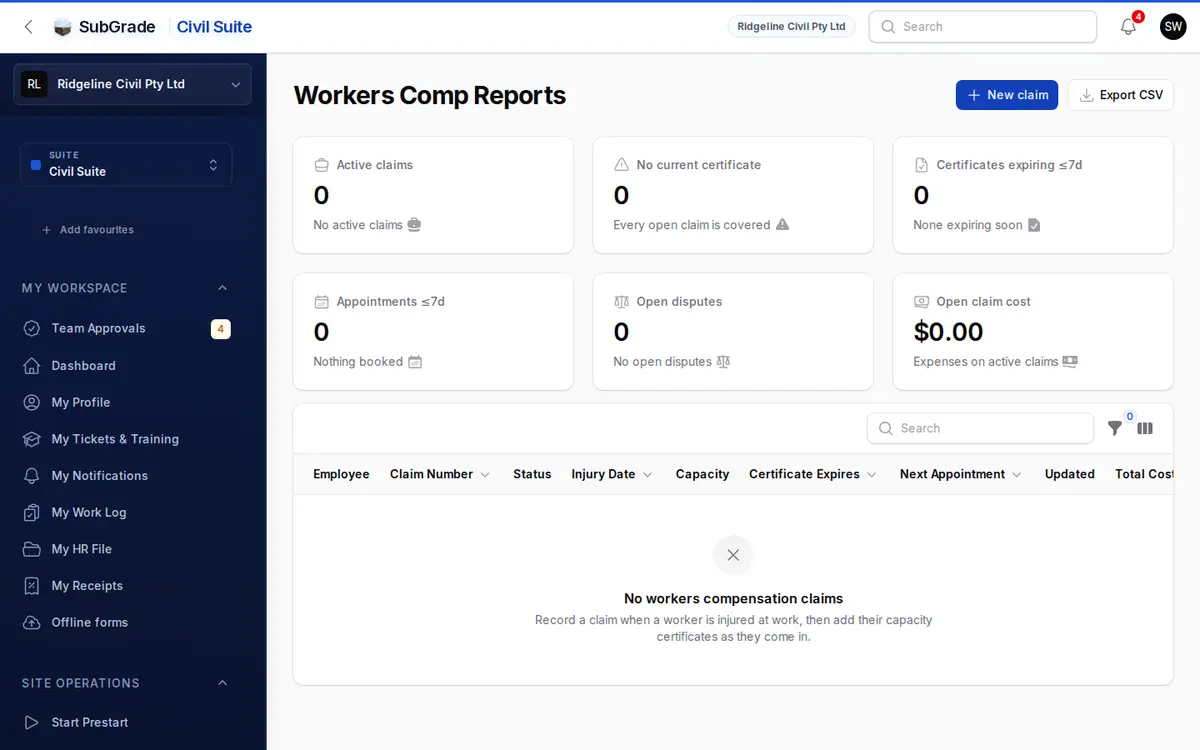
Click New claim to lodge one. The form asks for:
- Employee — pick from your active people, or use Or type their name for someone not in the system.
- Claim number (required, unique in your workspace), Insurer and Insurer's claim reference.
- Injury date, Injury type and What happened.
- Status defaults to Lodged and can only be picked when you create the claim. After that, it changes only through the actions below.
- Return-to-work review date.
- The employee can see this claim — off by default. Turn it on to show its status, capacity and next appointment on their My HR File. Case notes, contacts, expenses and disputes stay hidden.
Claims can also start from an injury incident. See Connected pages below.
Claim status lifecycle
A claim moves through these statuses, changed via Change status on the claim's page (not by editing the Status field directly):
- Lodged — the starting point.
- In Assessment — via Begin Assessment, available from Lodged.
- Accepted — via Accept Claim, available from Lodged or In Assessment.
- Return To Work — via Return To Work, available once Accepted.
- Closed — via Close Claim, available from any status, and stamps the Closed date. Can be reopened.
- Disputed — not chosen manually. It's derived automatically: as soon as a linked dispute is Open or In Review, the claim shows as Disputed (its prior status is remembered); once no disputes remain open, it reverts to that prior status. A Closed claim is never auto-flipped into Disputed.
Reopen Claim returns a Closed claim to Accepted and clears the closed date, then re-checks disputes in case one is still open.
Capacity, certificates & appointments
Current Capacity (No Work / Modified Duties / Full Duties), approved hours per day/week, and the certificate expiry shown on the claim are all derived from the claim's Capacity Certificates — add or update those on the Capacity Certificates tab rather than editing the claim directly; each certificate records a reference, issued/effective/expiry dates, capacity, approved hours, doctor and clinic, an optional attachment (PDF or image, up to 10 MB), and notes.
On a No Work certificate, Record time off books the days as Workers' compensation leave, or extends leave already booked, so payroll counts them as workers comp and not sick leave. See Leave Requests.
Likewise, the Upcoming Appointment details on the claim are derived from the Appointments tab. Use Log Appointment on the claim header (or the Appointments tab directly) to record a scheduled date/time, doctor, location, purpose, status (Scheduled/Completed/Cancelled/Rescheduled/Missed), whether to remind the employee, and internal notes.
Case notes (confidential)
Log Note on the claim header (or the Case Notes tab) records a dated entry — type (Discussion, Meeting, Doctor Appointment, Phone Call, Email, Update), subject, and detail. Case notes are gated behind their own confidential-notes permission (or manage claims), separate from general claim viewing — someone who can see a claim's summary may still be unable to see its case notes.
Return-to-work plans, disputes & expenses
- Return-to-Work Plans — status (Draft/Active/Superseded/Closed), effective/review dates, plan notes, restrictions, duties summary, hours summary, optionally linked to a specific capacity certificate, with an attachment.
- Disputes — who raised it (Employer/Employee/Insurer/Other), dispute type, status (Open/In Review/Resolved/Withdrawn), raised/resolved dates, summary, resolution notes, and an attachment. This is what drives the claim's automatic Disputed status.
- Expenses — date, type (Medical/Legal/Rehab/Equipment/Wages Gap/Other), amount, and description. These sum to the claim's Total Cost.
- Contacts — name, role, organisation, phone, email, address, and notes for anyone involved in the case (case manager, solicitor, rehab provider, etc.).
Reports
The Report filter offers ready-made views of the list: Claims by Status / Date, Active Claims, Certificates Expiring Soon, Upcoming Appointments, Disputes Open / In Review, Disputes Resolved / Withdrawn, Case Activity Extract and Total Cost of Claim. Combine it with filters for date range (by Injury, Opened, Closed or Created date), Employee, Status, Capacity, Insurer, Dispute Status or Expense Type. No current certificate and Expiring Certificate (7 Days) are there too. Click Export CSV to download the filtered view.
Reminders
SubGrade sends reminders for expiring and lapsed certificates, upcoming appointments and return-to-work review dates. They're under Workers Compensation alerts in Notification Manager, where you choose who gets them.
Connected pages
- Incidents — an injury incident (worker type Employee, injury sustained) can raise Create Workers Comp Claim directly from the incident record, prefilling the employee, injury date, and injury summary. Once created, the incident shows View Workers Comp Claim instead.
- People — the employee record a claim is linked against.
- My HR File — shows a claim to the employee only if you turn on The employee can see this claim. Claims are always managed here.
Tips & common mistakes
- Can't see Workers Compensation in the sidebar? You hold none of the view claims, manage claims or run reports permissions.
- Can't edit the Status field on the form? That's expected once a claim exists — use Change status on the claim's page instead.
- Capacity or certificate-expiry fields look locked? They're derived from the Capacity Certificates tab, not editable on the claim form itself — add or update a certificate there.
- Claim stuck showing Disputed? Check the Disputes tab — it stays Disputed while any dispute is Open or In Review; resolve or withdraw it to let the claim's real status show again.
- No Case Notes or Disputes tab? Those need their own permissions (confidential notes, manage disputes) beyond general claim access.
- Raising a claim from an incident but the button's missing? It only appears when the incident's injury toggle is on, the worker type is Employee, no claim is linked yet, and you hold both incident-manage and workers-comp-manage rights.