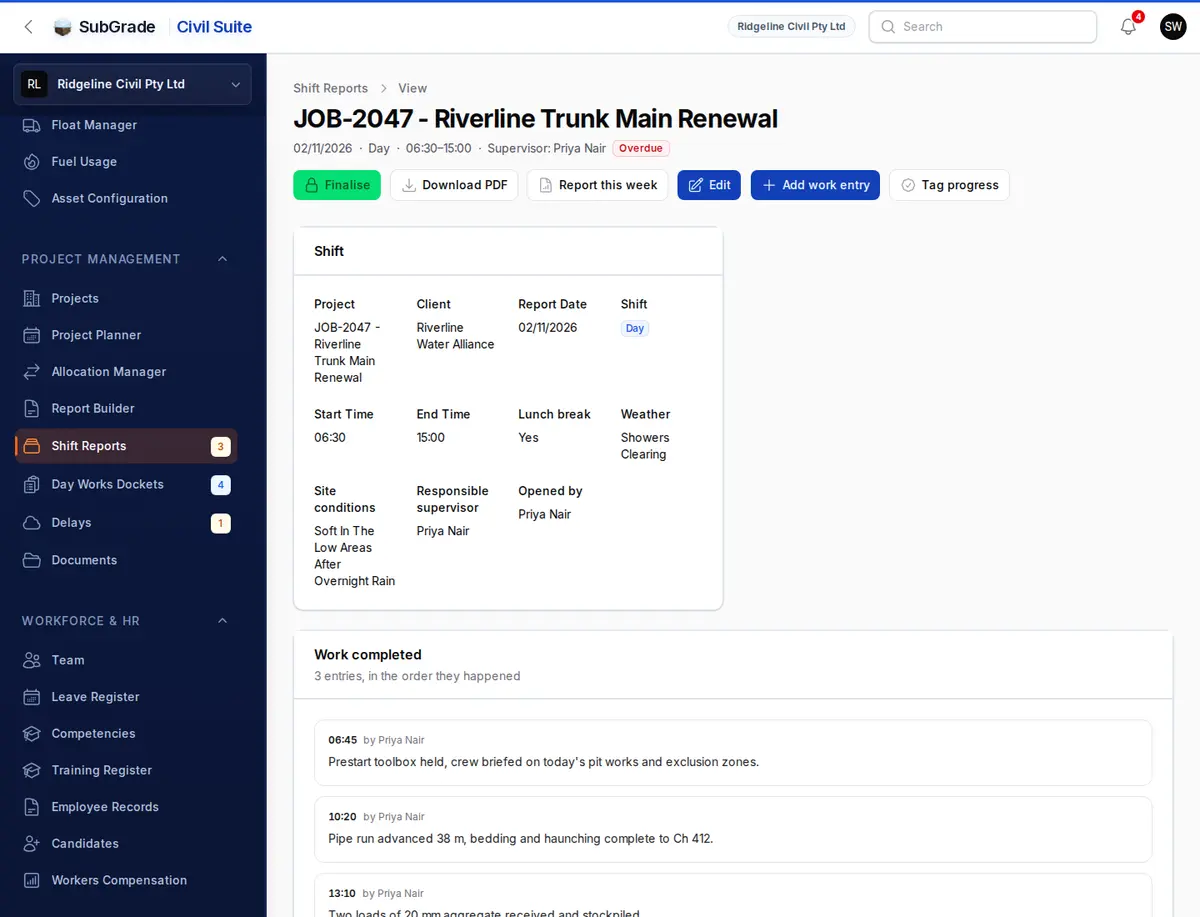
The daily record of a shift on a job: what got done, who and what was on site, what stopped work, and what needs lining up next. Build it through the shift or write it at knock-off, then finalise it.
Shift reports need signal. There's no offline shift report. If a page reloads or a save fails, the phone keeps your unsaved report and offers it back (see below), but you can't start or send one with no signal.
Who can use it — Anyone with "log shift notes" permission can open a report and add to it, which covers most field roles. Editing, finalising, reopening and deleting are narrower: you need "finalise shift reports" and must be the report's Responsible supervisor, or hold "administer shift reports". See Roles & Permissions for how access is set.
Where to find it — Site Operations → New Shift Report in the sidebar goes straight to the form, or to today's report if one already exists. If you can only log notes, it opens My Work Log on the Shift Reports tab instead, which also has Quick Add Note, today's open shifts and your recent reports.
Before you start — there is one report per job, date and shift. If someone has already opened yours, the form says so at the top and offers Open that report, so two people can't file duplicates.
How to use it
The form opens on what your day already says: your job, today, your shift, the job's shift hours if set, and the crew allocated.
- The shift. Check Job, Date and Shift (Day or Night), then enter Start and Finish. Lunch break is a record only and doesn't change hours.
- Responsible supervisor. This person reviews and finalises the report, and only they can edit it once saved. Leave it blank if you're not sure: the report shows Needs an owner and management assigns it.
- What we did today. Add entries as you go, or one at the end of the day (see below).
- Crew and Plant & equipment. Check who and what was on site.
- Delays & issues. Add anything that stopped work, if you can see this section.
- Next 48 hours. Say what needs organising. The last shift's answer on this job shows above the box, so you can check it happened.
- Conditions. Tap the Weather and Ground buttons, or Other… to type your own. Conditions are entered by hand. Nothing fills them in automatically.
- Save report. The bar at the bottom shows a running count, such as "2 entries · 4 crew · 1 plant". Reopen the report any time to add more, then finalise it when the shift is done.
What we did today
One entry for the whole shift is fine. Each entry has:
- What happened — required.
- Type of entry — General, Day Works, Delay, Variation or Safety.
- Docket needed? and Docket — shown for Day Works entries. Link a docket on this job, Start a docket, or record a Paper docket with the hours and a photo. You can leave it for later: finalising warns you but doesn't stop you.
- Photos — optional.
- Time (optional) — leave blank if the entry covers the whole shift.
- Needs the boss to look at this — flags it for management.
- Written by — shown once saved. Everyone's entries are stamped with their own name, so the whole crew can add to one report.
Quick Add Note on My Work Log writes into the same report. It can add to today's report or one from the last few days.
Crew
Crew fills in from that date's allocations. Remove anyone who wasn't there. Each row has:
- Whose crew? — Our crew or Hired in.
- Who for your own people, or Company and How many people? for hired-in crew.
- Hours each and Notes.
Someone left early or started late? Use the clock button on the row to move them to their own row with their own hours. Refill from allocations replaces the crew rows from the allocations, after asking first.
Plant & equipment
Plant isn't filled in for you, because allocated doesn't mean it ran. Tap Add from site to tick off the machines on this job that day. Ones with a prestart or a named operator are already ticked. Add plant picks from the whole fleet. For hired-in plant, choose Hired in and enter the Company / machine.
Delays & issues
Anything that stopped work goes here, not in a diary entry, because here it can be counted and claimed. Add What stopped you? and What happened. Those who manage delays also see Whose risk. If you can't see this section, add a Delay entry under What we did today, and a manager can turn it into a delay record.
Finalising the report
The Review & finish section shows a Ready to finalise? checklist once the report is saved:
- Start time set
- End time set
- Something written under What we did, or crew/plant listed
Press Finish & finalise on the form, or Finalise on the report. It shows what will be sealed and warns about Day Works entries with no docket. If something on the checklist is missing, it tells you what. Someone with "administer shift reports" can use Override and finalise, giving a reason that stays on the report and in its audit trail.
Finalising doesn't send anything to the client.
After finalising. A note from Quick Add Note goes on as a timestamped addendum, and the report stays final. To change it properly, use Reopen as draft under the ⋮ menu on the edit page, which is recorded in the audit trail. Changes made to a report by someone other than the person who opened it send that person an in-app notice.
Overdue reports
A report falls due a few hours after the shift's finish time, or at 9:00 the next morning if no finish time was set. If it's still open, its supervisor gets a reminder. If nothing happens, or the report has no owner, it goes to management.
Unsaved reports
The form is kept on your phone as you type. If the page reloads, your login lapses or a save fails, you'll see "There is an unsaved report on this phone" next time. Choose Restore it or Discard. Photos that hadn't finished uploading need adding again.
Reports that need an owner
A report with no supervisor shows Take responsibility, for someone on your supervisor list who can finalise, or an administrator. If the chosen supervisor already has a report for that shift, the two are merged.
Deleting a report
The ⋮ menu on the edit page has Delete. It tells you how many entries, resources and photos go with the report. Only the Responsible supervisor or an administrator can delete it.
Connected pages
- My Work Log — the Shift Reports tab: Quick Add Note, today's open shifts and your recent reports.
- Report Builder — builds a project report for a period and drafts client updates.
- Manage Shift Reports — the workspace-wide list, including flagged entries and reports that need an owner.
- Day Works Dockets — where dockets linked from an entry live.
Tips & common mistakes
- "Finish & finalise" won't go through? Check the Ready to finalise? list. You need start and finish times, and at least one entry or crew or plant row.
- Locked out of your own report? Only the Responsible supervisor can edit it. Check that name before you save, and pick yourself if you're running the shift.
- Crew not filling in? It only reads that date's allocations. If nobody is allocated, use Add crew.
- Weather or ground not listed? Use Other… and type it.
- Added a note after finalising and it didn't reopen the report? That's on purpose: a finalised record isn't casually reopened.