The oversight list of every daily shift report across the workspace, so a manager can see what's been filed, what's missing and what needs a look, without hunting through each crew's own log.
Who can use it — the sidebar item only shows for people with "administer shift reports" (typically managers and admins). Someone with "finalise shift reports" can open the list from their own work, but doesn't get the sidebar item. Foremen and supervisors file reports through New Shift Report. To change a report you need "finalise shift reports" and to be either its supervisor or an administrator. Only an administrator can delete one. See Roles & Permissions for how access is set.
Where to find it — Project Management → Shift Reports in the sidebar. The badge counts reports still in progress, and its tooltip says how many are overdue.
How to use it
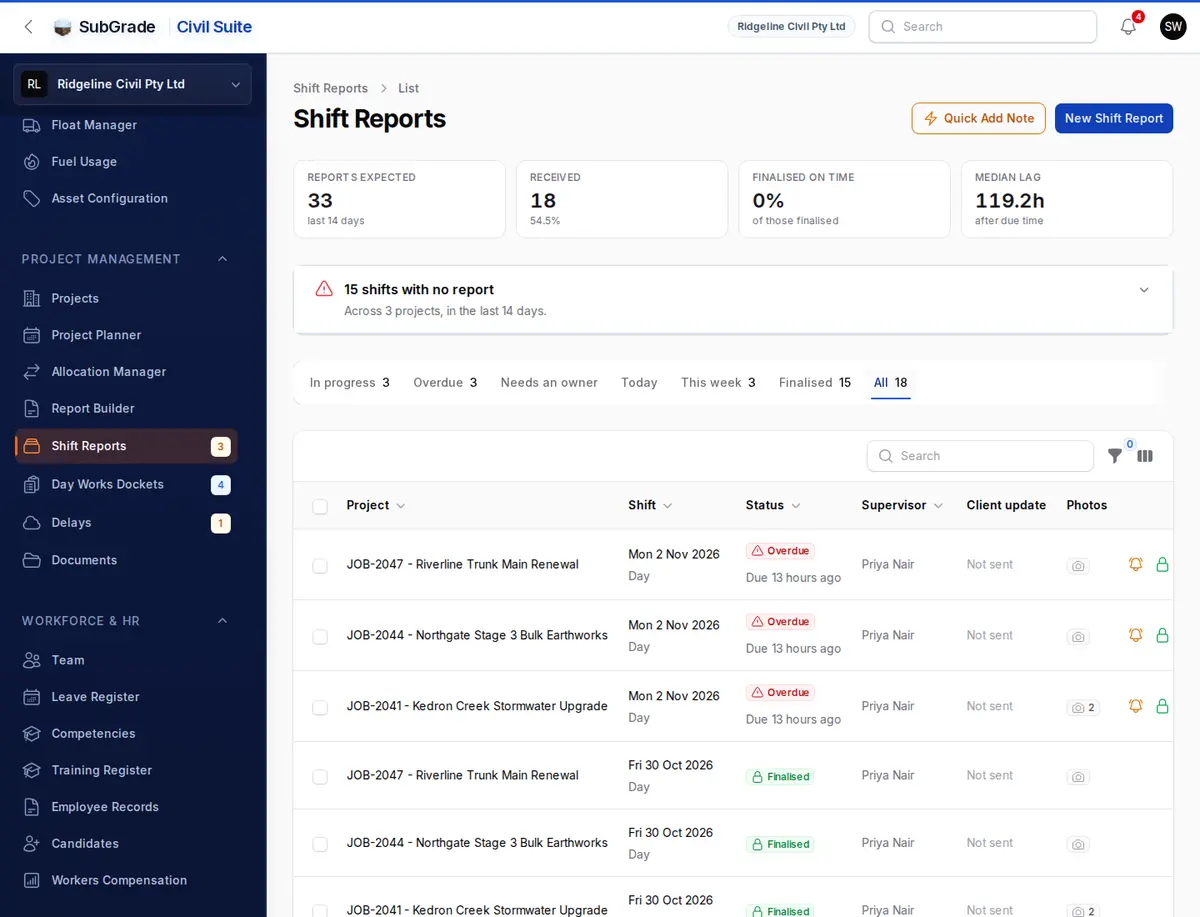
The list opens on All. Above it:
- Completeness tiles for the last 14 days — Reports expected, Received, Finalised on time and Median lag after the due time.
- Shifts with no report — shifts somebody was allocated to in the last 14 days with no report filed, grouped by project. Open this shift creates the report so the crew can log against it. Naming a supervisor is optional.
- Drafts over 24h old — shown only when there are some. Open drafts takes you to the In progress tab.
- Flagged log entries — shown only when there are some. It's a count across all reports. Use the Flagged entries filter to list them.
New Shift Report and Quick Add Note are at the top of the page.
Tabs
- In progress — reports not yet finalised.
- Overdue — in progress and past their due time.
- Needs an owner — in progress with no supervisor.
- Today and This week — by report date.
- Finalised — reports that have been signed off.
- All — everything.
Each tab shows its count. Searching on a status tab only searches that tab, and the page says so if finalised reports are being left out.
Columns
- Project — job number and name, with a note when the report has flagged entries.
- Shift — the date and the Day or Night shift, plus Public Holiday when it applies.
- Status — for example Overdue with how long ago it was due, or Finalised.
- Supervisor — the owner, or Needs an owner.
- Client update — when a client update covering this shift was sent, or Not sent.
- Photos — the count across the report's entries.
Finalised is in the column picker.
Filters
- Project, Shift, Supervisor, Lifecycle, Weather and Site Conditions.
- Flagged entries — Has flagged entries, No flagged entries or Any.
- Finalised, client not updated — finalised shifts no client update has covered.
- Day works, no docket — day works entries with no docket linked, unless the entry says none is needed.
- Finalised between and a report date From/To range.
Reviewing a report
Click a row to open the report. See New Shift Report for what's on it. Row buttons let you finalise a report without opening it and download the day's report as a PDF.
An administrator can edit, finalise or reopen any report, and delete one. When someone other than the person who created a report changes it, that person gets an in-app notification. Changes after finalising are also recorded in the audit trail.
Requesting completion
On an unfinalised report with a supervisor other than you, Request completion (bell icon) notifies that supervisor to finalise it. It's limited to one request per report every 12 hours. The button's tooltip says when the next one is allowed.
To chase several, tick them and use the bulk Request completion. Reports with no owner, or chased in the last 12 hours, are skipped and counted.
Reports with no owner
Starting a shift or adding a Quick Add Note can open a report before anyone owns it. These sit in Needs an owner.
- Open one and use Take responsibility to assign it to a supervisor. Anyone who administers shift reports can do this, and so can a nominated supervisor who can finalise reports.
- If that supervisor already has a report for the same project, date and shift, the notes move onto their report rather than creating a duplicate.
- To clear a batch, tick the reports and use the bulk Assign supervisor. Any that already had an owner are left alone.
Connected pages
- New Shift Report — how supervisors and foremen fill out and finalise the reports on this list.
- Report Builder — builds a project report for a period, exports it as a PDF, and drafts client update emails.
- My Work Log — where people see their own shift reports and Quick Add Note.
Tips & common mistakes
- Can't see this page in the sidebar? You need "administer shift reports". Ask an admin to grant it.
- Chasing an overdue report? Use the Overdue tab, then Request completion, so the chase is rate-limited and nobody gets nagged twice.
- Looking for everything a crew flagged? Set Flagged entries to Has flagged entries.
- A shift never appeared at all? Check Shifts with no report. Those reports don't exist yet, so no tab can list them.
- Finished work hasn't reached the client? Turn on Finalised, client not updated.