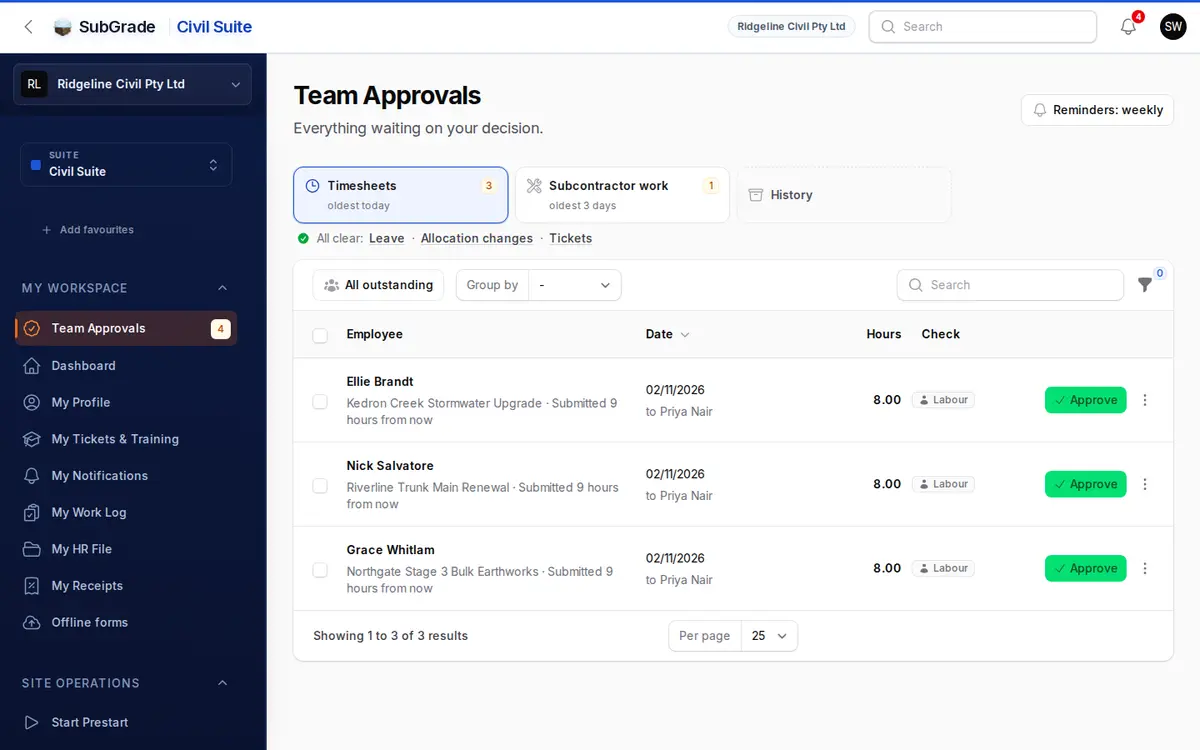
The one place supervisors and managers clear everything waiting on their sign-off: timesheets, leave, machine moves, subcontractor work and receipts. The cards at the top say what is waiting and how old it is, and they add up to the number on Team Approvals in the sidebar.
Who can use it — There's no single "Team Approvals" permission. The page opens for anyone who can decide at least one of these, and a card shows only for what you can act on:
- Timesheets and History — if you approve timesheets, manage pay runs, or are on your workspace's supervisor list in Payroll Settings.
- Leave — if you approve leave or can view all leave requests.
- Allocation changes — if you manage asset allocations.
- Subcontractor work — if you approve subcontractor work, once your workspace uses it.
- Receipts — if you approve expenses, once your workspace uses them.
- Tickets to check — if you manage the team. These are decided on Competencies, so the card takes you there.
See Roles & Permissions for how access is set.
Where to find it — My Workspace → Team Approvals in the sidebar.
How to use it
- Click a card to see that queue. Each shows how many are waiting and how old the oldest is. A red line on Timesheets counts days from earlier pay cycles: those are the ones holding up pay.
- Queues with nothing waiting fold into the All clear line, still one click away.
- Click a row to open the timesheet. Approve is on the row, and everything else is under the ⋮ menu, including Approve with note, correcting the cost code, proposing a machine move and Reject.
- Rejecting always needs a reason. Quick-reason chips fill in the text for you.
Reminders
The Reminders button says what is set, and lets you choose when you hear about what is waiting on you.
- Weekly is the default: by email and in the app, the morning after each pay week ends.
- Days I choose sends on the days and at the time you pick, by email, in the app, or both. The time is your workspace's time. Choosing email here is all you need to do: you don't also have to turn email on in My Notifications.
- Off stops reminders. You still see everything here.
The panel shows what would be sent right now and when the next one goes. A reminder covers every queue you can act on, and nothing is sent when nothing is waiting.
Alerts as each timesheet comes in are separate. They're set in My Notifications.
Timesheets
Everything submitted and waiting on you.
- Whose queue. Supervisors see timesheets sent to them, plus any left with the supervisor list if they're on it. Anyone who manages pay runs also gets a menu beside the search: Mine, All outstanding and Unassigned or left.
- Group by shows the list by employee or, if you manage pay runs, by approver, which answers "who is holding these up?"
- Heads-up counts the days over 12 hours, with no project, across several projects, or with allowance claims. Click a count to show only those.
- Each row shows the employee, the job, when it was submitted, the date, hours, and a Check column: the plant used, anything worth a second look, and what the day pays. None of these block approval.
- Approve is one click on a clean day. If the day has anything in its Check column, Approve asks first and repeats what it found. If you're approving on behalf of someone else, it says so.
- Approve selected takes everything ticked, and tells you what it skipped and why. Your own timesheet can't be ticked unless your workspace allows self-approval.
- A timesheet attached to a pay run that's no longer a draft is locked until the run is unlocked or reverted in Payroll Hub.
- Send to another approver, under ⋮, moves a timesheet to someone else on the supervisor list, or back to the list as a whole, where anyone on it can approve it.
- On phones the list is cards, with the same actions and a select mode for bulk approval.
Leave
Every pending leave request you can decide, soonest first. Your own request isn't here unless your workspace allows self-approval. Each row shows the person, the dates and working days, the type, how long it has waited, and any document attached.
- Approve confirms the request and creates the leave timesheets.
- Reject needs a reason.
- Open shows the full request. All leave requests goes to the whole Leave Requests register.
A leave request starts from a worker's My HR File.
Subcontractor Work
Submitted subcontractor work logs waiting for sign-off. A regular approver sees only logs nominated to them; anyone who manages supplier invoices sees everything outstanding, including older logs with no nominee. Each row shows the work date, who it was sent to, the supplier, project, claimed hours, line total, and flags any lines priced with a manual rate rather than the supplier's rate card.
- Approve — single row or Approve selected in bulk — confirms and locks the log in. Approving posts the cost into the supplier's RCTI for that period and onto the project's budget ledger straight away, so this isn't a reversible "just checking" click.
- If that period's RCTI is already issued, approval stops and tells you. Open the log in Subcontractor Work Logs and use Bill on the current period to carry it forward.
- Send to another approver moves the log to someone else, or back to everyone who approves subcontractor work.
- Reject requires a reason (quick chips like "Hours/quantity wrong," "Rate not agreed," "Wrong project," "Missing detail," "Duplicate," or your own text) and sends the log back to the subcontractor.
Subcontractors submit and track their own logs from My Subcontractor Work; approved logs and their invoices live under the management side in Subcontractors.
Allocation changes
Two kinds of thing land here, and both count towards the card.
Reported on another job. A prestart or timesheet put a machine somewhere the register doesn't. Each line says where it was reported, where it's booked, how often it's been seen, and who reported it.
- Move it books the machine there, from the day you choose. Its current booking ends the day before, and any later booking stays where it is.
- Dismiss says the form was wrong. The register stays as it is.
Moves waiting for approval. Someone has proposed a move, from a prestart or from a timesheet's ⋮ menu. Each row shows the asset, where it's moving to and from, the arrival date, how long it has waited, and who reported it.
- Approve makes the move and says first what will change: the booking that ends, and any attachments going with the machine.
- Reject leaves the machine where it is and closes the report behind it.
- A Vehicles filter narrows the list to vehicle assets.
Receipts
Receipts waiting for approval, with who submitted each, the date, who it's from, the total and GST, how it was paid, and what it's for.
- Review shows the receipt beside its details. From there, Approve it, or Send back with what needs fixing.
- Approve selected takes everything ticked. Your own receipts are skipped, for someone else to approve.
- Approving puts the cost on its project, job or machine. If your workspace is connected to Xero and sends receipts automatically, company-paid and on-account receipts publish straight away.
The full list, including receipts to check and pay back, is on Payroll & Billing → Expenses.
History
A read-only record of timesheets you've approved or, if you manage pay runs, everyone's. It shows the employee, date, project, hours and overtime, where the day is in pay, and when it was approved. Click a row for the full day, including plant, travel and allowances. It opens on the last 30 days: use Show all history or the Approved between filter to look further back.
To find any timesheet, approved or not, use Payroll & Billing → Timesheets.
Connected pages
- Start a Prestart — where operators flag an out-of-place machine.
- My HR File — where a worker submits a leave request.
- Leave Requests — the full leave register.
- My Notifications — alerts as things happen, as opposed to reminders you schedule here.
- My Subcontractor Work — where subcontractor work logs are submitted.
- Allocation Manager — the full asset-allocation timeline.
- Payroll Hub — where a locked timesheet's pay run gets unlocked.
Tips & common mistakes
- Empty queue but you know work was submitted? You see timesheets sent to you, plus any left with the supervisor list if you're on it. If you manage pay runs, switch to All outstanding, or ask the worker which supervisor they picked.
- Can't approve a timesheet even though it looks Submitted? It may be attached to a finalised pay run, which locks it until Payroll Hub unlocks or reverts the run.
- Bulk-approving: anything already actioned or locked is skipped, never force-approved, and the message says how many and why.
- Approved one by mistake? Approving posts its cost and joins the pay run, so it can't be undone here. Correct it with Revise on the Timesheets page.
- Subcontractor approval is final-ish: it posts cost to the budget straight away, so double-check manual-rate lines and the claimed hours before approving.