Subgrade controls what each person can see and do through permissions, bundled together into a role. This page explains how that works — and answers the common question, "why can I see a page my workmate can't?"
The basics
- Every person in a workspace has at least one role, and can hold more. Their access is everything those roles grant, combined.
- A role is a bundle of permissions, and each permission unlocks a capability — like running a pay run, approving timesheets, or viewing budgets.
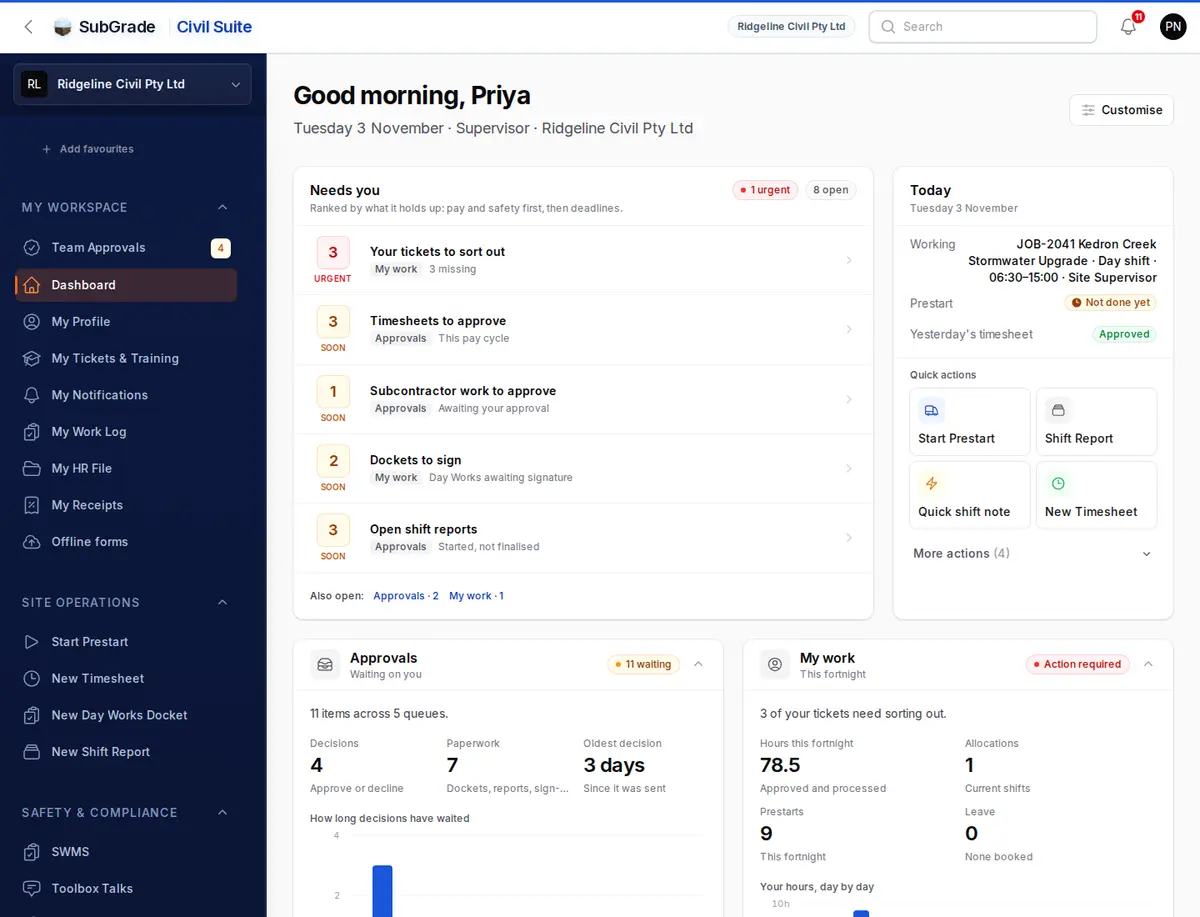
- You only see the sidebar entries you have permission for. That's why two people in the same workspace can see different menus.
- Roles are per workspace. The same person can be a manager in one workspace and a worker in another.
Behind the scenes there are well over a hundred granular permissions covering payroll, assets, safety, projects, HR, and more — but you work with roles, which package the right permissions together for a job.
The standard roles
Every workspace starts with a set of ready-made roles:
- admin — control of the whole workspace.
- management — broad office and operations access across payroll, HR, documents, and compliance.
- payroll — pay runs, compensation, finance, leave, and workers compensation.
- human resources — people and profiles, training, and inductions.
- supervisor — site supervision: timesheets, toolbox talks, inductions, shift reports, and approvals.
- employee — the default for a new team member: their own timesheets, prestarts, leave, and shift reports.
- subcontractor — an on-site subbie: sign SWMS and risk assessments, file prestarts and dockets, and log their own work.
- maintenance — asset servicing plus day-to-day site actions.
- trade admin, trade supervisor, trade technician — for workspaces with the Trade Pack.
- tender estimator, tender reviewer — for workspaces with the Tender Portal.
When you add someone, you choose their role if you have permission to assign roles. Otherwise it follows their worker type: employee or subcontractor.
One permission, overriding payroll, isn't in any standard role, not even admin. Reversing a finalised pay run needs it, so it has to be given on purpose, using Adjust access or a custom role.
Managing roles
Roles are managed from the Team page (first under Workforce & HR in the Civil Suite, and under Account in the Trade Pack and Tender Portal):
- Team Directory tab — open the menu on a person's row and choose Change roles, or Adjust access to tick individual permissions for that one person.
- Add person — set a person's role when you add them.
- Invite People tab — set a person's role when you invite them. This tab is in the Trade Pack and Tender Portal only.
- Access tab — create and edit custom roles (below).
A couple of rules to know:
- Changing roles needs the right permission (by default, admin and management), and you can't change your own.
- The change is recorded in the audit log.
- A workspace must always keep someone who can manage access, so Subgrade refuses a change that would leave it with nobody.
- Job roles are different. They say what someone does on site and which tickets they need. They don't change what the person can see in Subgrade.
See People for the full walkthrough.
Custom roles
You can build your own roles when the standard set isn't a perfect fit. Go to Team → Access and press Create Role. You can start from existing roles, then tick the permissions you want. Built-in roles shows what the standard roles include. Custom roles draw on the same permissions and can't reuse the standard role names. A role can only be deleted when nobody holds it.
Subcontractors
An account-holding subcontractor gets a strictly own-scoped view — they can log and track only their own work, and see only their own finalised invoices and rate cards, never another subcontractor's and never the office-wide view. That self-service area is My Subcontractor Work.
"Why can't I see that page?"
Almost always one of two things:
- Your role doesn't include that permission — ask a workspace admin to adjust your role or add the permission.
- Your workspace doesn't have that feature, or you're in a different suite — for example, Trade Pack pages only show inside the Trade Pack. See What is Subgrade.
Related pages
- What is Subgrade — the big picture.
- User Onboarding — adding people and seats.
- People — the Team page in full.