Shown on screen as My Tickets & Training. This is your personal compliance record: the tickets and licences you've uploaded, the training and inductions you've done or still need to do, your certificates, and any vehicle handover paperwork you've signed.
Who can use it — Anyone with at least one of the permissions for their own competencies, assigned training, training records, project inductions or company policies. All standard Civil roles have this. See Roles & Permissions for how access is set.
Where to find it — My Workspace → My Tickets & Training in the sidebar.
How to use it
The page has five tabs: Tickets, Active Training, Inductions, Training Certificates and Vehicle Policies. A row of figures above them, Training to complete, Competencies, Due for renewal, Outstanding and Project inductions, summarises your record. Select a figure to jump to the matching tab.
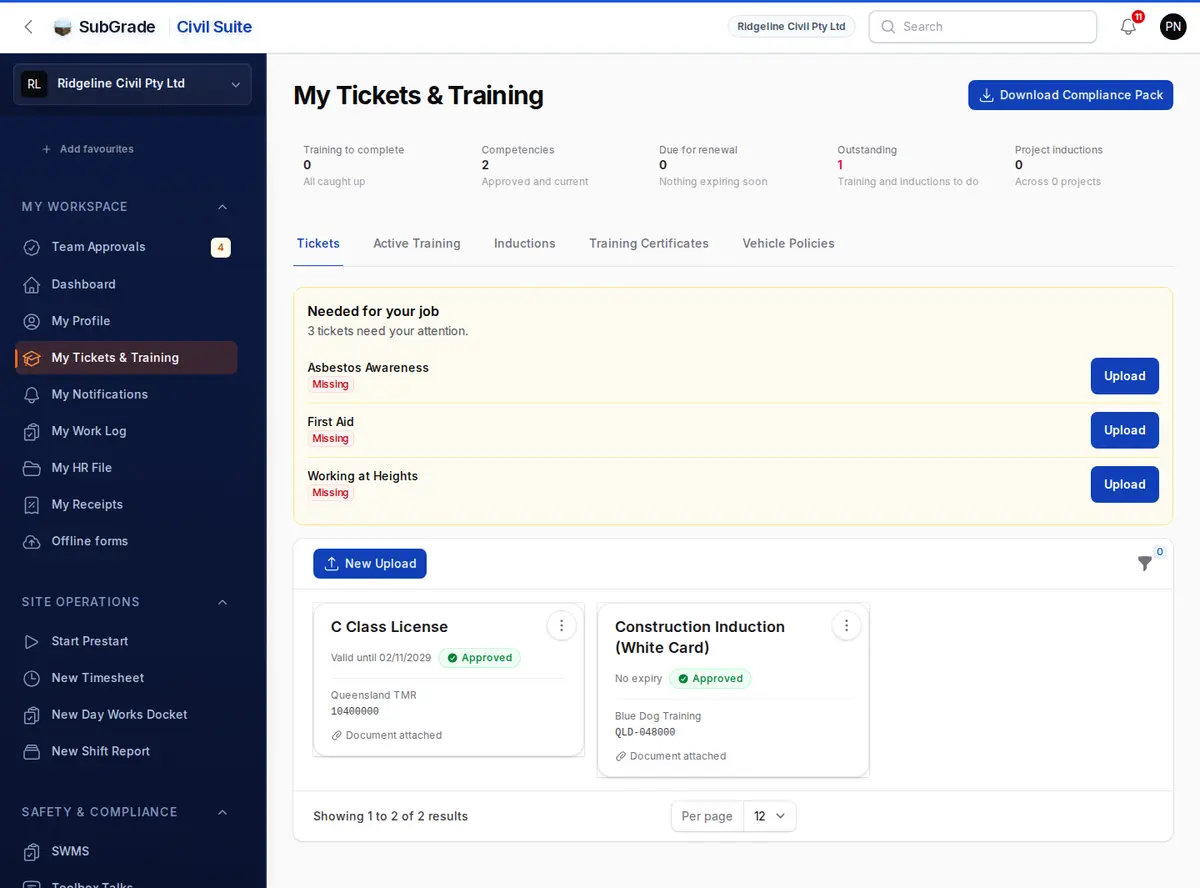
Tickets
Needed for your job lists tickets your role or work requires that are missing, expiring or waiting for approval, with an Upload or Upload new card button for each.
Below that are your uploaded tickets, licences and cards.
- Upload one with New Upload, or Upload on a needed ticket. Add photos of the card or certificate first, one card at a time. Photos of both sides are fine. Where AI document reading is available and turned on, SubGrade reads the details and fills them in for you to check.
- Choose What is this card for?. You can pick more than one if a single card covers several tickets.
- Set the Expiry date. Use usual expiry works it out from the issued date, when the ticket type has a usual length. Card number, Issued date and the Additional details (reference or registration, issuing authority, notes) go with it. What's required can vary by ticket type.
- Select Submit for approval. Every upload goes in as Pending Approval and doesn't count as valid until a manager approves it in Competencies.
- Each card shows when it's valid until and its status. A rejected card shows the manager's reason.
- The menu on a card has Details, plus Edit and Delete until the card is approved. Saving an edit sends the card back for re-approval. If a card is shared across several tickets, editing it updates them all.
- Approved, current cards can't be edited or deleted. See your manager if something needs correcting.
- Filter by Type, Status or Due for renewal.
Active Training and Inductions
- Active Training lists the published training modules and company inductions in your workspace, with your status against the current version. If a module is republished, an old completion shows as Not completed again. Start / Resume, or Review once done, opens the module.
- Inductions lists project inductions for the projects you're allocated to now or in the next two weeks, plus any you've been enrolled in. For an Internal induction, Take Induction opens the module. For an External induction, such as a client's own session, use Mark Complete to record the Induction Date, an optional Expiry Date, an optional photo or PDF of your card, and notes. This is recorded as your own word, and your supervisor confirms it before the job is cleared. View shows what was recorded.
See Training Modules for how modules work, and Training Assignments for how they're assigned.
Training Certificates
Every certificate you've earned, with its number, module, version, issue date and expiry. The expiry is coloured when it's within 30 days or already past. Download PDF gets the certificate. Recertify appears when a certificate expires within 30 days or has already expired, and takes you back into the module to redo it.
Vehicle Policies
Vehicle handover and return records, created when an asset is handed over to you. Each row shows the Asset, Policy, Version, Handover and Return dates and a Status (Pending, Active, Return Requested or Closed). View shows what you signed.
- Sign Handover — enter the odometer and rego, add notes if needed, sign, and add handover photos.
- Sign Return — record the return odometer, rego, notes, signature and return photos. The odometer can't be lower than the handover reading.
Download Compliance Pack
Download Compliance Pack at the top of the page builds a single PDF with a cover summary and copies of your approved, current tickets, current training certificates, and proof of your completed, current project inductions. Personal documents aren't included.
If a copy can't be attached, a warning tells you which, and the cover marks it "Copy unavailable". Ask your workspace administrator to re-upload it before you rely on the pack.
Connected pages
- Competencies — where managers review, approve or reject the cards you upload.
- Training Assignments — how training gets assigned to you.
- Training Modules — how modules work.
- My Vehicle — your weekly odometer check-in.
- My Work Log — your timesheets and prestarts.
- Roles & Permissions — how access is granted.
Tips & common mistakes
- Uploaded a card and it still shows as needed? A new upload is Pending Approval. It isn't counted until a manager approves it.
- Can't edit a card? Approved cards are locked. Ask your manager to make the correction.
- "Completed" training went back to "Not completed"? The module was published as a new version, so it needs to be redone.
- External induction with no proof? Proof is optional, but a photo or PDF helps your supervisor confirm it.
- Return odometer rejected? It must be equal to or greater than the handover reading.