This is the task, start to finish. For what every button and tab on the page does, see Payroll Hub — this page is the walkthrough, that one is the reference.
Where to start — Payroll & Billing → Payroll Hub. Pay runs to finish at the top lists every run still open, oldest first, each with its next step. What's left below it lists what is still open for the selected cycle.
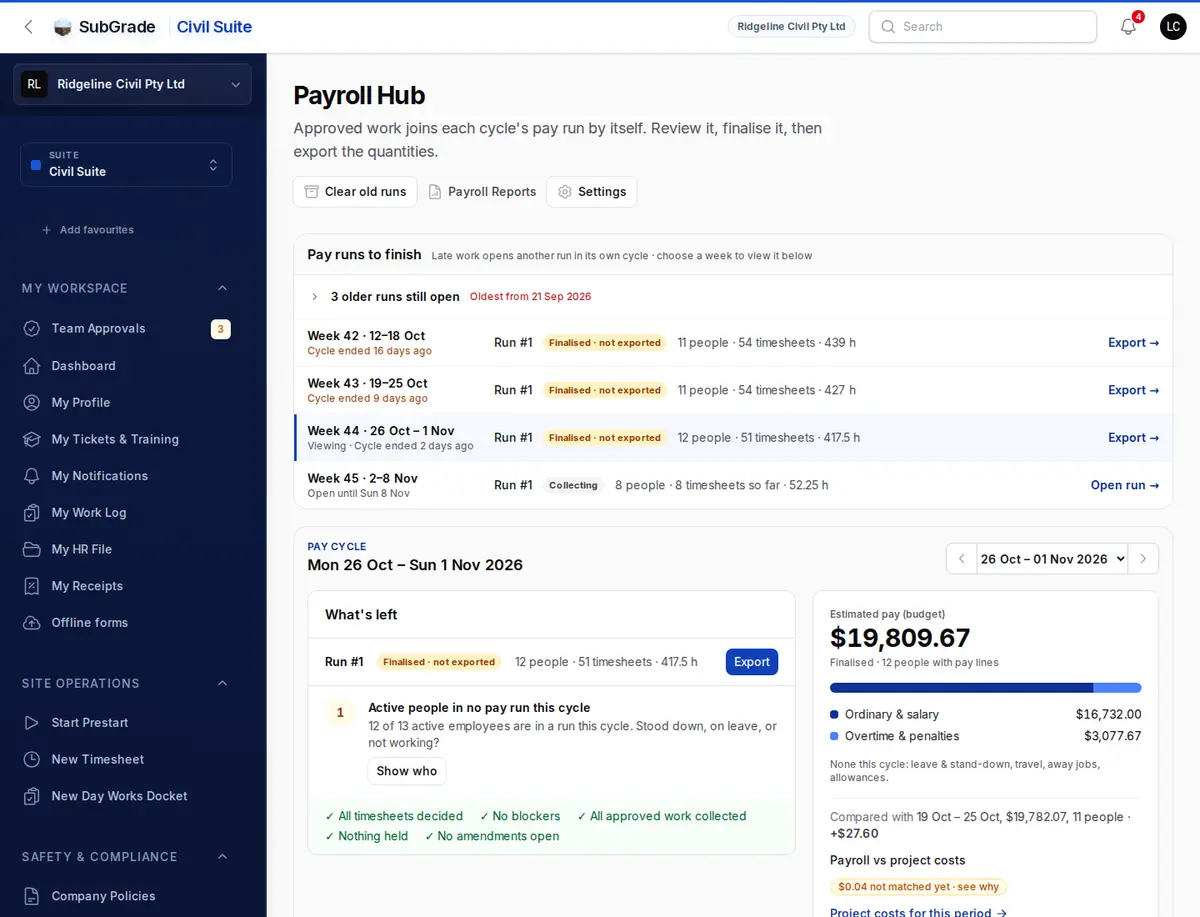
Before you start — the Hub opens on the latest cycle that has ended with work still to finish. Check the pay cycle selector is showing the period you mean to pay. Everything on the page follows it, except Pay runs to finish and the Pay runs tab, which cover every cycle.
The cycle, start to finish
Inside a run, a progress bar shows four steps: Collect, Review, Finalise and Export. The first three items below happen before that.
- Timesheets submitted (crew) — crews enter their own days. Anything not yet decided shows in What's left as Timesheets waiting for a supervisor.
- Approvals complete (supervisors) — supervisors sign off in Team Approvals. Approve them in What's left goes straight there.
- Pay setup resolved (you) — everyone with hours needs a pay level. Missing ones show under Exceptions.
- Collect (automatic) — nobody builds a pay run. The first approval in a cycle opens Run #1, and every approved timesheet after it joins that run by itself, usually within the hour. Leave and work-order days join the same way.
- Review (you) — open the run, read it line by line, then click Mark reviewed. Away trips are confirmed here. If anything is collected or changed after you review, the run asks to be reviewed again before it will finalise.
- Finalise (you) — Finalise pay run freezes the figures. It does not pay anyone. Finalising before the cycle's last day asks you to acknowledge that; anything approved afterwards goes into a later run for the same cycle. If your workspace requires a second approver, a different payroll manager then clicks Approve for Export.
- Export (you) — export the file for your payroll software. That finishes the run. If you key it in by hand instead, download the Worksheet (CSV) from Reports, key the quantities in, then click Mark as keyed in.
What the export hands over. Quantities only. Every line carries its units and the unit — hours, days, nights, km — because your payroll software prices the units from its own employee rates. No rate or dollar amount is in the file. Your payroll software then does the tax, super, Single Touch Payroll, payslips and bank payments.
On Xero. Xero Payroll has no file import for timesheets, so the export is a Xero key-in sheet: each employee's units per pay item, to key into the pay run in Xero. If your workspace is connected to Xero, Send to Xero also appears. It puts the hours on each employee's draft timesheet in Xero, and that finishes the run too. Your payroll officer still reviews and posts the pay run in Xero. Without a connection you won't see that button, and the sheet reads Xero key-in sheet (until Xero is connected).
On MYOB, check the file yourself. The MYOB file's layout has not yet been confirmed against a real MYOB import, so don't assume it will load cleanly. Check the first files against the run before relying on them. If one won't load, use the Worksheet (CSV) and key the quantities in by hand.
Corrections never resend the whole file. If a run is unfinalised and finalised again after it was exported, the export asks whether the original file was already imported. Answer Yes and you get an adjustments file with only the differences — a negative number takes off what the first file put in. Answer No only if the first file never reached your payroll software; you then get the full file. An adjustments file leaves out any line whose units did not change.
Late work, held pay and amendments
Late work gets its own run. A timesheet approved after Run #1 is finalised opens Run #2 for the same cycle, and payroll is notified once. On the Hub, Pay runs to finish lists it under its cycle, oldest first, so a late run for an earlier week is finalised in the same sitting as this week's. Run #2 only pays what Run #1 did not — a day, a salary or a travel allowance is never paid twice.
Hold what must not be paid yet. Holds replace removing timesheets from a run:
- Hold from pay on a timesheet keeps that one day out of every run until someone releases it — a disputed day, a missing docket.
- Hold an Employee on a draft run keeps a person's period pay for the cycle (salary, day rate, travel allowances) out of every run in that cycle — the only way to hold back someone who files no timesheet.
A hold needs a reason, and holds never block finalising — the rest of the crew is paid as normal. Release a hold and the pay joins the cycle's draft run automatically.
Open amendments hold their original back. While a revision of an approved timesheet is in progress, the original stays out of every run. If nobody is going to finish the amendment, Discard revision draft puts the original back into its run. A rejected amendment does the same on its own.
Work from before automatic pay runs started is never paid automatically. It is listed under Before automatic pay runs on the Hub until you have marked each day as processed externally, confirmed unpaid or unresolved.
Finding one person's timesheet
Two places, and they answer different questions.
| Where | Scope | Use it for |
|---|---|---|
| Payroll Hub → Timesheets tab | the selected cycle only | What's holding this run up? |
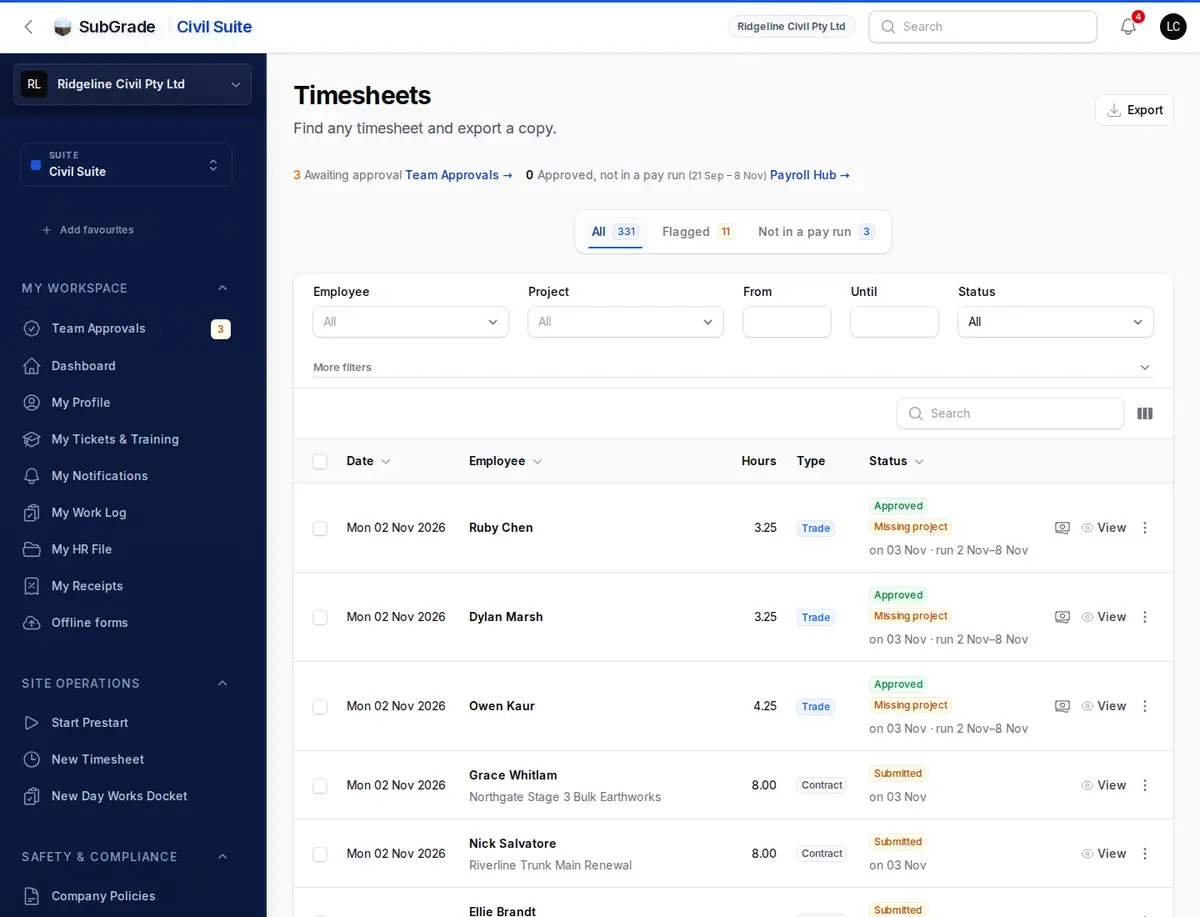
| Payroll & Billing → Timesheets | full history, all filters | Find me that timesheet |
The Timesheets page opens on All, every timesheet up to today, newest first. Each row shows its status; a timesheet in a finalised run reads Locked in a pay run. Flagged and Not in a pay run are one click away, so you don't set the same filters every week. Rows dated later, such as leave booked ahead, are behind the dated later link.
Taking a copy. Export takes what the list is showing: the tab, the filters and the search. Tick rows and use the bulk menu to take just those. Choose a spreadsheet, with one row per entry and a by-person summary that matches the page's totals, or a PDF pack with one page per timesheet, for a head contractor or an audit. A pack holds up to 150 timesheets. Both are hours only, with no rates or dollars, and each export is logged.
Search takes the name you actually use. Typing Milly finds Amelia Lucre — you don't need the full name off their employee file. The Employee filter lists the short names too.
Reading the hours on a timesheet
Click View on any row. The Hour Buckets panel splits the day by what each hour is paid at. Every hour worked lands in exactly one bucket, and the buckets always add up to the total hours.
| Bucket | Typical rate | When it fills |
|---|---|---|
| Ordinary | 1.0× | Standard hours on a weekday |
| OT 1.5× | 1.5× | Past the ordinary cap on a weekday |
| OT 2.0× | 2.0× | Past the time-and-a-half cap |
| Saturday | 1.5× | Saturday work, up to the tier set on the pay level |
| Sunday | 2.0× | Any Sunday work |
| Public Holiday | 2.5× | Any hours on a gazetted holiday |
| Night OT | varies | Overtime on a night shift |
| Onsite | — | Total hours on site. Not a pay rate — a coverage figure |
Rates come from the employee's pay level, and the Saturday, Sunday, Public Holiday and Night OT labels show the multiplier that person is on.
A Saturday reads across two buckets. Seven hours on a Saturday shows as 2.00 under Saturday and 5.00 under OT 2.0× — the first two hours at time-and-a-half, the rest at double time. That is the shift priced correctly, not a split that has gone wrong.
Below the buckets, Travel & Allowances shows how the person got to site, what they claimed, and any note they left. If payroll has changed someone's travel answer, it is badged payroll override with the reason recorded.
When something is blocking the run
Blockers appear in three places: What's left on the Hub, under Must be fixed before finalising or To sort before finalising; the Exceptions tab, filtered to Blockers; and Sort these before review on the run itself, each with its fix.
- No active pay level assignment — someone worked without one, so no rate, template or allowance can resolve. Assign a level, or set them excluded from payroll if they're paid outside this system.
- Away trip to resolve — someone worked an away job with no confirmed trip, so their nights away and travel in and out are not paid. Confirm it with Review away trips on the run.
- Pay item names not confirmed — every pay item name a run uses must be confirmed once, per export format, as matching a pay item in your payroll software (Payroll Settings → Export → Confirm all shown). It is only a warning while the run is a draft, but the download waits for it. Changing a name un-confirms it.
Once a run is finalised, Reports → Check the export lists anything still stopping the export.
Most blockers can be acknowledged at finalise, but not all. Four must be fixed first: an away trip to resolve, distant travel with no pay level, pay for someone no longer in the workspace, and a pay level not in force on the date paid. Each one means somebody would be paid wrongly.
Flagged is not blocked. A flag means worth a look — a Sunday, a day over twelve hours, a missing project or GPS to settle. Review it and carry on.
"Approved, not in a pay run" should be zero. Approved work normally reaches its run within the hour. If a timesheet stays on that tab, check it isn't held or waiting on an amendment, then contact support.
Connected pages
- Payroll Hub — the full reference for the page, its permissions and every action
- Team Approvals — where supervisors sign timesheets off
- Subcontractors — subbie work logs and RCTIs, which are paid separately