Day Works is work outside a project's contracted scope — a client asks for something extra on the day, and because it's not in the original scope of works, you need your own signed record to bill for it. This page is where that evidence gets built, chased down, signed off, sent to the client, and packaged up for billing.
Who can use it — this hub needs "manage day works dockets". It's separate from the personal view on My Work Log (Day Works tab), which shows only your own dockets and coverage gaps. Any member can raise a docket from Site Operations → New Day Works Docket, whatever their role. Members see only the dockets they raised unless they hold "view day works dockets" or the manage permission. See Roles & Permissions for how access is set.
Where to find it — Project Management → Day Works Dockets in the sidebar.
Before you start — dockets have no offline mode. Raising, signing and sending a docket all need a connection.
How to use it
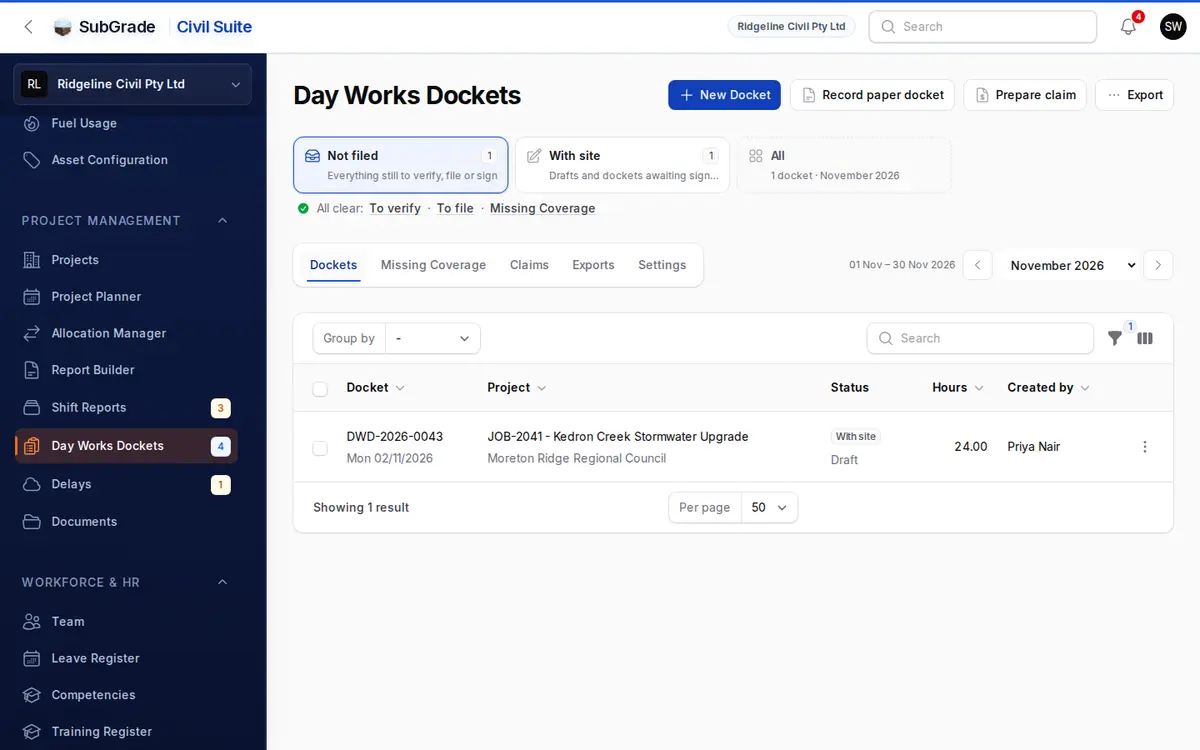
The page is five tabs:
- Dockets — every docket in the period. It opens on the ones not yet filed, so it works as an inbox.
- Missing Coverage — a chase list of project/dates where crew logged Day Works hours that no docket yet covers.
- Claims — every month-end claim prepared from this page, with its totals; download one again or withdraw it.
- Exports — every evidence pack and workbook exported, with a withdraw action.
- Settings — auto-distribute, signature link expiry, float categories and Quick Add presets.
The cards at the top are the page's queues, as on Service Hub: Not filed (everything still to verify, file or sign — where the page opens), To verify (client receipts nobody has checked), To file (billable dockets not yet filed), With site (drafts and dockets awaiting signature), Missing Coverage (project-days with Day Works hours but no accepted docket) and All (every docket in the period, with the total). Click a card and the list shows exactly what it counted; the card you are on stays highlighted. A queue with nothing in it folds into the All clear line underneath, still one click away.
The period selector (month, year to date or all time) sits at the end of the tab row and drives the Dockets and Missing Coverage tabs.
Dockets tab
The table lists the period's dockets, with facts that belong together stacked in one cell: the docket number over its work date, the project over its client, the status — what's still owed (To verify, To file, With site or Filed) over the docket's own state — the hours, and who created it over who signed it. Location, shift type, contract type and signed/created times are in the column picker. Search finds a docket by number, job, client or signer. The docket number stays in view if the row scrolls sideways.
- New Docket, Record paper docket, Prepare claim and Export are at the top of the page.
- Click a row to open the docket — status, works summary, work items, equipment, signature, and attachments.
- Each row shows one button for its next step: Verify on an unchecked client receipt, File on a billable docket.
- Everything else is under ⋮: View, Download PDF, Edit (Draft only), Revoke verification, Return to queue (un-file) and Delete (Draft only).
- Group by Project files each job's dockets together, the way an office files them in folders; one-off work assigned to a job sits with that job. You can also group by Work date.
- Filters: Status, Project, Shift Type, Source, Verification, Filing, Billable evidence only (signed app dockets and verified receipts), and Deleted records.
- Bulk actions: Mark filed, Download selected PDFs (a ZIP, up to 50 dockets at a time), Export CSV, Delete (Draft only), Restore and Permanently delete drafts.
Creating a docket
New Docket opens a form with:
- Docket Details — project, location (if the project has locations), date of works and shift (Day, Night, Weekend or Public Holiday). Turn on Not on a job for a repair, private or one-off job. The docket number is generated for you.
- Work Items — the lines you're claiming. Add work item offers Plant, Vehicle, Labour, Equipment or Custom (anything not in the fleet, including hired-in gear). Timed lines work out hours from start, finish and break. A docket needs at least one plant, vehicle, labour or custom line. Machines and people booked on the job that day are offered as one-tap lines, and Quick Add from preset list adds your common items.
- Works Performed Summary — a required written description of what was done.
- Additional Notes — optional.
- Photos & Attachments — up to 20 images, 10 MB each, 100 MB total.
- Additional details (collapsed) — How it's charged, and whether it was a float shift. If you've set float categories, a float shift asks for one.
- Docket Summary — shows the claim back to you, and what's still missing, before you save.
A docket starts as Draft and stays fully editable until it's signed.
Sending for signature and signing
From a docket's View page:
- Capture Signature — for signing on the spot: pass the device to the client rep, who signs on a signature pad. Pick who's signing (an existing client contact, a new one you can save, or a one-off), tick that they've reviewed the work, and capture the signature.
- Request Email Signature — for signing remotely: emails a secure link to a client contact (existing, new, or one-off) with an optional personal message. This moves the docket to Pending Signature and the link expires after your configured number of days (Settings, default 7). The client opens the link and signs on a guest page with no login. It shows what they're signing and captures their name, email, company and signature.
- Revoke Signature Request — cancels all outstanding signing links immediately and returns the docket to Draft so it can be edited or resent.
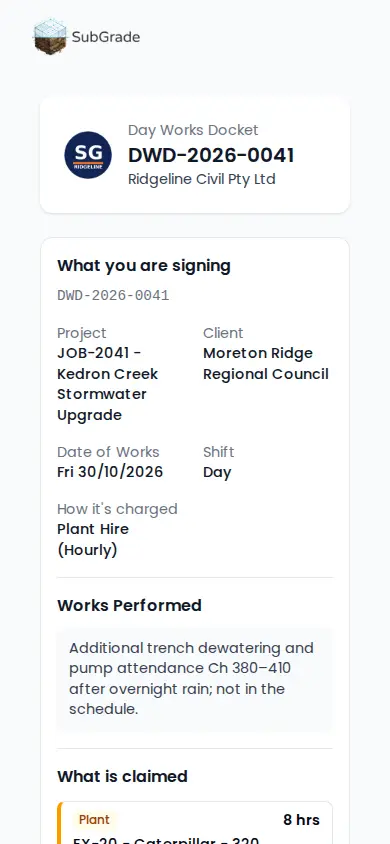
Once signed (either way), the docket becomes Signed and locks — no further edits. A PDF is generated automatically.
Distributed vs. auto-distribute
If you have Auto-distribute signed dockets turned on (Settings tab), the docket status jumps straight from Signed to Distributed and a PDF copy is emailed to the signer the moment they sign — no extra step. If it's off, you manually run Distribute Docket from the signed docket's page: add recipients (signer, CC, project manager, engineer), and each gets emailed a copy. Sending to a recipient who's already received the current PDF is skipped automatically so the same file is never double-sent. Once any recipient is distributed, the docket is Distributed and the button becomes Send to Additional Recipients for anyone who still needs a copy.
A docket's page also shows delivery history once there is some: Signature Requests (who was asked to sign, delivery/expiry/signed status, with a Resend for still-live requests) and Distribution History (who received the PDF, delivery status, with a Resend on failed sends).
External dockets and verification
Not every job's Day Works evidence comes from this app — sometimes it's a client-system receipt or a paper docket handed over on site. These land as External source dockets and need a manager to verify them before they count as billing evidence:
- Mark verified — choose how many hours the external docket covers: the uploader's own Day Works hours that day, a hand-picked set of workers, all remaining uncovered hours for that project/date, or a custom figure. This turns it into billing evidence immediately.
- Revoke verification — drops it back out of coverage if it was verified in error. The audit log records who did it, and the reason if one is given.
- Record paper docket (top of the page) — for a manager to log a physical docket that was handed in but never uploaded: pick the project, date, shift and contract type, enter coverage hours, and attach a photo/scan. It's created already verified, so coverage clears the moment it's recorded.
Missing Coverage tab
A chase list of project/dates in the selected period where crew logged Day Works hours on their timesheets that aren't yet backed by a signed app docket or a verified external one. If the period is clear but gaps sit in the last 60 days, the empty page tells you and offers to show them. Each row shows the date, project, worker count, Day Works hours logged, hours covered and uncovered, a coverage badge (such as Missing or Partial), and what the worker said about evidence. Create docket opens the full docket form for that project/date (deliberately not pre-filled with a single worker's hours, so you build the full crew picture rather than rubber-stamping one person's log). Every day a gap sits open is a day closer to it becoming unrecoverable from the client — that's the reasoning behind the badge on the sidebar and the Missing Coverage card at the top of the page.
Settings tab
- Auto-distribute signed dockets — whether a signed docket is emailed to the signer automatically or waits for manual distribution.
- Signature request expiry (days) — how long an emailed signing link stays valid (1–30 days).
- Float categories — the categories you charge a float by. Leave empty and the docket won't ask.
- Quick Add presets — the common items (description, category, unit, default quantity) offered on the docket form, so crews aren't retyping the same gear every shift.
Preparing a month-end claim
Prepare claim (top of the page) builds the claim you send a client for one job and one period, in four steps:
- Claim — pick the job and its claim period (from the contract), or set the dates yourself, and give the claim its reference (e.g. Claim 7).
- Dockets — every signed docket and verified client receipt on that job in the period, ticked. Dockets already filed start unticked, since they may have been billed another way. Anything that can't be claimed yet is listed with the reason: still with site, a receipt nobody has verified, or already in another claim. Days with Day Works hours but no accepted docket are flagged so you can chase them first.
- Pricing — each line is priced from the job's own Day Works rates, then the company Rate Book's client rates. Lines nothing prices are listed so you can type a rate; tick Save to this job's Day Works rates to have next month's claim price it automatically. A line left blank goes out as Not priced, never $0, and is not in the totals. GPS and UTS lines add the Rate Book's extra-overs.
- Review — the totals (ex GST, GST, inc GST) and a tick to file the dockets under the claim reference.
Issue claim & download saves the claim with those rates and downloads one ZIP: a spreadsheet for the client (Summary, Docket schedule, Priced lines) and one PDF of every signed docket, client receipts included, in docket order. Anything that couldn't go in the PDF is named in a Not included.txt.
The claim is kept on the Claims tab. Downloading it again gives the same numbers, even if rates change later. Withdraw a claim that was never sent or came back: its dockets go back to the To file queue and can be claimed again, and the claim stays on the list.
Exporting for billing
The Export menu holds the two billing exports, both scoped to a period (your current selection, or a custom date range for non-calendar billing cycles), with optional filters for project, status and source. The form previews how many dockets the export will contain:
- Export evidence pack — a ZIP of every docket PDF in the period, plus original external-docket screenshots/photos, grouped by project and date, with a manifest CSV. This is the file you hand to a client or keep as billing proof. By default it includes only evidence-ready records: signed, distributed and verified external dockets. Include unsigned app dockets and Include unverified client receipts pull in the rest for a review pack, not for billing.
- Export workbook — an Excel workbook summarising dockets, line items, and coverage totals, for management review and billing preparation.
Turn on Exclude dockets already in an evidence pack to pull only work that hasn't been in a previous evidence pack, so nothing gets billed twice. Workbooks and withdrawn packs don't count. Every export is logged on the Exports tab (who ran it, docket count, file hash), which is the audit trail behind a billing dispute. Withdraw export is for a download that failed or never reached the client: its dockets become available again and the export stays on the list.
Exports are capped at 150 dockets per run. Past that, the export is refused, so narrow the period or filters.
Retention: signed and distributed dockets are never deleted
Signed and Distributed dockets are billing evidence and can never be permanently deleted, by anyone, regardless of permission.
- Delete works on Draft dockets only. It moves the docket to the Deleted records filter, where it can be restored.
- A signed or distributed docket can't be deleted from the Dockets tab at all.
- Permanently delete drafts removes the selected dockets and their attachments for good, and can't be undone. If a signed or distributed docket is in the selection, it's skipped and named in the message. Other dockets in the selection are not skipped, so tick only the drafts you mean to remove.
- A project can't be deleted while it has dockets against it.
- The audit trail for a docket is kept even if the docket itself is gone.
Connected pages
- My Work Log — the worker-facing Day Works tab: your own dockets, coverage gaps, and the button to start a new one.
- New Timesheet — Day Works hours logged on a timesheet are the "demand" side of the coverage calculation on this page.
- Projects — every docket belongs to a project and (optionally) one of its locations.
- Subcontractors — a separate billing evidence chain for subcontractor work, with its own retention rules.
- Budget Ledger — where the cost side of plant, labour and equipment ultimately lands.
Tips & common mistakes
- Can't edit a docket? Only Draft dockets can be edited. A docket out for signature must go back to Draft first, and a signed docket stays locked so the record can't change after the client has agreed to it.
- Signature link expired? Use Revoke Signature Request to return the docket to Draft, then Request Email Signature again to mint a fresh link.
- External docket not showing up as coverage? It has to be verified first — an uploaded screenshot or photo alone doesn't count until a manager runs Mark verified.
- Missing Coverage gap won't clear? It needs a signed app docket or a verified external docket for that exact project/date — a draft alone isn't enough, and neither is an unverified external upload.
- Trying to delete a docket and it won't go? If it's Signed or Distributed, that's the retention rule working as intended. Use the status and filing filters to keep it out of your way.
- Export refused? A pack holds at most 150 dockets. Narrow the period, or export one project at a time.
- No signal on site? Dockets don't work offline. Note the details and raise the docket when you're back in coverage, or record the paper docket afterwards.
- Exported the same period twice? Turn on Exclude dockets already in an evidence pack so a re-run only picks up newly-signed work, not everything again.