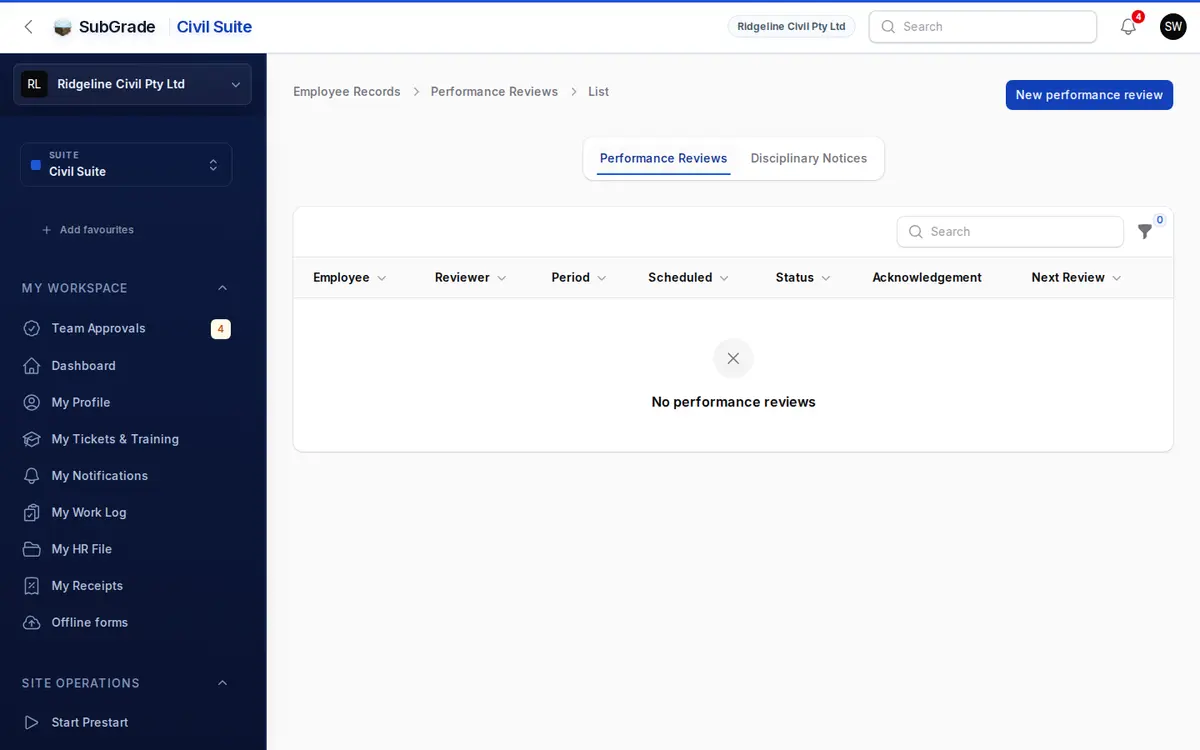
Where managers and HR run the formal side of the employment relationship: write up Performance Reviews, and issue Disciplinary Notices when something needs a paper trail.
Who can use it — You need "view performance reviews" or "manage performance reviews" to see the reviews list, and "view disciplinary notices" or "manage disciplinary notices" for the notices list. The page opens if you hold any one of the four. The view permissions are read-only. You need the matching manage permission to create, edit or delete. See Roles & Permissions for how these are granted.
Where to find it — Workforce & HR → Employee Records in the sidebar. It opens on Performance Reviews, and Disciplinary Notices is the second tab. Both also appear on the HR tab of a person's profile, opened from People.
How to use it
Both record types work the same way:
- Click New performance review or New disciplinary notice. The form opens as a slide-over.
- Fill in the details and save.
- Use View on a row to see the full record, or Edit to change it.
- From the record, Download PDF saves a copy to send or file, and Delete removes it.
You only ever see records for people in this workspace.
Performance Reviews
The form has these sections:
- Employee (required) and Reviewer (optional) — searchable lists of your active people.
- Review Period Start and Review Period End (required), and an optional Scheduled Date.
- Require Employee Acknowledgement — turn this on if the employee must confirm they've read the completed review.
- Characteristics — rate all 17 (Works to Full Potential, Quality of Work, Work Consistency, Communication, Independent Work, Takes Initiative, Group Work, Productivity, Creativity, Honesty, Integrity, Coworker Relations, Client Relations, Technical Skills, Dependability, Punctuality, Attendance) as Unsatisfactory, Satisfactory, Good, Excellent or N/A. Each one needs an answer, so choose N/A for anything that doesn't apply.
- Goals Achieved This Period, Goals for Next Period and Comments & Suggestions.
- Attachment — an optional PDF, Word document or image, up to 20 MB.
A new review starts as Draft. When it's finished, open it and click Mark complete. That sets the completed date and the Next Review Due date, using your workspace's performance review frequency (annual by default, set in your suite settings). Status can't be changed from the form.
If acknowledgement is required, the employee sees the completed review on their My HR File and acknowledges it there. The status moves to Acknowledged. You can't acknowledge a review on their behalf.
The list has an Acknowledgement column so you can see who still owes one. Filter by Status, Awaiting acknowledgement or Due for review.
SubGrade also sends the employee reminders: once when a review is due within 14 days, weekly while it's overdue, and when their acknowledgement is outstanding. See My Notifications for how alerts reach people.
Disciplinary Notices
The form has these fields:
- Employee and Issued By (required). Issued By defaults to you.
- Type — Verbal Warning, Written Warning, Final Warning or Termination.
- Status — Draft, Issued or Closed. New notices start as Draft.
- Incident Date (required) — can't be in the future.
- Issued Date (required) — defaults to today and can't be before the incident.
- Description (required) and an optional Outcome.
- Attachment — an optional PDF, Word document or image, up to 20 MB.
A draft never reaches the employee. Once a notice is Issued, they see it on their My HR File and acknowledge it there. Acknowledging only confirms they've read and understood it, not that they agree. Acknowledged is only ever set by the employee. Move the notice to Closed yourself when the matter is resolved.
Issuing a Termination notice ends the person's access. When a Termination is saved as Issued, a tick box asks you to confirm that their account will be deactivated, and it happens as soon as you save. This doesn't record the rest of a leaver's details, so use Finish up in People if you want their last day and reason on file.
Drafts show as a badge on the sidebar item for people who can manage notices. Drafts older than 14 days also trigger a nudge on Mondays.
Filter the list by Type, Status or Awaiting acknowledgement.
Connected pages
- My HR File — where employees view and acknowledge their own reviews and notices.
- People — each person's profile has an HR tab with their reviews, notices and management notes.
- Incidents — for safety incident reports. A disciplinary notice is the HR record, not the incident report.
- Roles & Permissions — how view and manage access is granted.
Tips & common mistakes
- View-only access? You can read records, but the create, edit and delete controls need the manage permission for that record type.
- No Next Review Due date? It's set when you click Mark complete, not on the form.
- Can't change a review's status? Completed and Acknowledged are set by Mark complete and by the employee, never from the form.
- Acknowledgement is the employee's. Even with manage access, you can't acknowledge for someone else.
- Check the Type before issuing. A Termination takes effect on the person's account when you save it as Issued.
- Unsatisfactory ratings don't display properly yet. The rating is saved and shows on the form, but the record view shows a dash and the PDF prints N/A. Check the form before relying on the PDF.
- Deleting a record removes its attachment too, so check before you delete.