Asset Configuration is how each class of plant is serviced, prestarted and costed. A category (such as "14t Excavators" or "Utes") carries the settings its machines inherit. Get these right and new assets, prestarts and service due dates mostly look after themselves.
Who can use it — "View asset categories" opens the page, and "manage asset categories" creates, edits or deletes. Costs need "view budget tracking" or "manage asset cost profiles" to see. Editing costs also needs "manage asset cost profiles" or "manage asset categories". Hire rates have their own Rate Book access. See Roles & Permissions.
Where to find it — Fleet & Assets → Asset Configuration in the sidebar.
How to use it
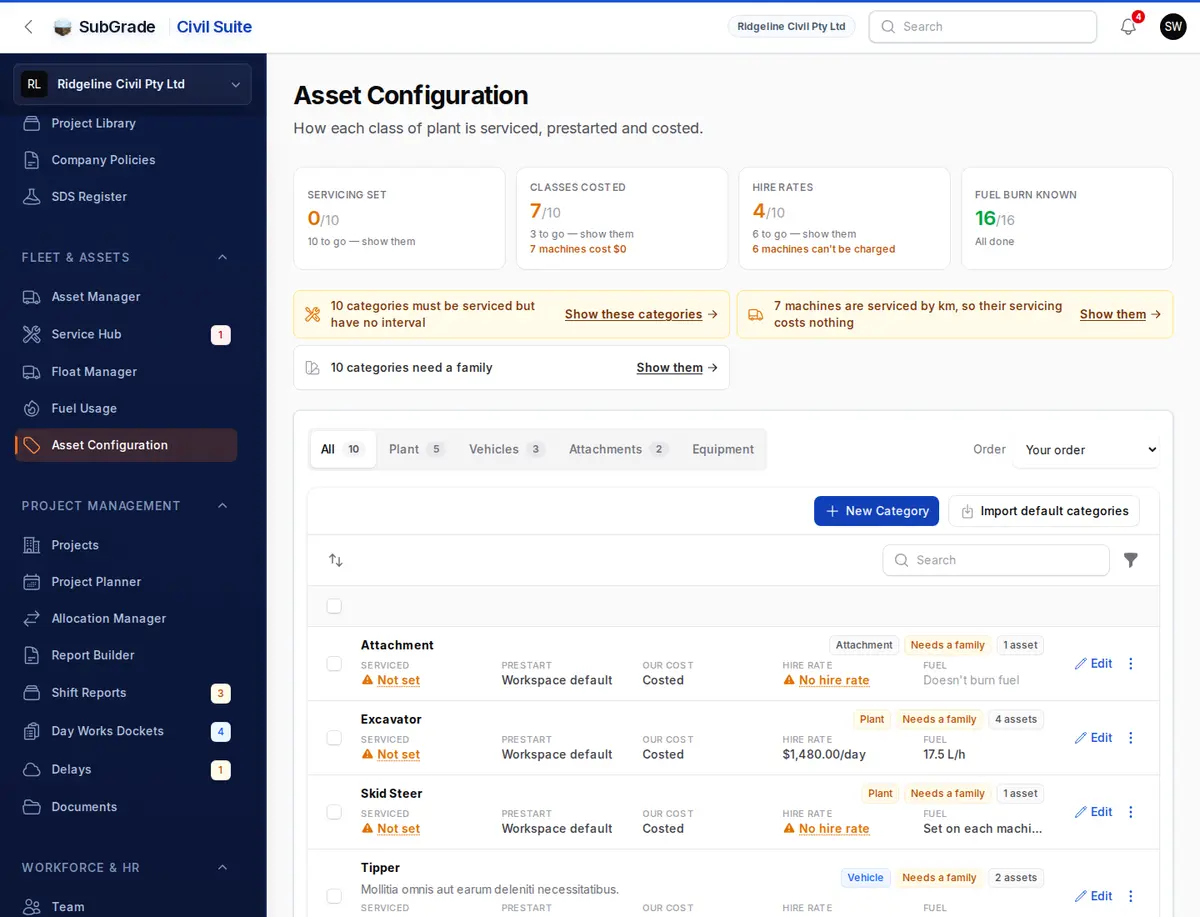
Four tiles show how much of your setup is done: Servicing set, Classes costed, Hire rates and Fuel burn known. Tap one with gaps to filter the list to what is left.
Under them, a strip lists what needs attention, such as categories that must be serviced but have no interval, or machines serviced by km whose servicing costs nothing. Show them filters the list.
The list has tabs for All, Plant, Vehicles, Attachments and Equipment, and an Order choice: Your order, Most missing first or Biggest first. Your order is what asset pickers use, and rows can be dragged to change it. Each row shows how it is Serviced, its Prestart, Our cost, Hire rate and Fuel, with badges for type and asset count. Filters cover the same gaps, such as Not costed, No hire rate and No prestart checklist.
Adding or editing a category
Use New Category, or Edit on a row. Both open in a side panel.
- What it is — Type (Plant, Vehicle, Attachment or Equipment) and Name. For a new category, Start from searches the library or copies one of yours, and fills in the rest for you to check.
- Servicing — How is it serviced? On hours or km, or on a date only. Then Measured in (engine hours or kilometres), Service every and Or every months, whichever comes first. Copy servicing from fills these from a standard regime or another category. Record greasing on prestarts adds greasing to prestarts and greasing tracking. Warning times set when a machine counts as due soon or overdue.
- Prestart — Checklist operators get. Leave it blank to use the workspace default.
- Tickets to operate — when someone without a current ticket is booked on one of these in the Allocation Manager, the dispatcher sees a warning. It never blocks the booking.
- Costs — the same fields as Asset Costs. "Don't include" is a decision; leaving a figure blank is a gap.
- Description and status — Active keeps a category in new-asset pickers.
Saving a category does not change existing machines. Use Push to Assets for that.
Row and bulk actions
On a row, the ⋮ menu offers:
- Set costs and Add hire rate — the same forms as Asset Costs and the Rate Book.
- Cost ownership from records and Fill from library, where they apply.
- Push to Assets — applies the category's settings to machines already in it. Each machine is flagged as matching, empty, customised or to be updated. Customised machines are unticked by default so a deliberate setting is not overwritten.
- Delete.
Select several rows for Set costs, Add hire rate, Nothing to cost, Fill suggested fuel burns, Set family, Set service settings and Set prestart checklist. Set service settings overwrites the selected categories but does not touch their machines.
Import default categories adds a starter set for each type. Existing categories are left alone.
Checklist templates — what makes prestarts possible
A machine can only be prestarted once a checklist reaches it. Templates are built in Checklist Templates, and you attach one under Prestart on the category.
SubGrade looks for a template on the machine, then its category, then the workspace default. If none exists, the operator sees "No checklist template is assigned to this asset" and cannot submit. See Start a Prestart.
Connected pages
- Asset Manager — individual machines, which take their settings from a category.
- Service Hub — due and overdue service, driven by these settings.
- Start a Prestart — needs a checklist reachable from the machine or its category.
- Checklist Templates — where templates are built.
- Asset Costs — the cost book across every category.
Tips & common mistakes
- New machine won't prestart? Filter by No prestart checklist, and check you have a workspace default.
- Changed a category and the machines didn't follow? Use Push to Assets.
- Push to Assets skipped a machine. It was marked as customised, so tick it yourself if you do want the category's settings on it.
- Serviced by km and showing no servicing cost? Timesheets and prestarts record hours, so a per-km servicing cost is never charged. Cost these classes per hour, or from each machine's service history.
- Looking for the defects list? It's on Service Hub.