Your own history in one place. Every timesheet, prestart, Day Works docket and shift report you submit lands here, split into tabs so you can check status, fix a rejection, or pick up where you left off.
Who can use it — Anyone with access to prestarts, timesheets, their own allocations or shift notes. Tabs you don't have access to simply don't show. See Roles & Permissions for how access is set.
Where to find it — My Workspace → My Work Log in the sidebar. You're also brought here after submitting from Start a Prestart, New Timesheet or New Shift Report. The sidebar badge counts Day Works coverage gaps from the last fortnight and shift reports you still have to finalise.
How to use it
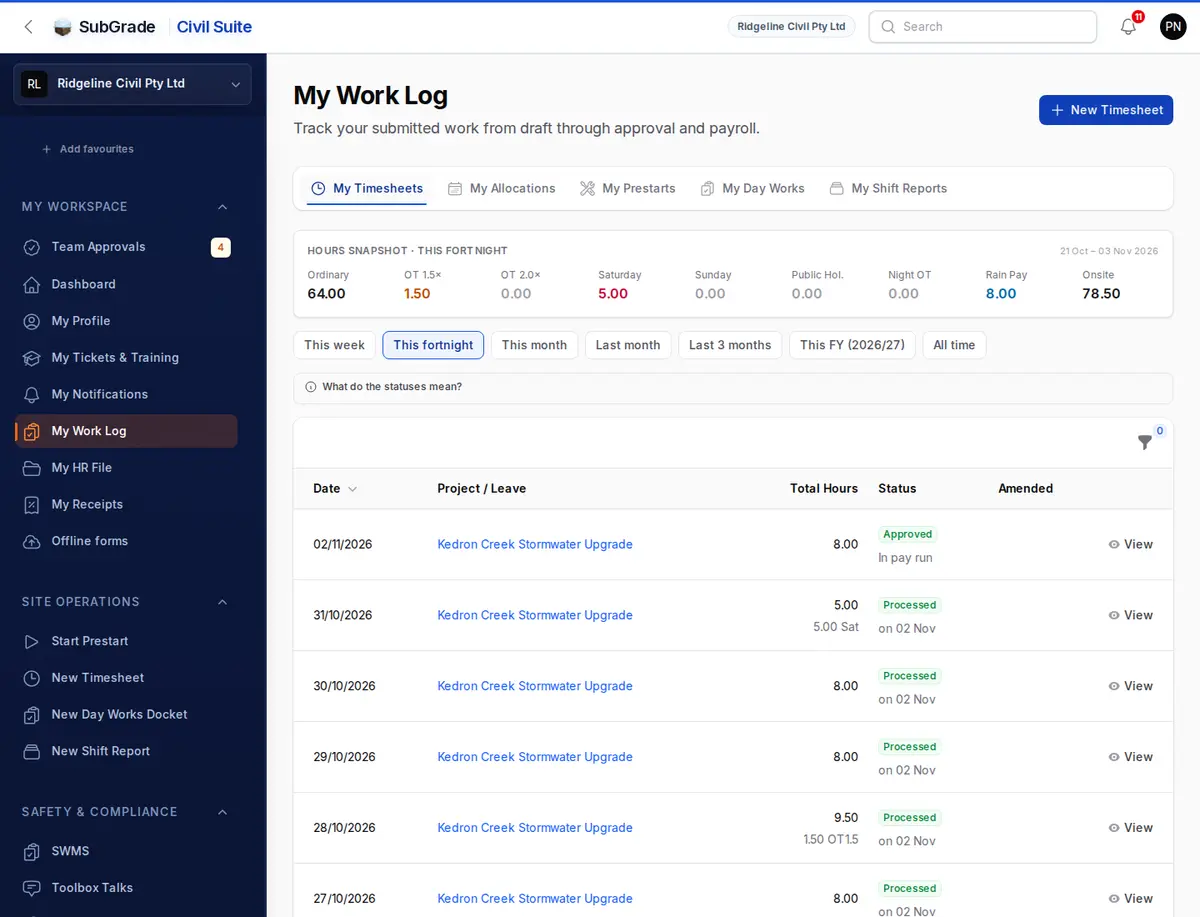
The page opens on the first tab you have access to: usually My Timesheets. Each tab can carry a badge showing what you still owe, and the button at the top of the page changes to suit the tab you're on.
Two banners can appear above the tabs:
- Shift reports awaiting finalisation — reports older than 24 hours that you're responsible for and haven't finalised.
- Day Works coverage gaps — Day Works hours you've logged that don't have a signed or verified docket yet. Selecting it opens the My Day Works tab.
Both hide while you're on the My Day Works tab.
My Timesheets
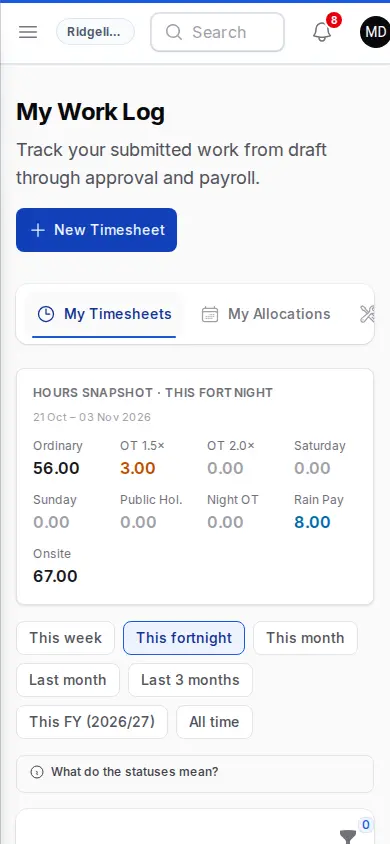
Your timesheets for the period you pick, with an Hours snapshot above the table breaking down Ordinary, OT 1.5×, OT 2.0×, Saturday, Sunday, Public Hol., Night OT, Rain Pay and Onsite hours.
- Period chips — This week, This fortnight (the default), This month, Last month, Last 3 months, This FY and All time. The chip drives both the table and the snapshot.
- Filters — Status, Overtime only, Leave, and Amended by the office.
- Each row shows the date, project or leave, total hours and status. What do the statuses mean? above the table explains each one. An Amended tag means the office changed the timesheet. Open View to see what changed.
- View opens the timesheet (not available on drafts). Edit and Delete are available on Draft and Rejected timesheets. Submit for Approval sends one on. Withdraw pulls back a Submitted timesheet before it's actioned.
New Timesheet at the top of the page starts a new one.
My Allocations
Where you're booked, shown as a Calendar or a List. Export this month (PDF) gives you a printable roster.
- Calendar shows your month. Select a day to open its shift details.
- List filters by Current, Upcoming, Awaiting approval or Past, and shows the Booking, Dates, Job, Shift & hours, Role, Status and Seen.
- View shift opens the shift details. Log timesheet starts a timesheet for that day, or Open timesheet if one already exists.
- Mark as seen tells your supervisor you've read the shift. You don't have to press it for every booking.
My Prestarts
A read-only list of the prestarts you've submitted: asset, location, plant name, reading and when it was completed. View opens the full record, and PDF downloads it. New Prestart at the top of the page starts one, or see Start a Prestart.
My Day Works
Your Day Works dockets: work outside a project's contracted scope that needs its own signed record for billing.
- Day Works coverage gaps — Day Works hours on your timesheets that aren't backed by a signed or verified docket yet, showing the uncovered hours. If the client issued their own docket, use Upload docket photo. A supervisor verifies it before it counts towards billing. Otherwise use Create docket to raise one.
- Awaiting client signature — a count of dockets you raised that the client still has to sign.
- Today's projects — a card for each project you're on today, showing whether a docket exists yet.
- My day works dockets — your dockets, for the Last 30 days, Last 90 days (the default), This FY or All time.
New Docket at the top of the page starts one. If you manage dockets, Manage all dockets opens the full list. See Day Works Dockets.
My Shift Reports
Visible if you can log shift notes. This is where crew shift logs live.
- Quick Add Note adds a note or photo to a shift, for today or the last 7 days. Pick the Job, Day, Shift and Supervisor, or leave it as "Not sure" and management will assign it. Then fill in What happened, and add Photos, a Type of note and a Time if useful. The note goes on the report for that job, day and shift, and opens the report if nobody has yet. If that report is already finalised, your note is added as a timestamped addendum and the report stays sealed.
- New shift report opens today's report if there is one, or the full New Shift Report form.
- Today — a card for each shift you're on today, showing its status, with Add a note and a button to start or open the report.
- My reports and My notes — switch between crew reports you own or contributed to, and the single notes you've logged, including any that went on another crew's report.
If you can manage shift reports across the workspace, Manage all reports also appears.
My Vehicle
Only appears if a vehicle is allocated to you. See My Vehicle.
Connected pages
- Start a Prestart — creates the records in the My Prestarts tab.
- New Timesheet — creates the records in the My Timesheets tab.
- New Shift Report — the full form behind the New shift report button.
- Day Works Dockets — the management side of the dockets in the My Day Works tab.
- Team Approvals — where supervisors approve the timesheets you submit.
- My Vehicle — logging your odometer.
Tips & common mistakes
- Can't see a tab you expect? Tabs depend on your access, and My Vehicle depends on an allocation. Ask a manager to check. See Roles & Permissions.
- Rejected timesheet stuck? Filter by Status to find it, Edit to fix it, then Submit for Approval again, or Delete it if you no longer need it.
- Day Works coverage gap won't clear? It stays listed until a docket for that project and date is signed or verified. A draft docket isn't enough.
- Note ended up unassigned? That's normal if you chose "Not sure". Management picks those up, but naming the supervisor puts it straight on their report.
- Shift report banner won't go away? It clears once you finalise the report.