Manage your workspace's own subscription to Subgrade: your plan, seats, renewal date and payment history. This is not a page for billing your clients or subcontractors; that lives under Subcontractors and project costing.
Who can use it — Anyone with the "view subscriptions" permission. Changing the plan or add-ons needs "manage billing". See Roles & Permissions for how access is set.
Where to find it — Account → Billing in the sidebar.
How to use it
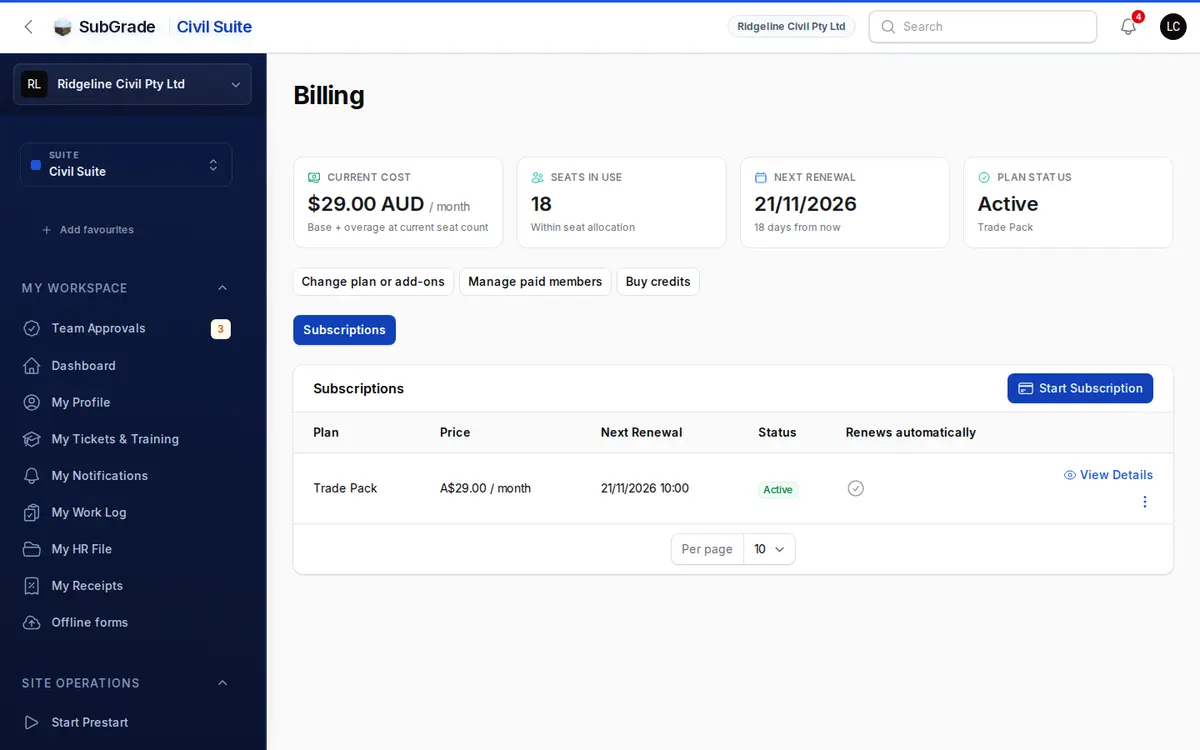
The page opens on an overview strip, three shortcut buttons and a set of tabs.
- Overview strip — four tiles: Current cost (base plan plus any overage and add-ons, for your plan's billing interval), Seats in use (paid members against your plan's included seats, plus any overage seats and their rate), Next renewal (date and days remaining), and Plan status (or, on a trial, the trial's end date). If your workspace has no subscription yet, this strip doesn't show.
- This cycle so far — a cost breakdown that itemises the plan's base cost, overage seats, add-ons and the total. It appears only when there is something beyond the base cost to show.
- Change plan or add-ons, Manage paid members and Buy credits — shortcuts to your subscription, the list of who holds a paid seat, and Usage & Credits.
- Upgrade suggestion banner — if a bigger plan would cost less than what you're paying in overage, a banner suggests it, with See upgrade. If you dismiss it, it stays dismissed for you.
- Tabs — Subscriptions is always there. Orders and Payments appear once your workspace has any.
Subscriptions
Lists your workspace's subscriptions to Subgrade: plan name, price, next renewal date, status, and whether it renews automatically.
- View Details opens the full subscription: plan, price, renewal date, status and any active discount.
- Start Subscription picks a plan, when one is available to you.
- Change Plan (when available) opens the plan picker to move to a different plan.
- Add Trade, Remove Trade and similar buttons (when available) sit on the subscription's detail page. Before you confirm, each shows what changes, what is charged now, and when it takes effect. If they are not offered for your workspace, you won't see them; contact support to change your plan.
- Cancel Subscription (when available) starts cancellation. You'll be asked if there's anything that would change your mind, with a link to contact support, before you can confirm.
- Discard Cancellation appears once a subscription is scheduled to cancel at the end of the current cycle, letting you undo that and keep renewing.
- Update Payment Details (from the subscription's Manage Subscription menu) takes you to your payment provider's secure page to change your card or payment method. Have a code? in the same menu applies a discount code, when available.
- Verify Phone Number and Complete Subscription can appear on a subscription that is waiting on phone verification or an incomplete checkout. Follow the prompt to finish setup.
Not every action is available on every subscription. Change, cancel and payment actions apply to active subscriptions billed through a payment provider.
Orders
One-off purchases against your workspace, as opposed to the recurring subscription: total amount, status and last updated date. View opens an order's line items, discount and tax breakdown.
Payments
Your transaction history: amount, status, what it was for (subscription or order) and date. Where an invoice is available for a successful payment, See Invoice generates it. If your address details aren't complete, you'll be prompted to finish them first, or you can proceed without them.
Connected pages
- What is Subgrade — the plans and product this page bills for.
- Workspace Settings — general workspace configuration.
- SMS Usage — how SMS credits tie into your plan and quota.
Tips & common mistakes
- No overview strip? Your workspace doesn't have a subscription on file yet.
- Seat overage — where your plan allows overage, going over its included seats adds a per-seat charge, prorated for the current period, as a separate line on your next invoice. A reduction takes effect at renewal, not mid-period.
- Missing Orders or Payments tab? They appear once there is something in them.
- Can't find Change Plan or Cancel? Those actions only show for active subscriptions managed through a payment provider. A trial, a paused or a locally managed subscription won't show them the same way.